

Associating a Cluster with an Enterprise Project
In practice, it is common for multiple departments (such as R&D and quality management) within a large organization to share a single Huawei Cloud account. Enterprise projects let you manage OpenSearch clusters by department or project, enabling clearer resource visibility and more fine-grained access control across regions within the shared account.
How the Feature Works
Enterprise projects are a cloud resource management feature provided by Huawei Cloud that allow you to group cloud resources by project, department, or business. For more information, see Enterprise Project Management Service.
A newly created cluster belongs to the default project by default. To move a cluster from the default project to a custom project, you simply perform a resource migration. There is no need to re-create the cluster.
Here, resource migration is the process of moving a CSS cluster from one enterprise project (for example, default) to another (for example, TEST).
- Impact: Resource migration only changes the management metadata. It does not restart the cluster or interrupt services.
- Permission control change: After the migration, only users who have been granted permissions on the new project (or all resources) can manage the cluster.
Prerequisites
- Enterprise Project Management Service (EPS) has been enabled for your account. For details, see Enabling Enterprise Project.
- You have created the destination enterprise project (for example, TEST). For details, see Creating an Enterprise Project.
Migrating a Cluster Between Enterprise Projects
- Log in to the CSS management console.
- In the navigation pane on the left, choose Clusters > OpenSearch.
- In the cluster list, click the name of the target cluster. The cluster information page is displayed.
- On the Overview tab, find Enterprise Project in the Basic Information area, and click the enterprise project name under it. The Project Management console is displayed. Figure 1 Going to the Project Management console

- On the Resources tab on the Project Management console, select the region of the current cluster, and select CloudSearchService as Service. Then click Search. The CSS clusters are displayed in the resource list below. Figure 2 Filtering CSS clusters
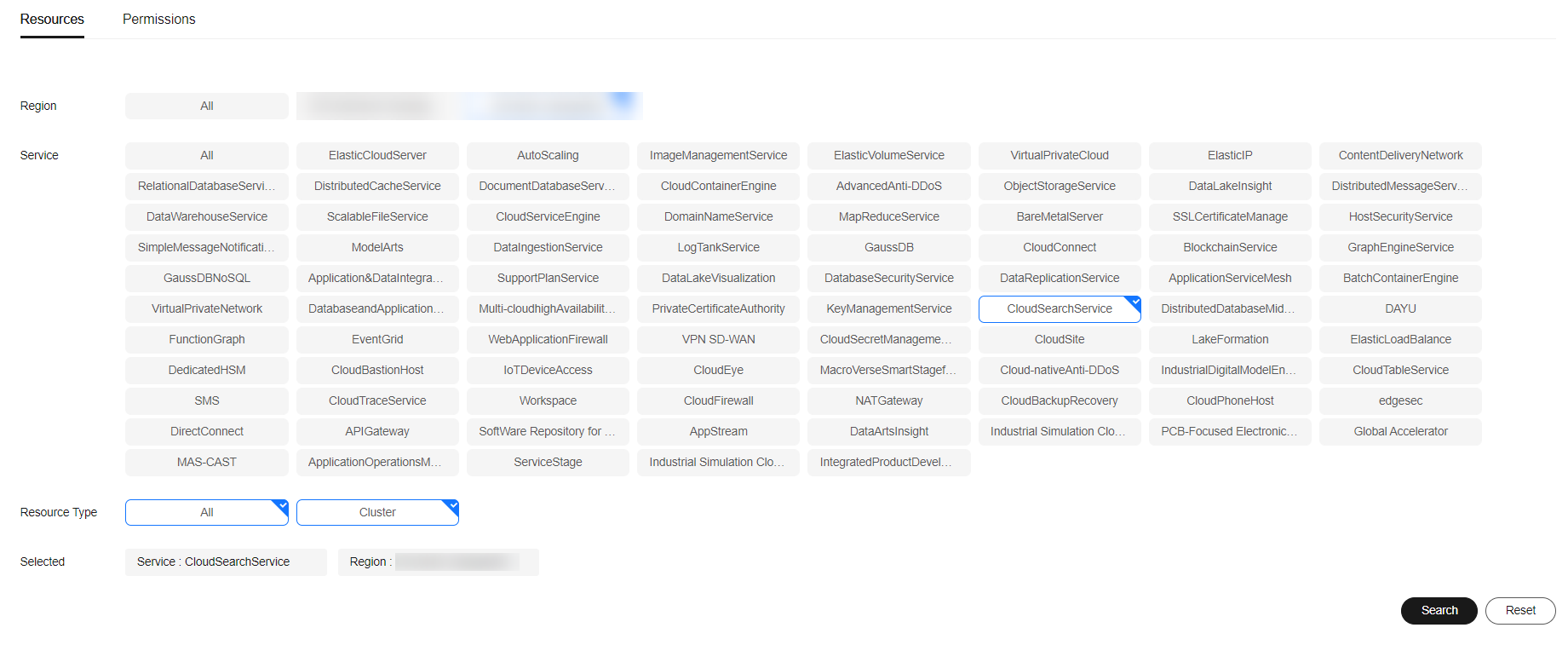
- Select the cluster whose enterprise project you want to modify and click Remove.
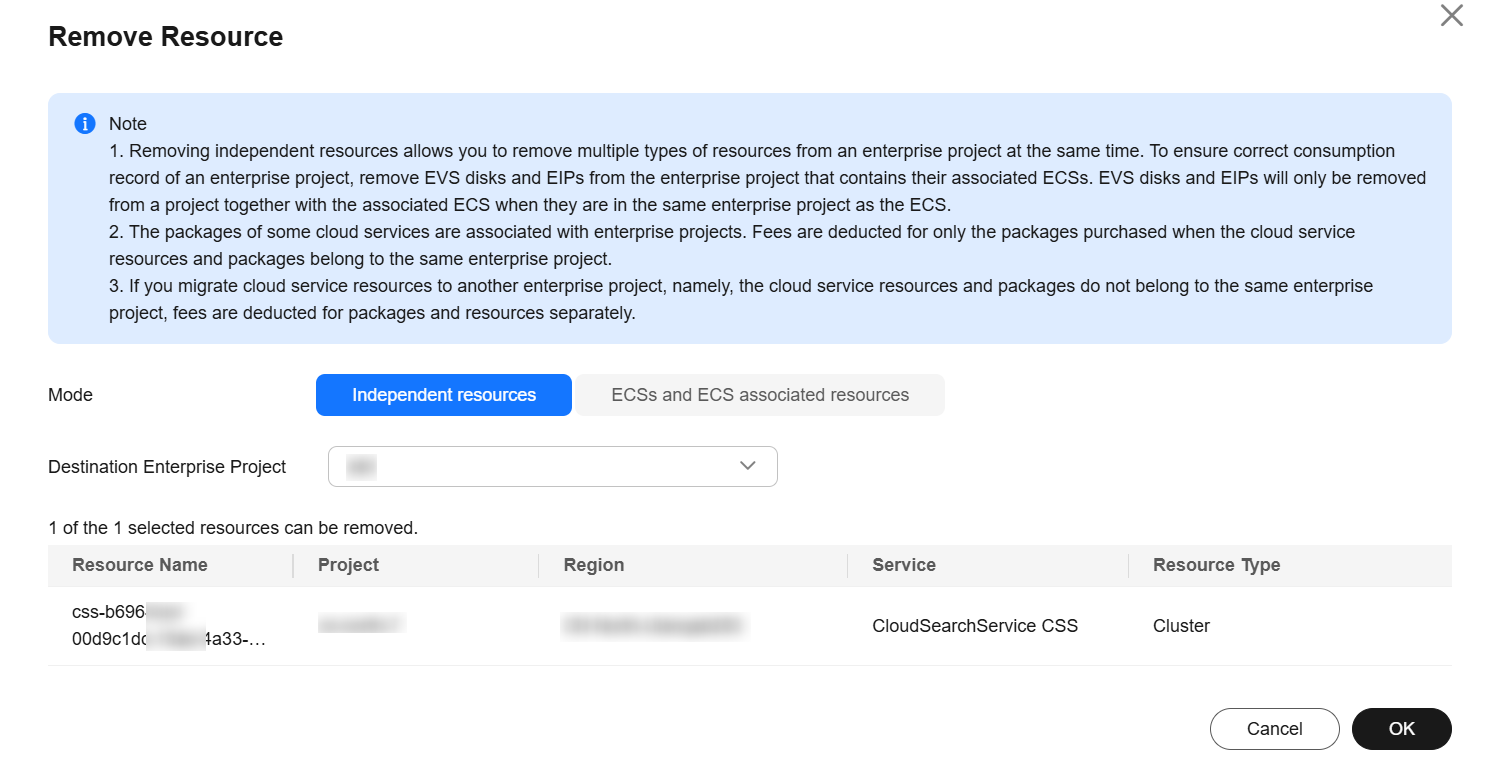
- In the Remove Resource dialog box, specify Mode and select Destination Enterprise Project. Confirm the change information, and click OK. Figure 3 Remove Resource
- After the change is complete, return to the OpenSearch cluster list on the CSS console and check the cluster's new enterprise project to confirm the operation result. Figure 4 Enterprise Project

FAQ
- Question 1: Does changing the enterprise project change a cluster's IP address?
Changing a cluster's enterprise project does not change its IP address. It merely changes the logical ownership of cloud resources. There is no change at the network layer.
- Question 2: What should I do if, after a cluster's enterprise project is changed, the cluster is hidden from users under the original project?
After the change, the cluster management permissions are transferred to the new project. Check whether your account has the read permission on the new (destination) enterprise project.
What is your overall rating for this page?
Thank you very much for your feedback. We will continue working to improve the documentation.See the reply and handling status in My Cloud VOC.
For any further questions, feel free to contact us through the chatbot.
Chatbot


