

Updated on 2026-09-20 GMT+08:00
Cost Tag Management
Scenarios
You can configure cost tags to classify and track pod costs.
Tag Naming Rules
- Each tag consists of a key-value pair. Example:
pod-tag.cci.io/<tag-key>:tag-value
- Each pod can have a maximum of 20 tags.
- A tag key must be unique for each pod, and each tag key can have only one tag value.
- A tag consists of a tag key and a tag value. Table 1 lists the tag key and value requirements.
Table 1 Tag naming rules Item
Rules
Example
Tag key
- A tag key can contain a maximum of 63 characters.
- Only letters (a-z, A-Z), digits (0-9), hyphens (-), underscores (_), and periods (.) are allowed.
- A tag key must start and end with a letter or digit. It cannot start or end with a hyphen (-), underscore (_), or period (.).
Organization
Tag value
- Only letters (a-z, A-Z), digits (0-9), hyphens (-), underscores (_), and periods (.) are allowed.
- A tag value must start and end with a letter or digit.
- A tag value can be an empty string.
Apache
Procedure
- Log in to the TMS console.
- Create a predefined tag. In the navigation pane, choose Predefined Tags. Click Create Tag, enter the tag key and value, and click OK.
- In the top navigation bar, choose Billing > Cost Center.
- In the navigation pane, choose Cost Organization > Cost Tags. On the Cost Tags page, select the tag created in 2, click Activate, and then click OK.
- Wait until the tag status changes to Activated.
- Add the following fields to the Podtemplate.metadata.labels file when creating a pod in CCI. The following is an example YAML file:
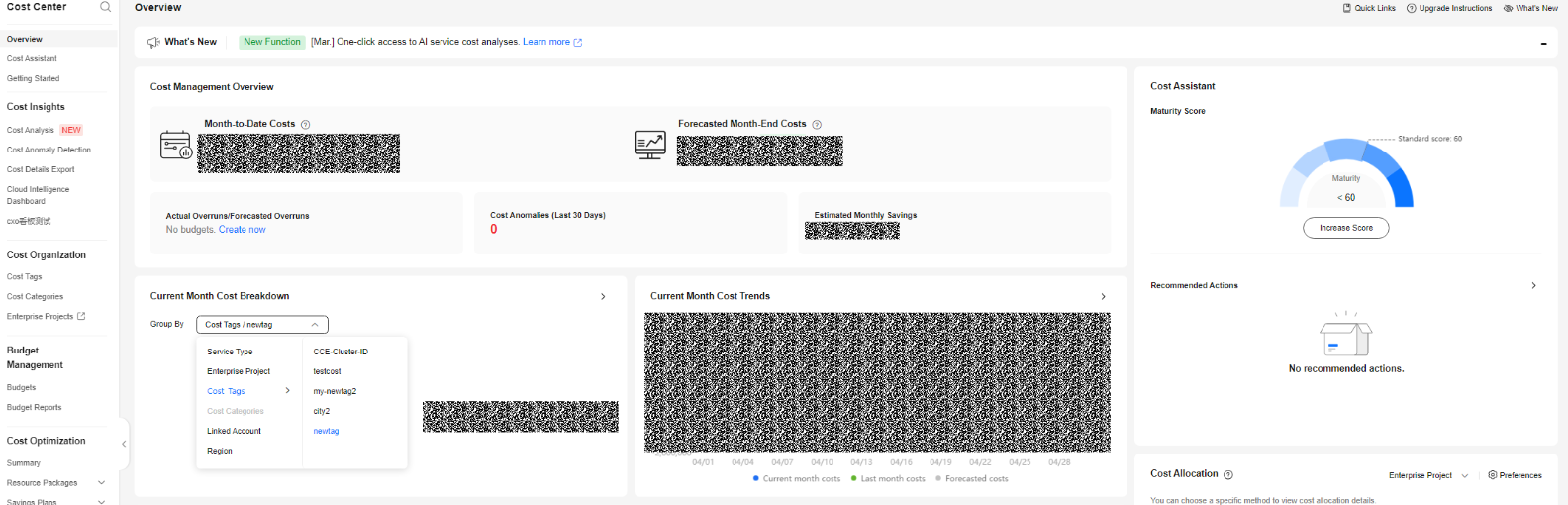
kind: Deployment apiVersion: cci/v2 metadata: name: tag-example namespace: bursting-d0089910820250427-2031 spec: replicas: 3 selector: matchLabels: app: tag-example template: metadata: labels: app: tag-example pod-tag.cci.io/newtag: tag-example-1 # pod-tag.cci.io/<custom-tag-key>: custom-tag-value spec: containers: - name: deploy-example image: swr.region-id.domain.com/org-name/image-name:tag env: - name: ENV1 value: 'false' - name: ENV2 value: xxx resources: limits: cpu: 500m memory: 1Gi requests: cpu: 500m memory: 1Gi dnsPolicy: Default imagePullSecrets: - name: imagepull-secret strategy: type: RollingUpdate rollingUpdate: maxUnavailable: 0 maxSurge: 100% - In the top navigation bar, choose Billing > Cost Center. In the navigation pane, choose Overview. In the Current Month Cost Breakdown area, select Cost Tags and then the created tag to view the cost details. Figure 1 Current Month Cost Breakdown
What is your overall rating for this page?
0
1
2
3
4
5
6
7
8
9
10
Very dissatisfiedVery satisfied
Thank you very much for your feedback. We will continue working to improve the documentation.See the reply and handling status in My Cloud VOC.
The system is busy. Please try again later.
For any further questions, feel free to contact us through the chatbot.
Chatbot


