

Using a Local Client to Log In to a Database Resource for Operations
You can use a local client tool on macOS to log in to MySQL and PostgreSQL database resources for operations and operation audits. This section uses Navicat as an example to describe how to log in to MySQL and PostgreSQL databases through macOS for operations.
Notes and Constraints
- The database operation audit is available only in professional editions.
- This function is available only in V3.3.66.0 and later versions.
- You can log in to MySQL and PostgreSQL databases on macOS only by using the method described in this section.
- To prevent network faults or network configuration problems from affecting the login to the system, enable the ports bound to the security group of the bastion host system by referring to Table 1. For more details, see How Do I Configure a Security Group for a CBH Instance?
- Only some database clients are supported. For details, see Table 2.
Table 2 Supported database types, versions, and clients Database Type
Version
Supported Client
MySQL
MySQL 5.5, 5.6, 5.7, and 8.0
- Navicat 17 or later
- DBeaver 25 or later
PostgreSQL
11, 12, 13, 14, and 15

If you need to use a client tool for PostgreSQL databases, add the sslmode attribute to the connection attributes in and save the value as disable.
Prerequisites
- You have the management permissions for the Host Operations module.
- You have obtained the access permissions for the resources.
- You have installed the client tool.
- The network connection between the managed host and the system is normal, and the account username and password for logging in to the managed host are correct.
Procedure
- Log in to your bastion host system.
- Choose Operation > Host Operations to go to the Host Operations page.
- Set Operation Type to Master/slave Account.
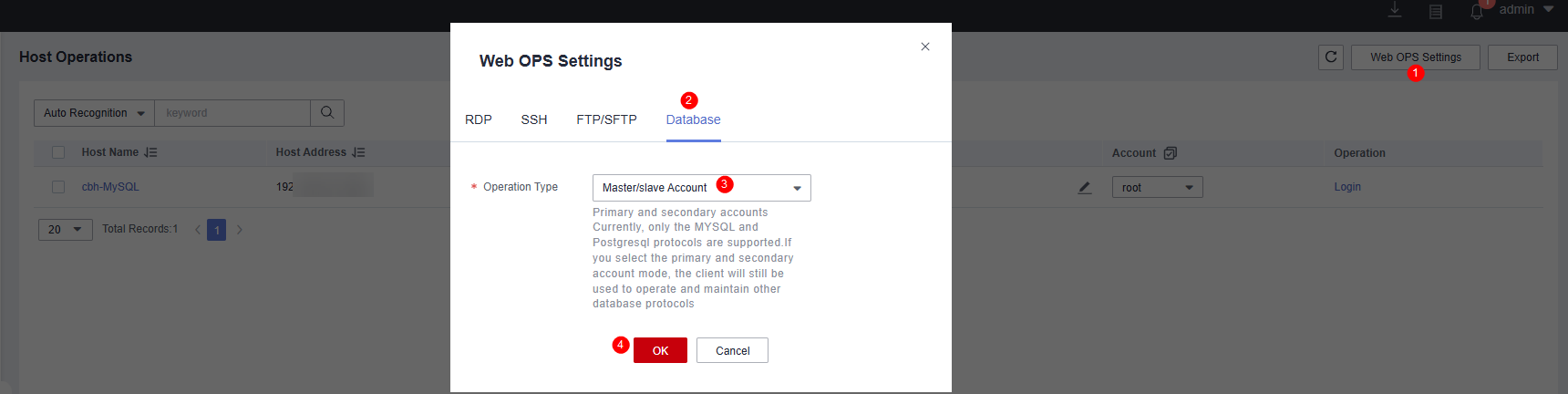
- In the upper right corner on the Host Operations page, click Web OPS Settings.
- Click the Database tab.
- Set Operation Type to Master/slave Account and click OK.
Figure 1 Configuring operation type
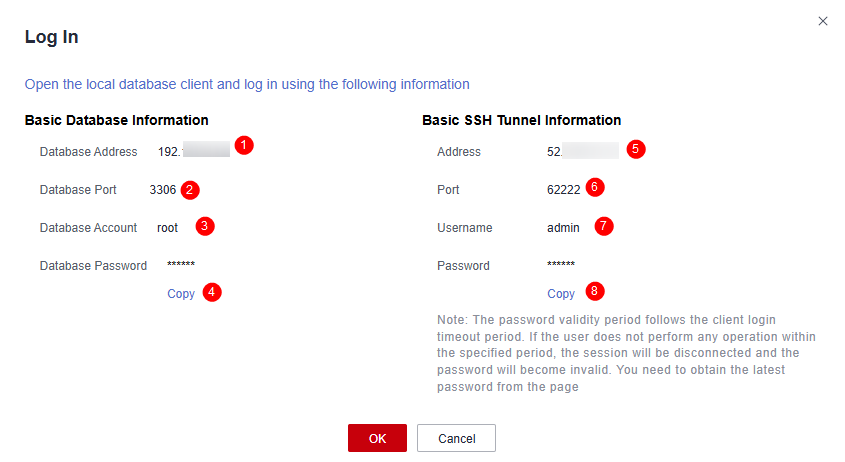
- Select a host with protocol type set to MySQL or PostgreSQL and click Login in the Operation column. Complete 5 based on the information in the displayed window.Figure 2 Login information
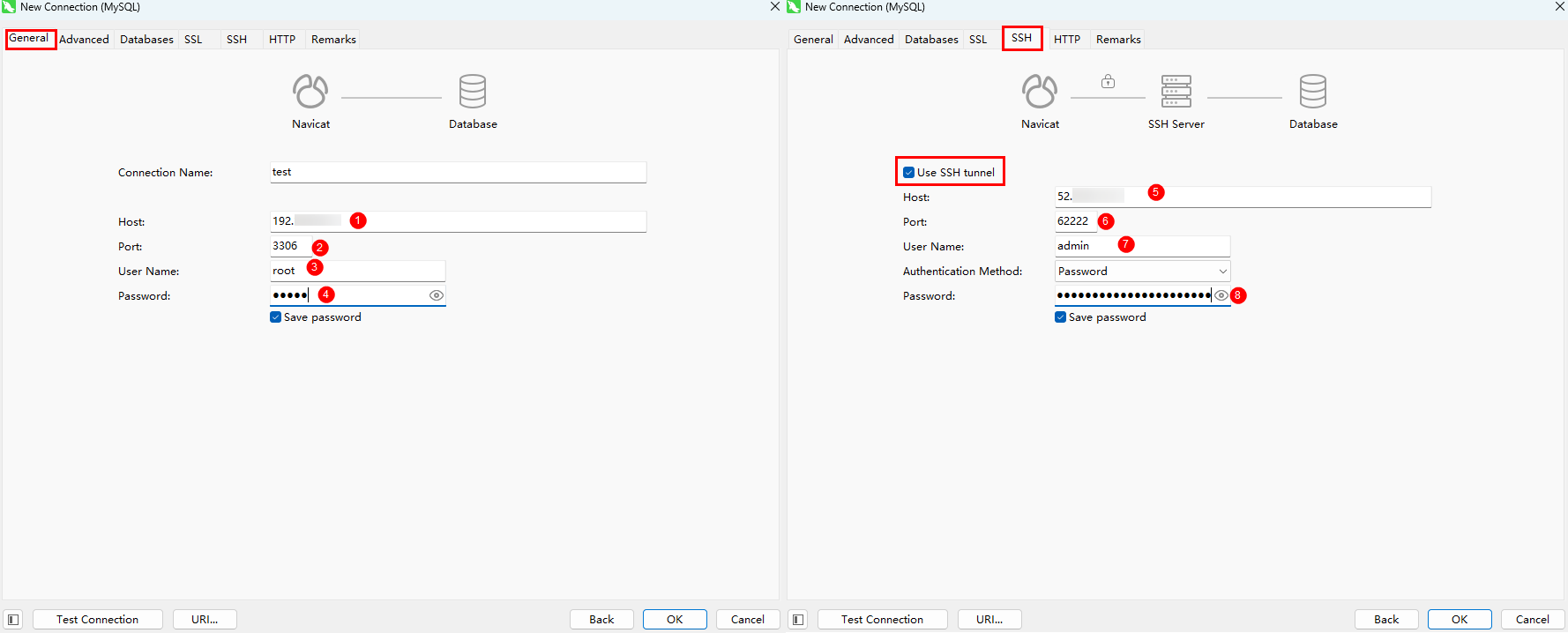
- Open the local client tool, configure login information, and log in to the database.
Take the Navicat client as an example. Create a connection, configure the connection on the General and SSH tabs based on the login information in 4, and then connect to the database.
Figure 3 Configuration example
What is your overall rating for this page?
Thank you very much for your feedback. We will continue working to improve the documentation.See the reply and handling status in My Cloud VOC.
For any further questions, feel free to contact us through the chatbot.
Chatbot


