

Trusting a Private Root CA
Before installing a private certificate, you need to add the root CA to the trusted root certificate authorities of the client or server.
Application Scenarios
If you have exported a private root CA certificate and are ready to deploy the private certificate service on the intranet, but have not added the root CA to the trusted root store of the operating system or client, the client will encounter an untrusted certificate error and a certificate chain verification failure when accessing the intranet HTTPS service. The browser displays a message indicating that the connection is insecure. The application may be directly disconnected, and service communication cannot be established.
Private certificates are not trusted by the system by default. Therefore, you need to import the exported root CA certificate to the trust store of the Windows, Linux, or macOS operating system. After the trust configuration is complete, the client can verify the certificate issued by the private CA, and the HTTPS verification on the intranet takes effect.
Prerequisites
You have created and exported a private root CA. For details, see Exporting a Private CA Certificate.
Constraints
Trusting the root CA is the prerequisite for secure communication using private certificates. In both one-way and two-way authentication, at least one party must trust the root CA.
- One-way authentication
To win more trust from the client for your server, you need to add the root CA that issues the server certificate to the client-end trusted CA store.
- Two-way authentication
To enable two-way authentication between a server and a client, each side needs to add the root CA of the other side to their own trusted root CA store.
Trusting a Root CA in Different Operating Systems
Use either of the following methods to add the root CA to trusted root certification authorities based on the operating system:

Root CA PCA TEST ROOT G0 is used as an example.
- Windows
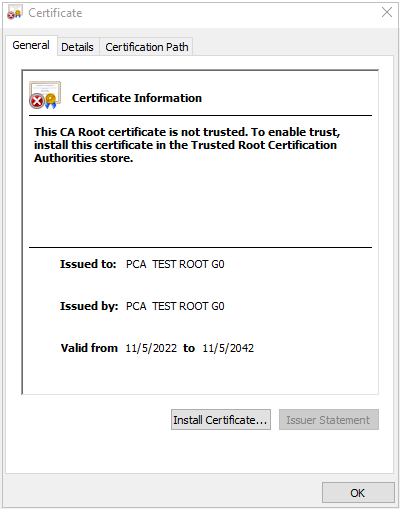
- Change the file name extension of the root CA certificate from .pem to .crt and double-click the certificate file. The root CA certificate information shows that the root certificate is untrusted. Figure 1 Untrusted root CA
- Click Install Certificate, select a certificate storage location based on the certificate usage, and click Next.
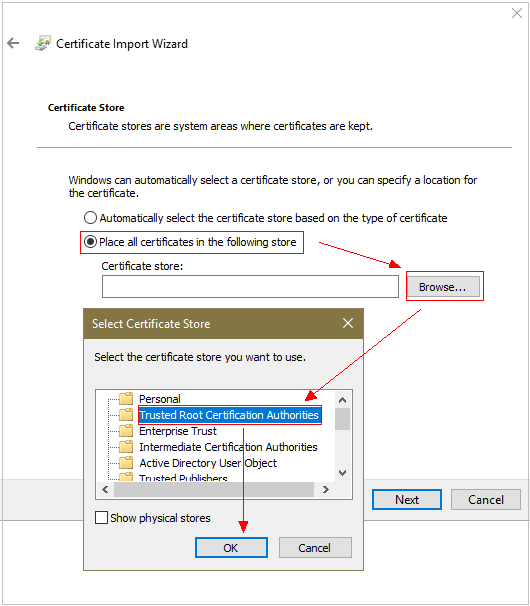
- As shown in Figure 2, select Place all certificates in the following store and click Browse. Then, select Trusted Root Certification Authorities and click OK.
- Click Next, and then click OK. A dialog box is displayed, indicating that Windows will trust all certificates issued by the private root CA. Click Yes.
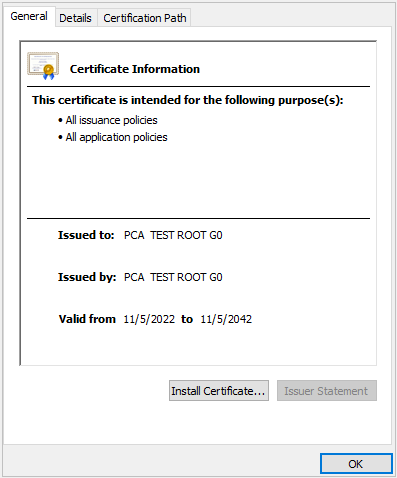
- Double-click the root CA certificate file. If the Certificate Information area shows that the system trusts the root CA certificate, the root CA is added to the trusted root CAs. Figure 3 Trusted root CA
- Change the file name extension of the root CA certificate from .pem to .crt and double-click the certificate file. The root CA certificate information shows that the root certificate is untrusted.
- Linux
The path for and method of storing root CA certificates varies depending on Linux OS versions. The following procedure uses CentOS 6 as an example:
- Copy the root CA certificate file to the /home/ directory.
- (Optional) If ca-certificates is not installed on the server, run the following command to install ca-certificates:
yum install ca-certificates
- Copy the root CA certificate to the /etc/pki/ca-trust/source/anchors/ directory:
cp /home/root.crt /etc/pki/ca-trust/source/anchors/
- Add the root CA certificate to the trusted root certificate file:
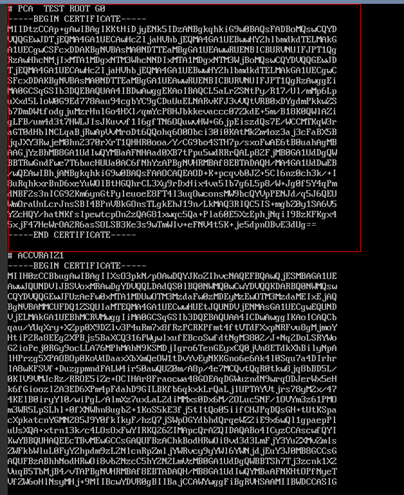
- Check whether the information about the newly added root CA certificate is included in the command output:
view /etc/pki/tls/certs/ca-bundle.crt
Figure 4 Root CA certificate added to the trusted CA list

If the OpenSSL version is too old, the configuration may not take effect. You can run the yum update openssl -y command to update the OpenSSL version.
- macOS
- Open the macOS startup console and select Keychain Access.
- Enter the password to log in to Keychain Access.
- Drag and drop the target root CA certificate into Keychain Access. The root CA certificate now is untrusted by the system.
- Right-click the root CA certificate to load its details.
- Click Trust, select Always Trust for When using this certificate, and click Close.
- Enter the password to make the configuration of the trusted root CA certificate take effect.
- View the root CA certificate in the Keychain Access window. If the certificate is trusted by the system, the root CA is successfully added to the trusted root CA store.
References
Exporting a Private CA Certificate: describes preparations for exporting a root CA certificate.
Downloading a Private Certificate: describes how to download a private certificate after the root CA is trusted.
What is your overall rating for this page?
Thank you very much for your feedback. We will continue working to improve the documentation.See the reply and handling status in My Cloud VOC.
For any further questions, feel free to contact us through the chatbot.
Chatbot


