

Manually Scaling Down Storage Space
As data volumes decrease, you can scale down storage space to avoid low database node utilization and resource waste.
Usage Notes
- To scale down storage, ensure the new storage space is at least 1.25 times more than the used space and rounded up.
- You do not need to restart the instance while scaling its storage. The change has no impact on existing data, services, or your databases.
- If your yearly/monthly instance is running out of storage, additional usage will be billed on a pay-per-use basis. To avoid these extra costs and maintain the benefits of your yearly/monthly subscription, you are advised to scale up storage.
Read-only Instance
To maintain stability when storage is about to be exhausted, your GeminiDB HBase instance will become read-only, and its data cannot be modified. If this happens, you can scale up the storage to restore the instance status.
|
Storage |
Description |
|---|---|
|
< 16,000 GB |
|
|
≥ 16,000 GB |
|

Instances with classic storage are not read-only.
Procedure
- Log in to the Huawei Cloud console.
- On the Instances page, locate the target instance and choose More > Scale Storage Space in the Operation column.
Click the instance name. In the Storage Space area on the Basic Information page, click Scale.
- On the displayed page, specify new storage and click Next.
Figure 1 Scaling down storage space
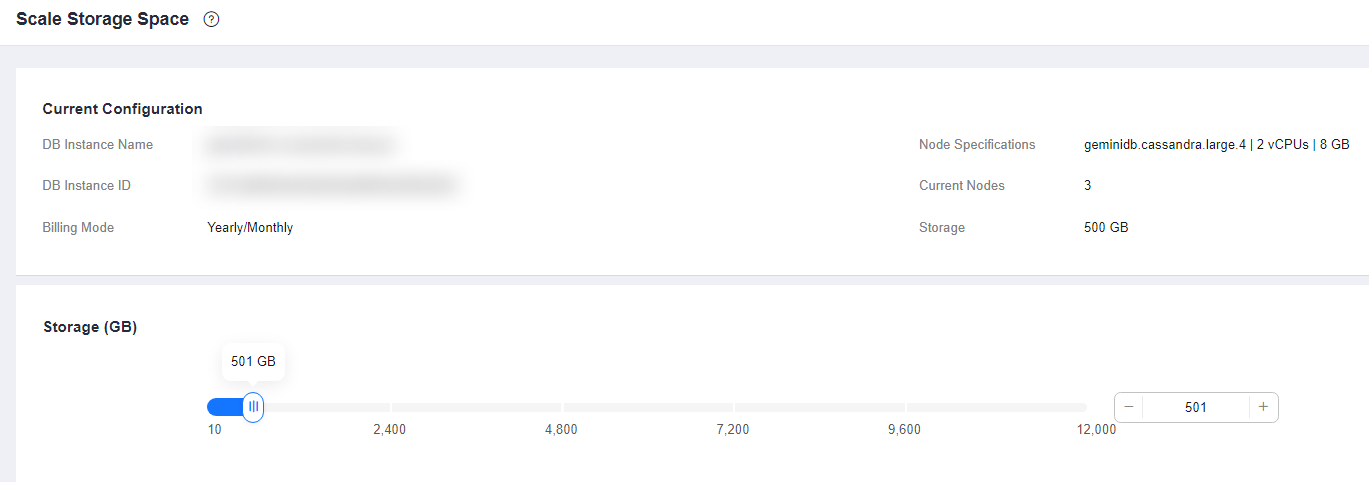
Select at least 1 GB each time, and the value must be an integer.
- On the displayed page, confirm the storage space.
- Yearly/Monthly
- To modify your settings, click Previous to go back to the page where you specify details.
- If you do not need to modify your settings, click Next and complete the payment.
- Pay-per-use
- To modify your settings, click Previous to go back to the page where you specify details.
- If you do not need to modify your settings, click Submit.
- Yearly/Monthly
- Check the results.
- During the scale-down process, the instance status becomes Scaling storage space.
- After the scaling process, the instance status becomes Available.
- Click the instance name. In the Storage Space area on the Basic Information page, check the new storage space.
Feedback
Was this page helpful?
Provide feedbackThank you very much for your feedback. We will continue working to improve the documentation.See the reply and handling status in My Cloud VOC.
For any further questions, feel free to contact us through the chatbot.
Chatbot


