

Manually Scaling Up Storage Space
This section describes how to scale up storage of an instance to suit your service requirements.
Usage Notes
- You do not need to restart the instance while scaling its storage. The change has no impact on existing data, services, or your databases.
- If your yearly/monthly instance with classic storage is running out of storage, additional usage will be billed on a pay-per-use basis. To avoid these extra costs and maintain the benefits of your yearly/monthly subscription, you are advised to scale up storage.
Read-only Instance
To maintain instance stability, the system checks its storage every 10 seconds. If your GeminiDB HBase instance is running out of storage, it will become read-only and its data cannot be modified. If this happens, you can scale up the storage to restore the instance status.
| Storage | Description |
|---|---|
| < 16,000 GB |
|
| ≥ 16,000 GB |
|

Instances with classic storage do not support read-only mode.
Procedure
- Log in to the GeminiDB console.
- On the Instances page, locate the target instance and choose More > Scale Storage Space in the Operation column.
Click the instance name. In the Storage Space area on the Basic Information page, click Scale.
- On the displayed page, specify new storage and click Next. Figure 1 Scaling up storage space
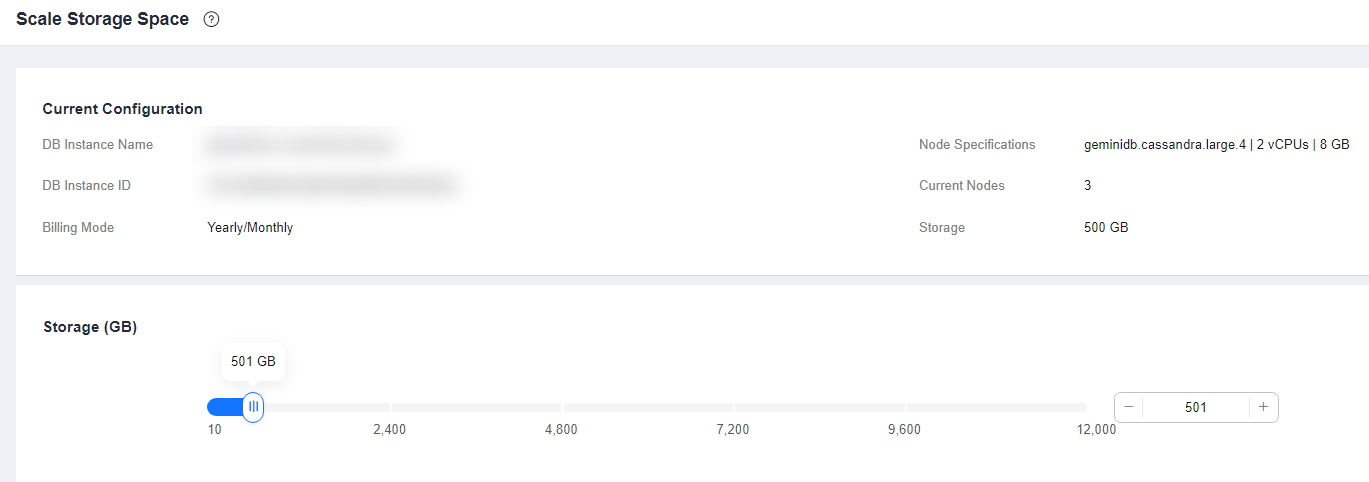
- To scale up classic storage, you need to add at least 1 GB each time. The value must be an integer.
- To scale up cloud native storage, you need to add at least 10 GB each time. The value must be an integer multiple of 10.
- On the displayed page, confirm the storage space.
- Yearly/Monthly
- If you need to modify your settings, click Previous.
- If you do not need to modify your settings, click Next and complete the payment.
- Pay-per-use
- If you need to modify your settings, click Previous.
- If you do not need to modify your settings, click Submit.
- Yearly/Monthly
- Check the results.
- When the scaling task is ongoing, the instance status is Scaling storage space.
- After the scaling process, the instance status becomes Available.
- Click the instance name. In the Storage Space area on the Basic Information page, check the new storage space.
What is your overall rating for this page?
Thank you very much for your feedback. We will continue working to improve the documentation.See the reply and handling status in My Cloud VOC.
For any further questions, feel free to contact us through the chatbot.
Chatbot


