

Setting a Maintenance Window
System maintenance is essential for keeping services running smoothly. To avoid workload interruption during peak hours, you can set a maintenance window for GeminiDB HBase instances. The default maintenance window is 10:00 to 14:00 (GMT+08:00). Maintenance during off-peak hours helps reduce the impact on workloads.
Usage Notes
- You can only set a maintenance window for restarting an instance, changing instance specifications, or patching an instance.
- Specification changes or patching must wait for the maintenance window, but instances can restart immediately.
- You can cancel a scheduled task.
- Changing the maintenance window does not affect tasks that have been scheduled.
- If the maintenance window and backup time are the same, scheduled tasks may fail.
- In the maintenance window, scheduled tasks are scanned every 10 minutes. If a task is delivered when the maintenance period is about to end, it may fail to be scanned and will be canceled.
Setting a Maintenance Window
- Log in to the Huawei Cloud console.
- On the Instances page, click the target instance. The Basic Information page is displayed.
- In the DB Information area, locate Maintenance Window and click Change.
Figure 1 The change button

- On the Change Maintainable Window page, select the maintenance time period as needed, and then click OK.
Supported time periods: 02:00-06:00, 06:00-10:00, 10:00-14:00, 14:00-18:00, 18:00-22:00, and 22:00-02:00
Figure 2 Changing a maintenance window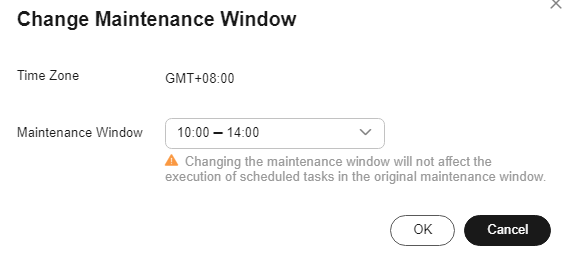
- Check the result.
On the Basic Information page, you can view the changed maintenance window.
Querying an Executed Task
- Log in to the GeminiDB console.
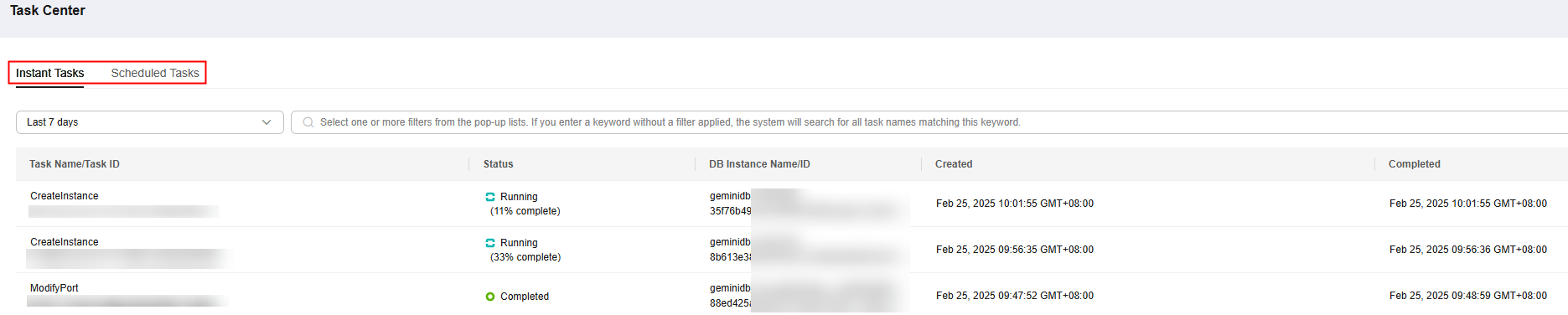
- On the Task Center page, click the Instant Tasks or Scheduled Tasks tab to view a task.
Figure 3 Querying a task
Canceling a Scheduled Task
- Log in to the Huawei Cloud console.
- On the Task Center page, locate a scheduled task, and click Cancel in the Operation column.
Figure 4 Canceling a task

- Check the result.
On the Task Center page, you can view the result. After the task is cancelled, its status changes to Cancelled.
Figure 5 Checking the cancelled task
Feedback
Was this page helpful?
Provide feedbackThank you very much for your feedback. We will continue working to improve the documentation.See the reply and handling status in My Cloud VOC.
For any further questions, feel free to contact us through the chatbot.
Chatbot


