

Help Center/ Huawei Cloud Flexus_Huawei Cloud Flexus L Instance/ FAQs/ Network/ How Do I View the Traffic Usage of My FlexusL Instance?
Updated on 2026-09-14 GMT+08:00
How Do I View the Traffic Usage of My FlexusL Instance?
- Log in to the FlexusL console.
By default, FlexusL instances are displayed in the card view. You can also click
 to switch to the list view.
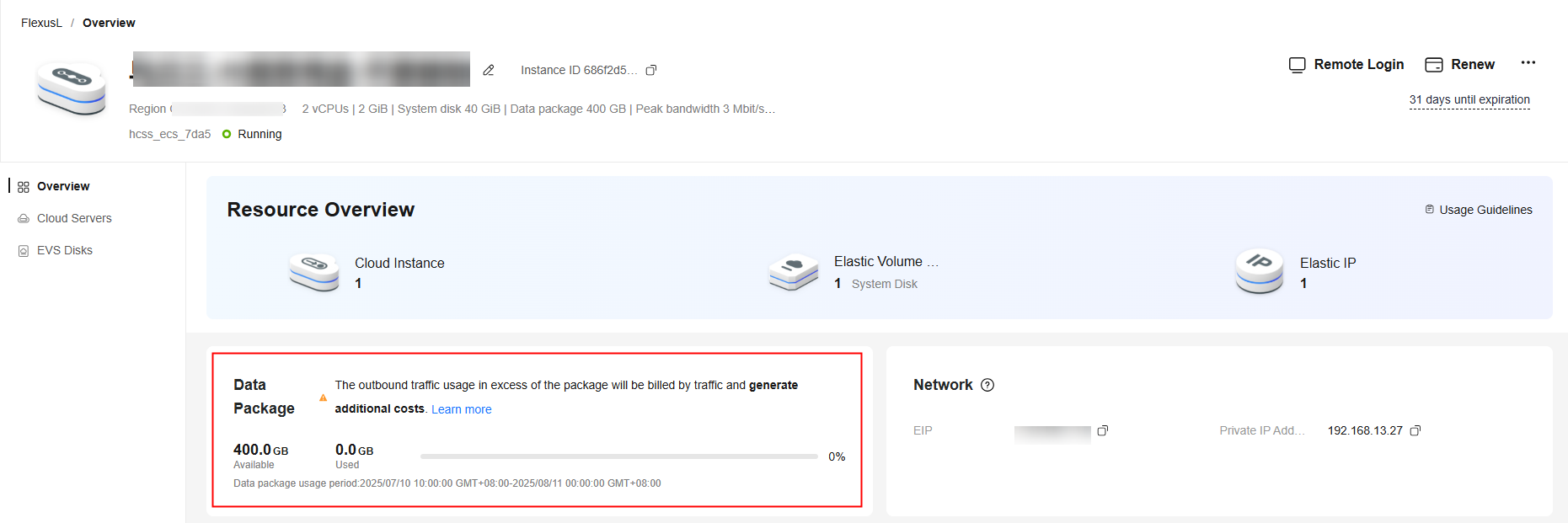
 - Click the target instance name. On the Overview page, view the traffic usage in the Data Package area.
- Expiration time: A FlexusL instance provides a monthly data package. The traffic quota included in the data package is reset each month. Any unused portion of the data package cannot be rolled over to the next month.
For example, if you purchase a FlexusL instance for three months at 10:00:00 on June 5, the data package for the first month will be valid from 10:00:00 on June 5 to 00:00:00 on July 6. The data package for the second month will be valid from 00:00:00 on July 6 to 00:00:00 on August 6. The data package for the final month will be valid from 00:00:00 on August 6 to 00:00:00 on September 6.
- Available: The remaining traffic in the monthly data package.
- Used: The traffic volume that has been used in the current month.
- Traffic usage: The traffic usage in the current month, which can be calculated using the following formula: Traffic usage = Used traffic/Total traffic volume in a data package
Figure 1 Viewing data package details
- Expiration time: A FlexusL instance provides a monthly data package. The traffic quota included in the data package is reset each month. Any unused portion of the data package cannot be rolled over to the next month.
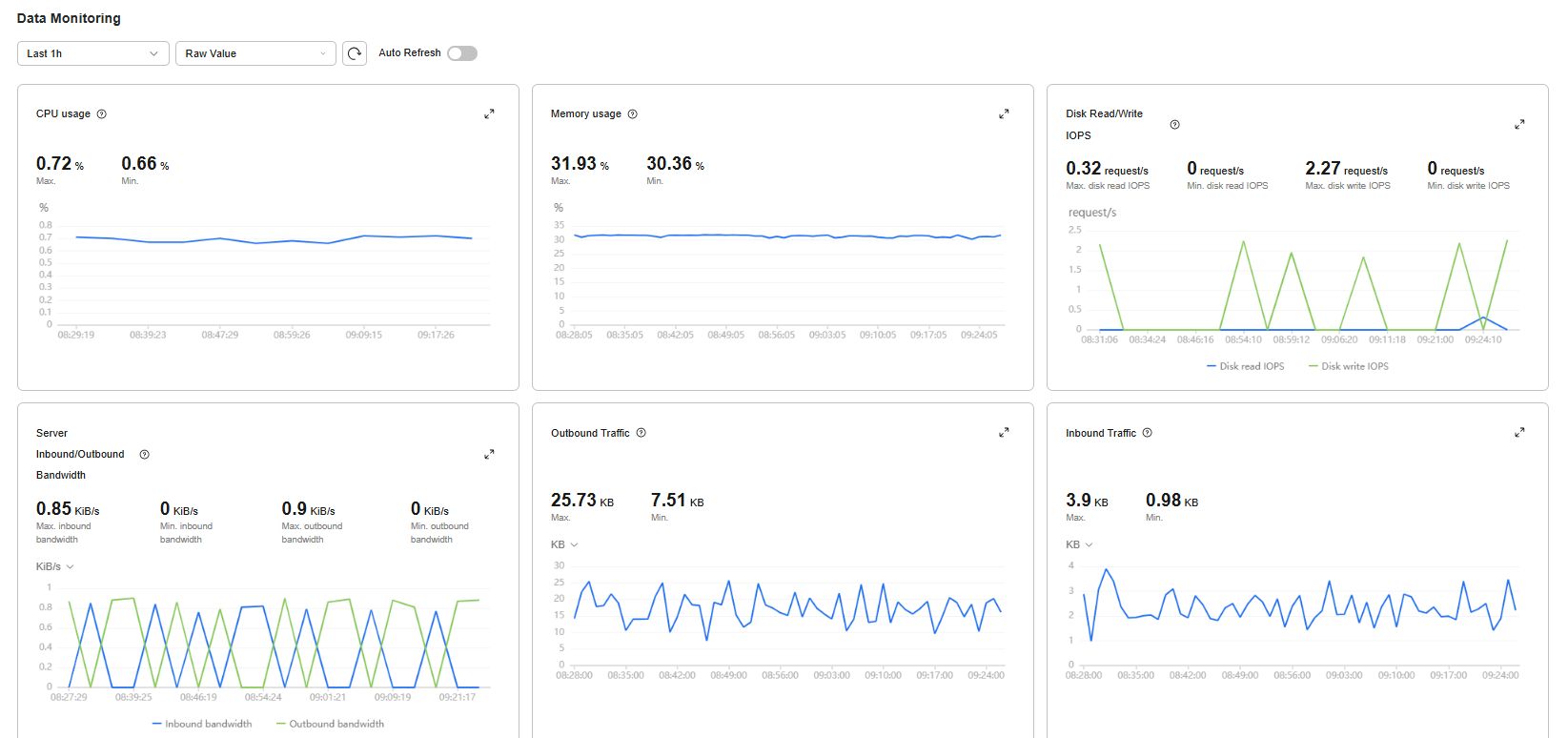
- In the Data Monitoring area on the Overview page, view common monitoring metrics, including inbound and outbound traffic. For details, see Viewing Monitoring Metrics of a FlexusL Instance. Figure 2 Common monitoring metrics of FlexusL instances
What is your overall rating for this page?
0
1
2
3
4
5
6
7
8
9
10
Very dissatisfiedVery satisfied
Thank you very much for your feedback. We will continue working to improve the documentation.See the reply and handling status in My Cloud VOC.
The system is busy. Please try again later.
For any further questions, feel free to contact us through the chatbot.
Chatbot


