

Querying a Key
Scenario
This section describes how to use the management console to view the information about a custom key, such as its alias, status, ID, and creation time. The status of a key can be Enabled, Disabled, Pending deletion, or Pending import.
Procedure
- Log in to the management console.
- Click
 in the upper left corner of the management console and select a region or project.
 - Choose . The key management page is displayed.
- View key details in the key list.
Figure 1 Key list


- To filter keys in a certain status, select the status from the drop-down list of All statuses.
- Enter the key alias in the search box in the upper right corner. Click
 or press Enter.
 - You can click Search Tag to search for the custom key that meets the search criteria.
- You can click
 in the upper right corner of the key list to set the columns of the list.
Table 1 describes the parameters of a key list.
Table 1 Key list parameters Parameter
Description
Alias/ID
of a key and the random ID of a key generated during its creation
Status
Status of a key, which can be one of the following:
- Enabled
The key is enabled.
- Disabled
The key is disabled.
- Pending deletion
The key is scheduled for deletion.
- Pending import
If a key does not have any key material, its status is Pending import.
Creation Time
Creation time of the key
Expiration Time
Expiration time of the key material. When the material expires, the custom key becomes an empty key.
Origin
Source of key material, which can be one of the following:
Enterprise Project
ID of the enterprise project bound to a key during key creation.
- Click the key alias to view its details.
Figure 2 Viewing key details
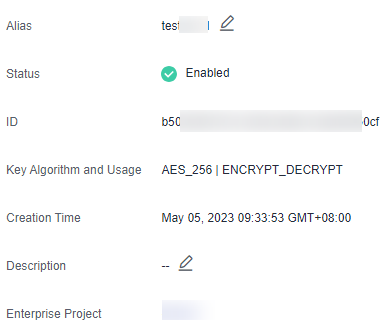
To change the alias or description of the CMK, click
 next to Alias or Description.
- The alias and description of the default key cannot be modified. The alias of the default key ends with /default.
- The alias and description of a key cannot be changed if the key is in Pending deletion status.
Feedback
Was this page helpful?
Provide feedbackThank you very much for your feedback. We will continue working to improve the documentation.See the reply and handling status in My Cloud VOC.
For any further questions, feel free to contact us through the chatbot.
Chatbot


