

End-to-End Process of Lite Servers
For algorithm engineers, daily training and inference tasks require a flexible, powerful development environment on the cloud. However, existing cloud services often limit user customization, making it difficult to meet specific software installation and configuration requirements.
ModelArts Lite Servers provide various resources, allowing you to install and deploy third-party software such as AI frameworks and applications as user root, as well as building a dedicated cloud server environment. To create a Lite Server, you only need to configure the specifications, image, network, and key pairs. This provides you on-cloud physical resources for training and inference.
This section describes how to get started with Lite Servers effectively. Below is the workflow.
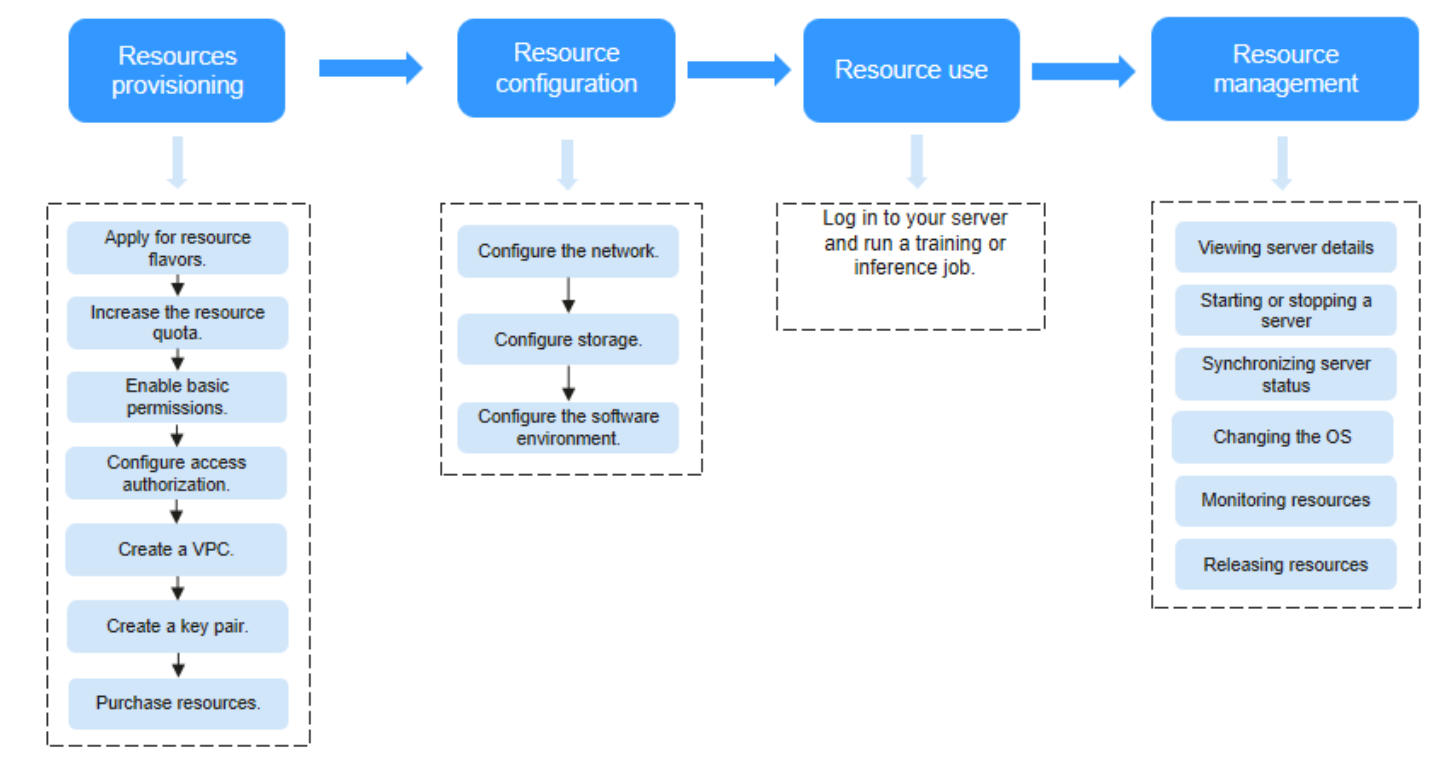
- Purchasing resources Use Lite Servers only after purchase.
- Contact your account manager to confirm the resource plan for Lite Servers. As some specifications are restricted, you will need to apply for access to your required specifications.
- The resources required by Lite Servers may exceed the default quotas provided by cloud services (such as ECS, EIP, and SFS). In this case, submit a service ticket to increase resource quotas. For details about the default quotas, see Viewing Quotas.
- Grant the required basic permissions to the IAM user.
- Create an agency for ModelArts to enable it to access its dependency services.
- Enable Lite Servers on the ModelArts console.
- Configuring resources
- Using resources
Log in to the server for model training and inference. For details, see Using Lite Server Resources.
- Managing resources
Lite Servers allow you to start, stop, and switch OSs. You can manage them on the ModelArts console.
| Term | Description |
|---|---|
| Common node | A single physical or virtual host providing basic independent compute, storage, and network resources. These include both Bare Metal Servers (BMSs) and Elastic Cloud Servers (ECSs). |
| ECS | An ECS is a fundamental computing unit consisting of CPUs, memory, an OS, and Elastic Volume Service (EVS) disks. Once an ECS is created, you can use it on the cloud just like a local PC or physical server. Lite Servers support various server types, including ECS. For details about ECSs, see Elastic Cloud Server. |
| BMS | BMS is a computing service that combines the elasticity of an ECS with the high performance of a physical machine. It provides dedicated physical servers on the cloud for core databases, critical applications, high-performance computing (HPC), and big data, ensuring superior performance and data security. Lite Servers support various server types, including BMS. For more information, see Bare Metal Server. |
| Supernode | A supernode is a high-performance computing resource provided by Huawei Cloud, primarily used for large AI model training and inference. A supernode consists of multiple nodes where internal NPUs are interconnected via a specific networking architecture to form a hyper-plane network, delivering ultra-fast transmission rates. Supernode servers support Snt9b23 resources and are currently available only in the CN South-Guiyang1, CN North3, and CN East2 regions. |
| Key pair | Lite Servers support SSH key pair authentication for login. You can access Lite Servers without a password, preventing credential leakage caused by interception or brute-force attacks, thereby enhancing the security of Lite Servers. NOTE: To ensure server security, if a private key is not hosted on the platform, it can only be downloaded once. Store it securely. |
| Virtual Private Cloud (VPC) | A VPC provides an isolated, configurable, and manageable virtual network environment for Lite Servers. It enhances resource security and simplifies network deployment. Within a VPC, you can define security groups, VPNs, IP address ranges, and bandwidth. VPCs allow for easy management and configuration of internal networks for secure and rapid changes. Additionally, you can customize inbound and outbound rules for security groups to strengthen the protection of your Lite Servers. For details, see Virtual Private Cloud. |
What is your overall rating for this page?
Thank you very much for your feedback. We will continue working to improve the documentation.See the reply and handling status in My Cloud VOC.
For any further questions, feel free to contact us through the chatbot.
Chatbot


