

Checking Policies for New Access
To ensure that a modified policy is correct and secure, you can run a check to compare the policy before and after your changes to verify if additional access has been granted. If the check reveals new access that does not align with your security policies or management requirements, you must continue modifying the policy until the analyzer no longer detects any new access. Conversely, if granting new access is your objective, verify that the detected permissions match your expectations before saving the policy.
Currently, this check is supported when using the JSON policy editor on the IAM console to edit identity policies and trust policies for trust agencies. Running this check helps prevent security risks caused by misconfigured policies while ensuring the accuracy and compliance of access control within your organization.
Constraints
- A policy with only deny statements cannot be used to check for new access.
- The check cannot run on policies with syntax errors.
Checking Whether Identity Policies Grant New Access
- In the navigation pane of the IAM console, click Identity Policies.
- Click the name of the target custom identity policy.
- On the Policy Content tab, click Edit to edit the details about the identity policy. Figure 1 Modifying a custom identity policy

- Modify the custom identity policy as required. At the lower right corner of the displayed page, click Check for New Access.
- Click Check Policy to view the findings. Figure 2 Checking an identity policy
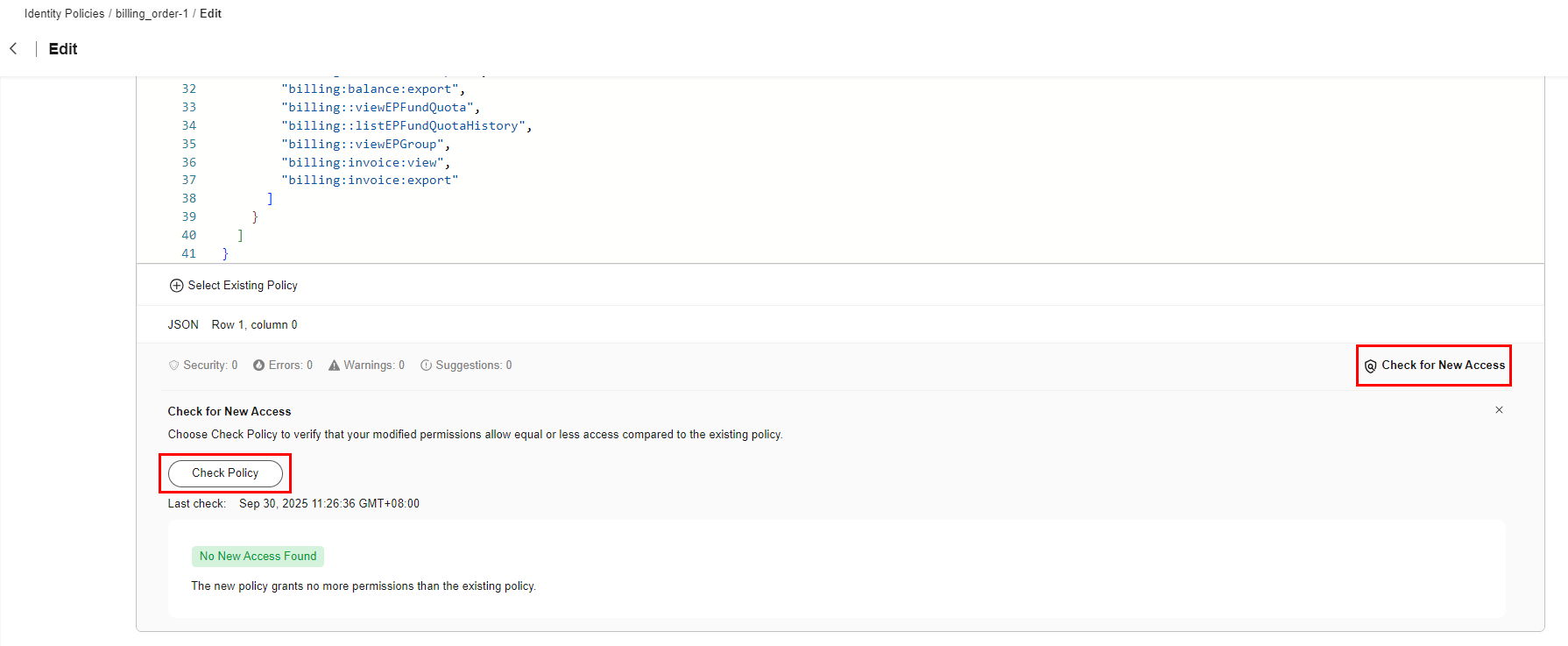
If new access is detected and you do not intend to grant it, update the identity policy and click Check Policy until no new access is detected.
Checking Whether Trust Policies Grant New Access
- Log in to the new IAM console.
- In the navigation pane, choose Agencies. Locate the target agency and click Modify in the Operation column. Figure 3 Modifying a trust agency

- In the lower part of the Basic Information page, locate the Trust Policy tab and click Edit Trust Policy. Figure 4 Editing a trust policy
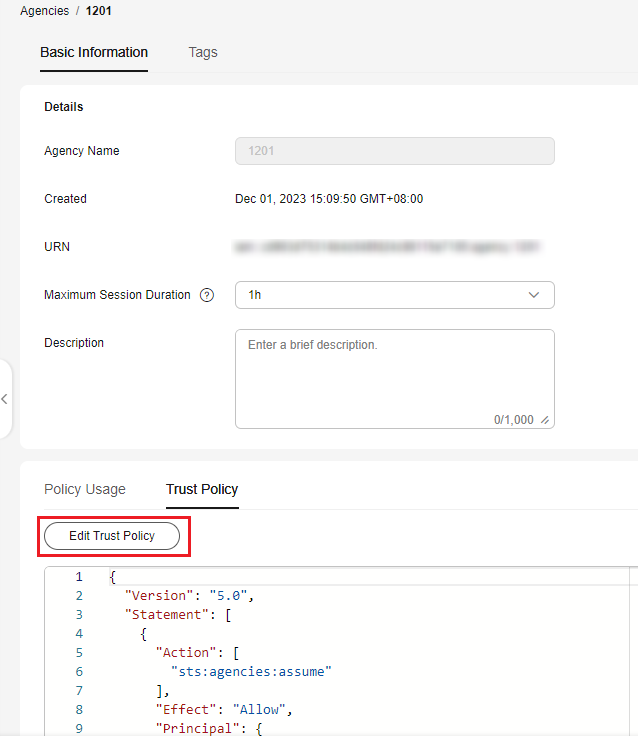
- At the lower right corner of the displayed page, click Check for New Access.
- Click Check Policy to view the findings. Figure 5 Previewing external access

If new access is detected and you do not intend to grant it, update the trust policy and click Check Policy until no new access is detected.
What is your overall rating for this page?
Thank you very much for your feedback. We will continue working to improve the documentation.See the reply and handling status in My Cloud VOC.
For any further questions, feel free to contact us through the chatbot.
Chatbot


