

Checking Container Assets
Scenario
Check the container asset information collected by HSS and handle asset anomalies.
- For details about how to view all cluster information, see Checking Cluster Information.
- For details about how to view information about all nodes, see Checking Node Information.
- For details about how to view information about all containers, see Checking Container Information.
- For details about how to view all image information, see Checking Image Information.
- For details about how to view the container fingerprint information of a node, see Checking the Container Fingerprints of a Node.
- For details about how to view the fingerprint information of all containers, see Checking the Fingerprints of All Containers.
Constraints
- Only the HSS container edition supports the container fingerprint function.
- Only Linux is supported.
Checking Cluster Information
- Log in to the HSS console.
- Click
 in the upper left corner and select a region or project.
- Choose . Click the Cluster tab. Figure 1 Clusters
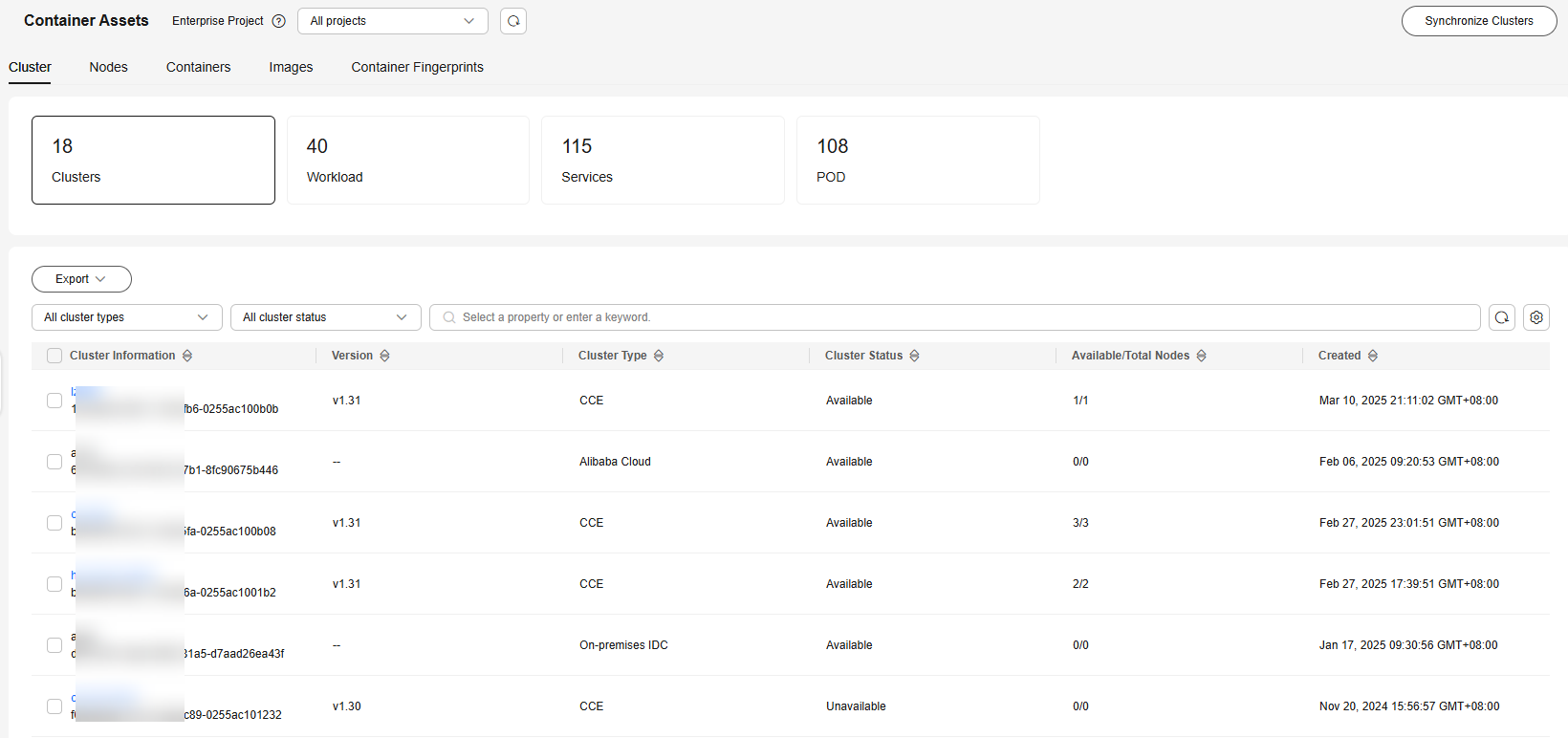
- (Optional) If you have enabled the enterprise project function, select an enterprise project from the Enterprise Project drop-down list in the upper part of the page to view its data.
- View the cluster list, workload, service, and pod information.
Checking Node Information
- Log in to the HSS console.
- Click in the upper left corner and select a region or project.
- Choose . Click the Nodes tab. Figure 2 Nodes
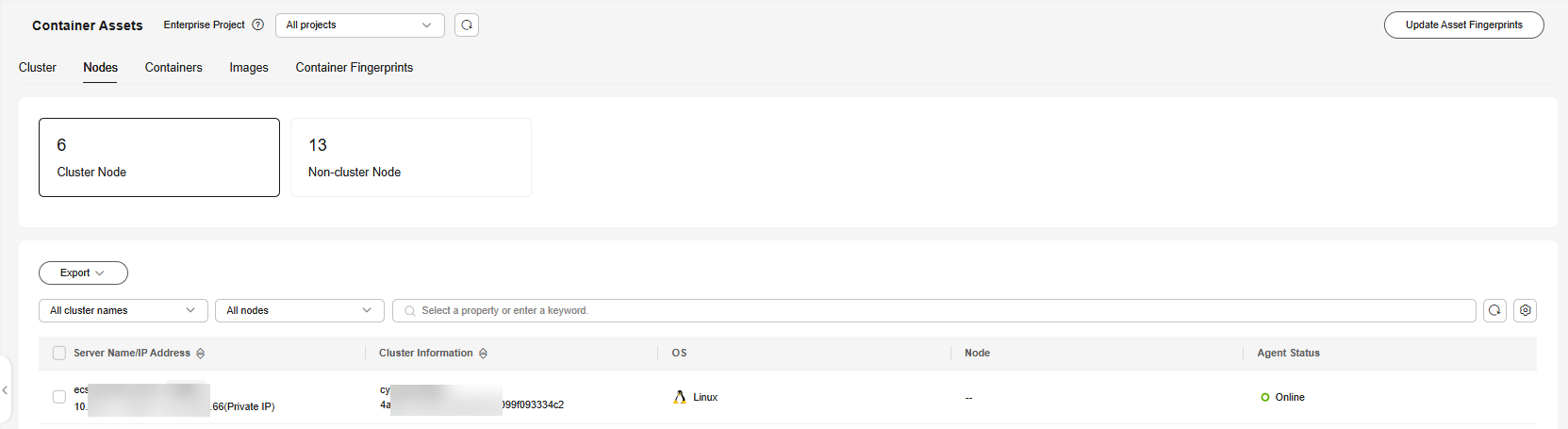
- (Optional) If you have enabled the enterprise project function, select an enterprise project from the Enterprise Project drop-down list in the upper part of the page to view its data.
- View information about cluster nodes and independent nodes.
Checking Container Information
- Log in to the HSS console.
- Click in the upper left corner and select a region or project.
- Choose . Click the Containers tab. Figure 3 Containers
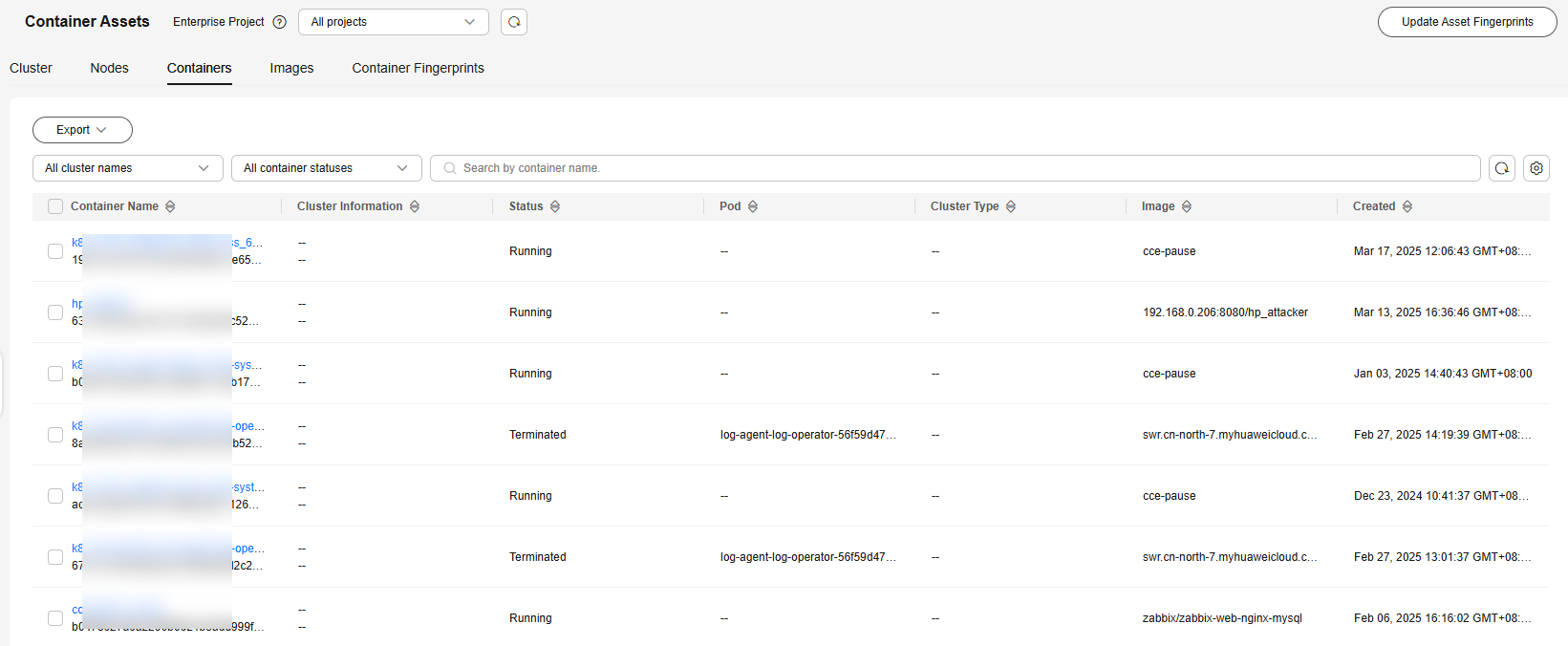
- (Optional) If you have enabled the enterprise project function, select an enterprise project from the Enterprise Project drop-down list in the upper part of the page to view its data.
- View container information.
Checking Image Information
- Log in to the HSS console.
- Click in the upper left corner and select a region or project.
- Choose . Click the Images tab. Figure 4 Images
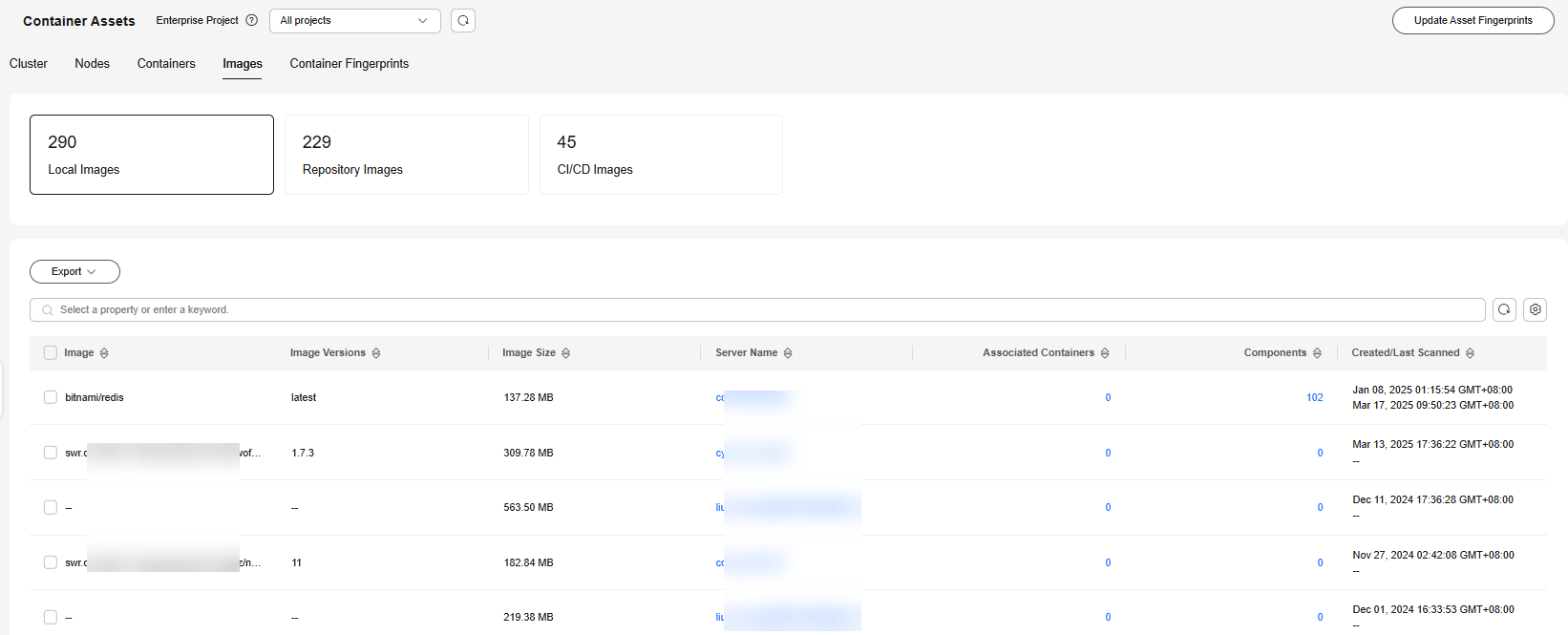
- (Optional) If you have enabled the enterprise project function, select an enterprise project from the Enterprise Project drop-down list in the upper part of the page to view its data.
- View the CI/CD image, local image, and container image information.
Checking the Container Fingerprints of a Node
- Log in to the HSS console.
- Click in the upper left corner and select a region or project.
- In the navigation pane, choose . Click the Servers tab.
- (Optional) If you have enabled the enterprise project function, select an enterprise project from the Enterprise Project drop-down list in the upper part of the page to view its data.
- Click the name of the target server. On the server details page that is displayed, click the tab. Figure 5 Checking the container fingerprints of a node

- In the Fingerprints list, click a fingerprint type to view details. Figure 6 Checking container fingerprint details

- (Optional) Remove risky assets.
If you find unsafe assets after counting, remove them in time.
If you receive port alarms, you can set Dangerous Port to Yes in the search box of the Open Ports area to filter dangerous ports. You are advised to handle unsafe ports as follows:
- If HSS detects open dangerous ports or unused ports, check whether they are really used by your services. If they are not, disable them. For dangerous ports, you are advised to further check their program files, and delete or isolate their source files if necessary.
- If a detected high-risk port is actually a normal port used for services, you can ignore it. Ignored alarms will neither be recorded as unsafe items nor trigger alarms.
For more information, see High-risk Port List.
Checking the Fingerprints of All Containers
- Log in to the HSS console.
- Click in the upper left corner and select a region or project.
- Choose . Click the Container Fingerprints tab. Figure 7 Container fingerprints
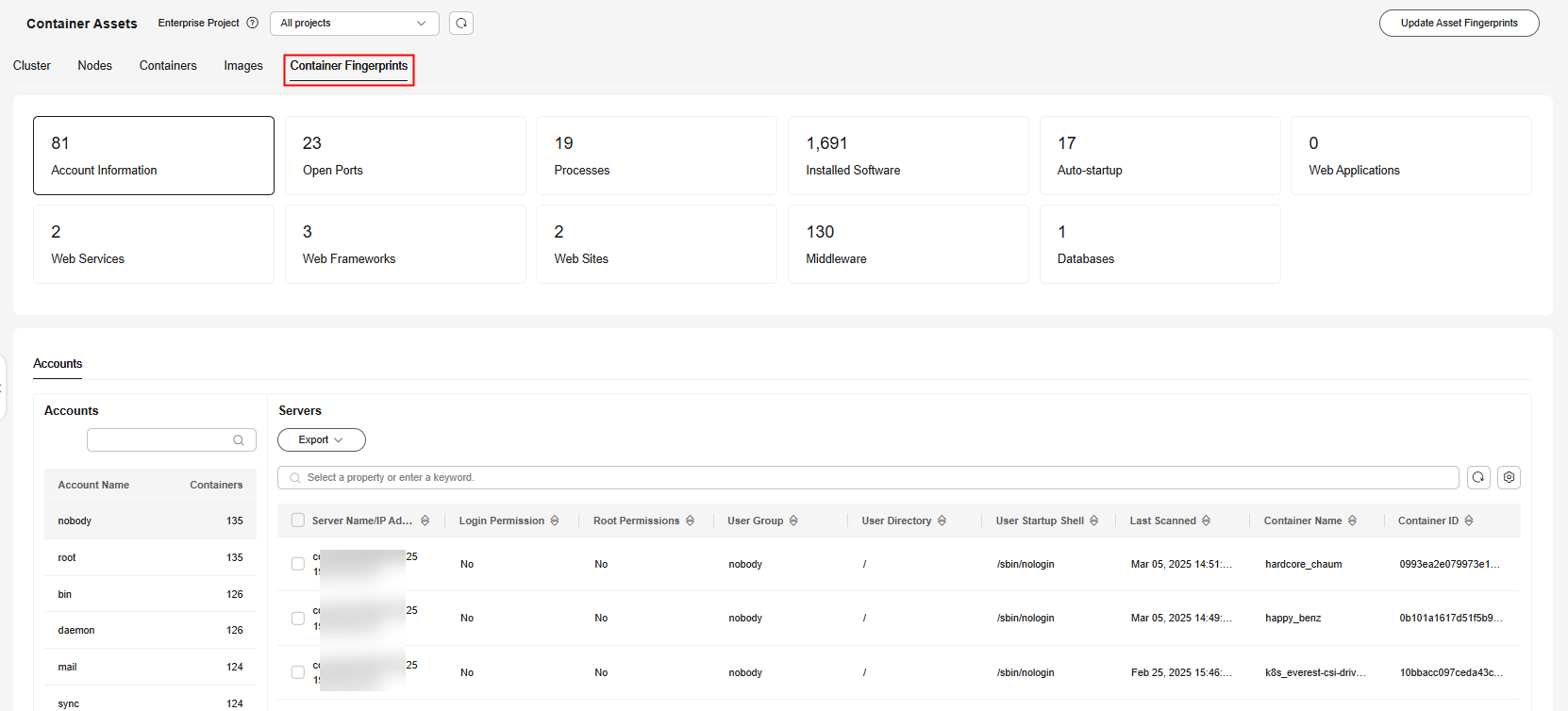
- (Optional) If you have enabled the enterprise project function, select an enterprise project from the Enterprise Project drop-down list in the upper part of the page to view its data.
- Check the container fingerprint overview. Figure 8 Checking the container fingerprint overview

- Click a fingerprint type in the fingerprint list, for example, Installed Software, to view its details.
The meanings of the numbers in Figure 9 are as follows:
- 1: the fingerprint list and the number of associated containers
- 2: The fingerprint details list. You can click a fingerprint in the fingerprint list on the left to view its details.
- (Optional) Remove risky assets.
If you find unsafe assets after counting, remove them in a timely manner.
If you receive port alarms, you can set Dangerous Port to Yes in the search box of the Open Ports area to filter dangerous ports. You are advised to handle unsafe ports as follows:
- If HSS detects open high-risk ports or unused ports, check whether they are really used by your services. If they are not, disable them. For dangerous ports, you are advised to further check their program files, and delete or isolate their source files if necessary.
- If a detected high-risk port is actually a normal port used for services, you can ignore it. Ignored alarms will neither be recorded as unsafe items nor trigger alarms.
High-risk Port List describes the common dangerous ports.

What is your overall rating for this page?
Thank you very much for your feedback. We will continue working to improve the documentation.See the reply and handling status in My Cloud VOC.
For any further questions, feel free to contact us through the chatbot.
Chatbot


