

Help Center/ Graph Engine Service/ User Guide/ Configuring Fine-Grained Permissions for a Graph/ Viewing Graph Permissions in GES
Updated on 2025-12-29 GMT+08:00
Viewing Graph Permissions in GES
You can review the fine-grained graph permissions assigned to all IAM users under your account.
The procedure is as follows:
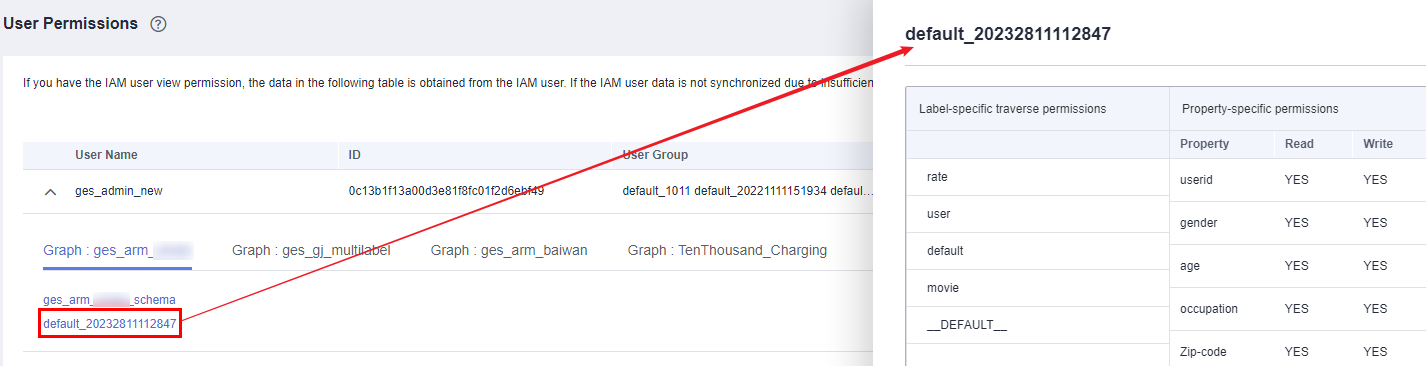
- On the User Permissions page, click
 next to a username to view the specific graph permissions granted to that user. Figure 1 Viewing granular permissions

- Click the permission name to see detailed permission settings for the graph. Figure 2 Permission details
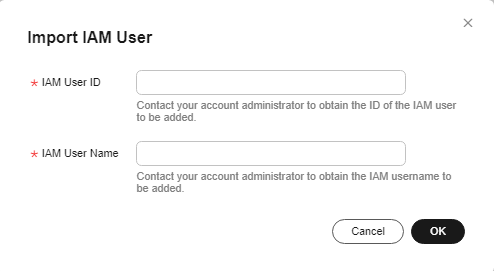
- If data synchronization with IAM users fails due to insufficient permissions, you can manually input IAM user data by clicking Import IAM User in the upper right corner. Figure 3 Clicking Import IAM User

In the Import IAM User dialog box, enter the required IAM user ID and username and click OK. The system will add this IAM user to GES, making them available for selection in user group configurations.
Figure 4 Entering IAM user information
Parent topic: Configuring Fine-Grained Permissions for a Graph
What is your overall rating for this page?
0
1
2
3
4
5
6
7
8
9
10
Very dissatisfiedVery satisfied
Thank you very much for your feedback. We will continue working to improve the documentation.See the reply and handling status in My Cloud VOC.
The system is busy. Please try again later.
For any further questions, feel free to contact us through the chatbot.
Chatbot


