

Synchronizing Alerts and Metrics to Prometheus
When building a full-stack monitoring system, O&M teams often use Prometheus to aggregate infrastructure and application metrics. However, business-level data stored in OpenSearch (such as user access patterns and transaction logs) remains in document form and is not natively available as Prometheus-format time series, hindering unified analysis and alerting in Grafana dashboards. How can we expose OpenSearch aggregation results as Prometheus-compatible time series? CSS OpenSearch clusters address this gap using built-in alerting and notifications plugins, which provide a Prometheus-compatible export channel. Using the Prometheus Pushgateway, they periodically execute queries, transform the results into structured metrics, and push them to the Pushgateway where they can be scraped by Prometheus. This approach enables OpenSearch clusters to act as intelligent metric sources, supporting unified analysis of business and infrastructure data and consistent, threshold-based alerting within a single observability stack.
How the Feature Works
OpenSearch business metrics must be pushed by the alerting plugin, whereas Prometheus uses a pull-based model by default. The Prometheus Pushgateway bridges this gap: it receives push-based metrics and exposes them via a scrape endpoint for Prometheus. The OpenSearch alerting plugin (opensearch-alerting) and OpenSearch notifications plugin (opensearch-notifications) built into CSS OpenSearch clusters provide a Prometheus-compatible channel connected to the Prometheus Pushgateway.

- Monitor: Defines the aggregation query (which metrics to compute), the target indexes, and the execution schedule (query frequency).
- Trigger: Evaluates query results against threshold conditions to determine if and when an alert should be generated. It also triggers an action. Action: Transforms OpenSearch aggregation results (in document form) into standard Prometheus JSON format.
- Channel: A message channel that sends Prometheus-compatible JSON packets to the Pushgateway.
- Pushgateway: A temporary storage area that receives push-based metrics from OpenSearch.
- Prometheus: Periodically pulls data from the Pushgateway and stores it in its time-series database, where Grafana queries the data and visualizes metrics on unified dashboards.
For more about the alerting plugin, see Alerting - OpenSearch Documentation. For more about the notifications plugin, see Notifications - OpenSearch Documentation. For more about Prometheus Pushgateway, see Prometheus Pushgateway.
Constraints
- Alerts and metrics can be synchronized to Prometheus only when the OpenSearch cluster version is 2.19.0 or 3.4.0 (image version 3.4.0_26.6.0_xxx or later).
- The OpenSearch cluster must be able to access the Prometheus Pushgateway endpoint. Prometheus and OpenSearch must be connected. Otherwise, alerts cannot be sent.
- Only Gauge-type metrics (used in dashboards) can be synchronized. They include statistical or percentage values that can both increase and decrease.
Configuring Alert Synchronization
- Log in to the CSS management console.
- In the navigation pane on the left, choose Clusters > OpenSearch.
- In the cluster list, find the target cluster, and click Dashboards in the Operation column to log in to OpenSearch Dashboards.
- On the OpenSearch Dashboards page, expand the menu in the upper-left corner, and choose Management > Notifications.
- Create a Prometheus channel to establish a physical connection between OpenSearch and Pushgateway.
- On the Channels page, click Create channel to configure a channel.
Table 1 Channel parameters Parameter
Description
Name
Custom channel name.
Description
Channel description.
Channel type
Type of the notification. Select PROMETHEUS.
Prometheus Endpoint
Enter the Pushgateway address of the Prometheus monitor server.
- Currently, only Prometheus Gauge dashboards can be added or deleted. Metrics are queried using specific statements and numeric values are synchronized to Pushgateway for monitoring via Prometheus.
- Two types of Pushgateway addresses are supported: HTTP and HTTPS.
Figure 2 Create channel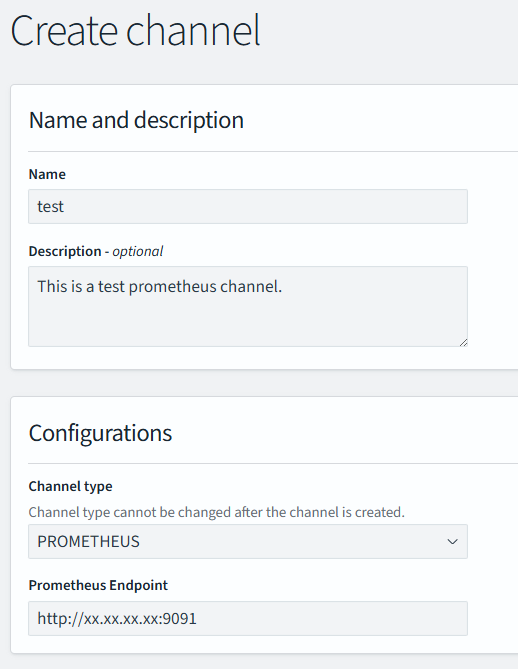
- Click Create.
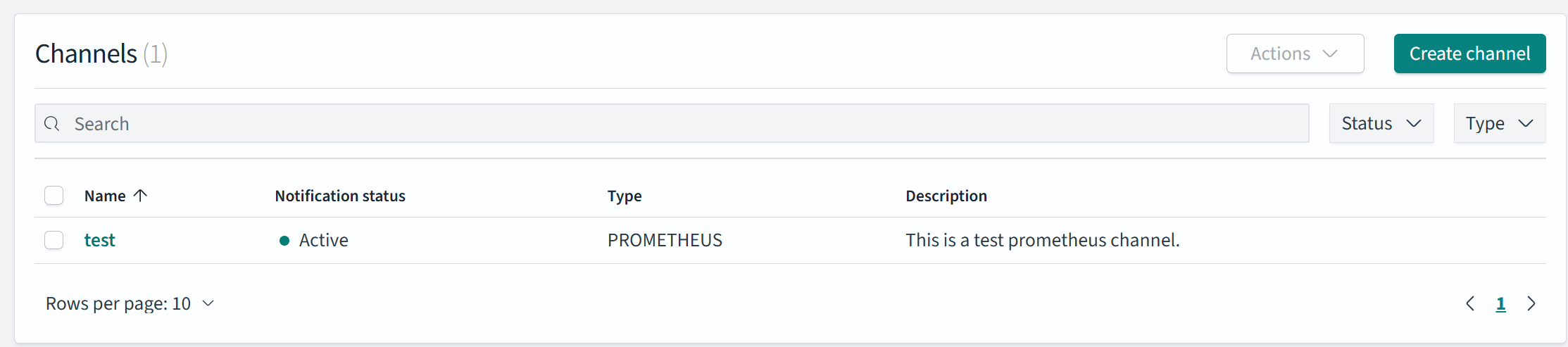
- Return to the Channels page. If the newly created Prometheus channel is displayed, it has been created successfully. Figure 3 Channels list
- On the Channels page, click Create channel to configure a channel.
- On the OpenSearch Dashboards console, expand the menu in the upper-left corner, and choose Alerting.
- Create a monitor and trigger to define the alert triggering conditions and monitor interval.
- On the Alerting page, click the Monitors tab. Then click Create monitor, and configure the data source and query frequency.
Table 2 Monitor parameters Parameter
Description
Monitor details
Monitor name
User-defined monitor name
Monitor type
Monitor type, which can be:
- Per query monitor
- Per bucket monitor
- Per cluster metrics monitor
- Per document monitors
- Composite monitors
In this example, Per query monitor is selected. For more information, see Monitors in the OpenSearch official documentation.
Monitor defining method
Monitor defining method. Extraction query editor is recommended.
- Visual editor
- Extraction query editor
- Anomaly detector
The options of Monitor defining method are determined by the Monitor type you selected.
Detector
If Monitor defining method is set to Anomaly detector, select an exception detection task.
Frequency
Select the monitoring frequency and set the monitoring interval. The options include:
- By interval
- Daily
- Weekly
- Monthly
- Custom cron expression
Select data
Index
When Monitor defining method is set to Visual editor or Extraction query editor, you need to specify the index to be monitored.
Time field
When Monitor defining method is set to Visual editor, you need to specify the time field to define counting parameters such as count.
Query
Metrics
When Monitor defining method is set to Visual editor, you need to set the metrics range for extracting statistics.
Time range for the last
When Monitor defining method is set to Visual editor, you need to set the monitoring time range for plugins.
Data filter
When Monitor defining method is set to Visual editor, you need to set filters for data search.
Group by
When Monitor defining method is set to Visual editor, you need to specify a field so that any value of the field will always trigger an alert.
Define extraction query
When Monitor defining method is set to Extraction query editor, you need to enter the query statement to define the monitoring.
Request type
When Monitor type is set to Per cluster metrics monitor, you need to specify the request type to monitor cluster metrics, such as the running status and CPU usage.
Preview query and performance
Preview the query result and verify query performance under the current configuration.
- Click Create. The Create trigger page is displayed.
- On the Create trigger page, define how to convert data into Prometheus-readable formats.
Table 3 Trigger parameters Parameter
Description
Define trigger
Trigger name
User-defined trigger name.
Severity level
Sensitivity of a trigger, that is, the number of alarms that need to be triggered before an alarm message is sent. 1 indicates the highest sensitivity.
Trigger condition
Trigger condition. An alarm is triggered when the trigger condition is hit.
You are advised to set a trigger condition that can almost always be triggered (for example, 1 > 0) so that the query results will always be synchronized to the Pushgateway.
Configure actions
Action name
Trigger action name.
Destination
Select the destination created in 5.
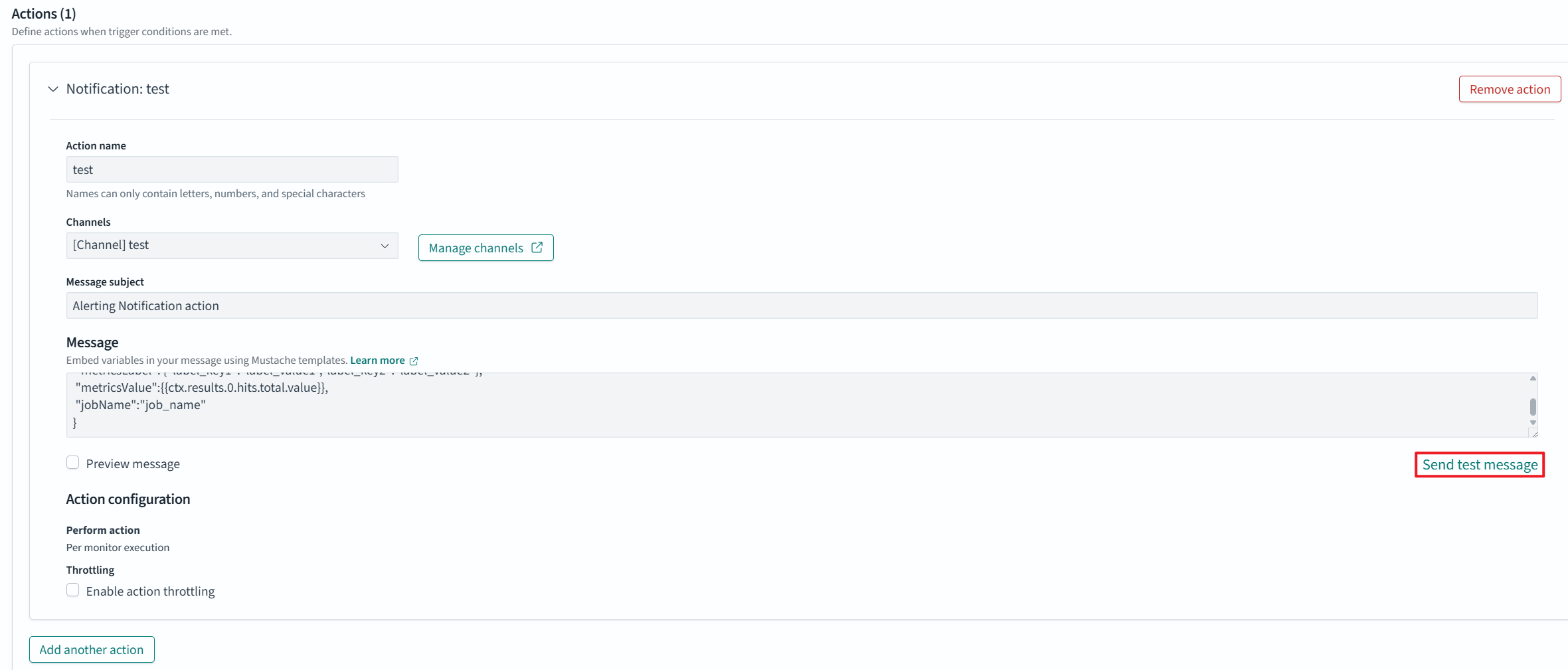
Message
Defines the body of the message to be published, which must use the JSON format.
Message template:
{
 "metricsName":"hits_total_value", //Prometheus metric name
 "metricsLabel": {"label_key1":"label_value1","label_key2":"label_value2"}, //Prometheus labels
 "metricsValue":{{ctx.results.0.hits.total.value}}, //Prometheus metric values
 "jobName":"job_name", //Prometheus monitor task name
"metricsHelp":"***" //Metric explanation. Optional.
}
throttling
Specify the message frequency to limit the number of notifications you receive within a given span of time. Without it, high-frequency or low-severity triggers may cause information overload or result in unexpected cloud costs.
For example, if this parameter is set to 10 minutes, Prometheus sends only one alert notification in the next 10 minutes even if the trigger condition is met multiple times. After 10 minutes, Prometheus sends another alert notification if the trigger condition is met again.
- Click Send test message to test the link to Prometheus. Figure 4 Send a test message.
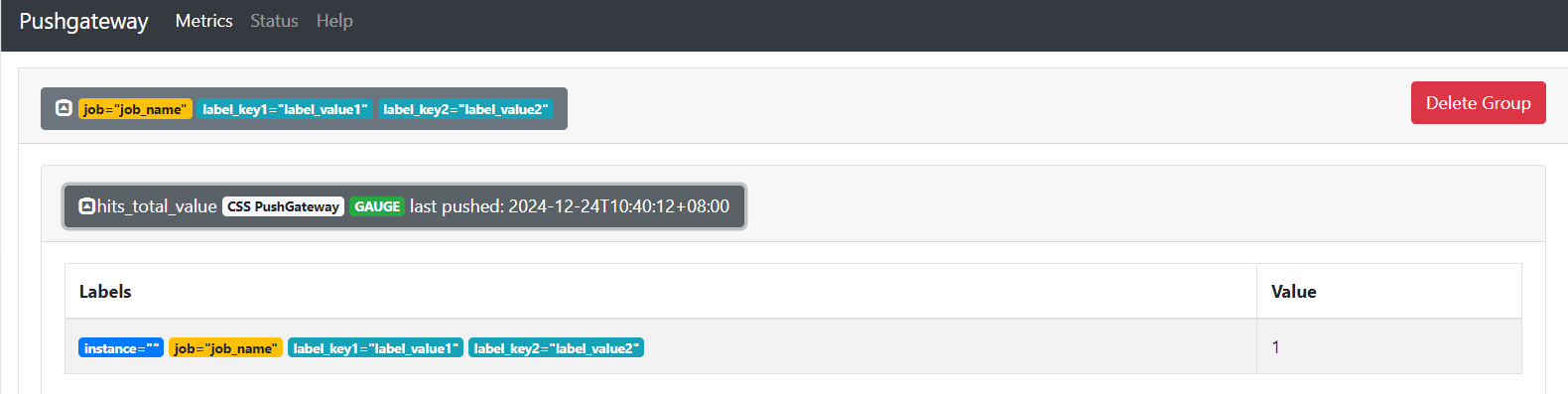
- As shown in Figure 5, Prometheus can receive a triggered message, meaning the trigger is set successfully.
- Click Create to go to the monitor details page.
- On the Alerting page, click the Monitors tab. Then click Create monitor, and configure the data source and query frequency.
What is your overall rating for this page?
Thank you very much for your feedback. We will continue working to improve the documentation.See the reply and handling status in My Cloud VOC.
For any further questions, feel free to contact us through the chatbot.
Chatbot


