

Connecting Agents Through a Proxy
The network between your host and APM must be normal. If the network is disconnected, use a proxy.
You can run the curl -kv command to check the network. For example, if you select region CN-Hong Kong and set Access Mode to Enhanced Agent, log in to the host where the application is deployed and run the curl -kv 100.125.6.106:41333 command to check the network connectivity. For details about access addresses in other regions, see Agent Access Addresses.
Constraints
- Agents later than 2.4.1 support access through a proxy.
- Java supports enhanced Agents.
Modifying the apm.config File
Add apm.proxy to the configuration file, as shown in the following figure. Format: "apm.proxy=ip:port".
Obtaining the AK/SK Required for Connecting JavaAgents
- Log in to the APM console.
- Click
 on the left and choose Application > Application Performance Management.
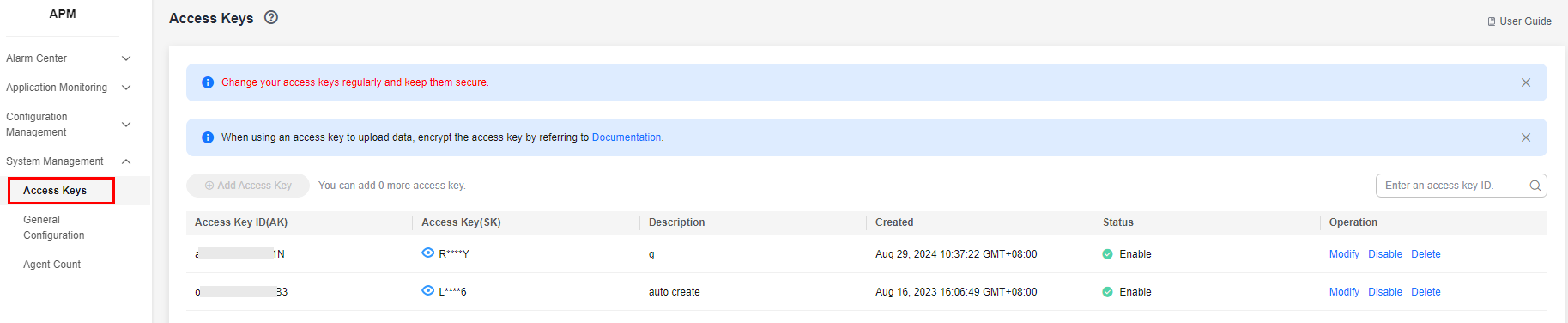
 - Choose System Management > Access Keys in the navigation pane to obtain the required AK/SK. Figure 1 Obtaining an AK/SK
Procedure
- Use a remote login tool, such as PuTTY, to log in to the Linux host where the Agent is to be installed and run related commands as the root user.
- Download JavaAgent to any directory on the host to be connected to APM. For details, see Agent Download Addresses.
Example command:
curl -O https://xxx/apm-javaagent-x.x.x.tar
- Run the tar command to decompress the JavaAgent package.
Example command:
tar -xvf apm-javaagent-x.x.x.tar
- Modify the apm.config file in the JavaAgent package. For details, see Modifying the apm.config File. For details about how to configure master.address, see Agent Access Addresses. Enter the AK/SK obtained in Obtaining the AK/SK Required for Connecting JavaAgents to the configuration file, as shown in the following figure. Figure 2 Adding the AK/SK

- Modify the startup script of the Java process.
Add the path of the apm-javaagent.jar package and the component name of the Java process to the end of the Java command in the service startup script.
Example of adding -javaagent parameters:
java -javaagent:/xxx/apm-javaagent/apm-javaagent.jar=appName={appName}
If your enterprise has a large number of services, you can add more complex configurations. For example:
java -javaagent:/xxx/apm-javaagent/apm-javaagent.jar=appName=myApp,env=myEnv,envTag=myTag,business=myBusiness,subBusiness=mySub
- The preceding parameters are built-in CMDB information of APM. For details, see CMDB Management.
- Due to historical reasons, the metadata of APM startup parameters conflicts with some CMDB concepts. The following shows the details.
Generally, the startup parameter is set to -javaagent:D:\javaagent-package\apm-javaagent\apm-javaagent.jar=appName=xxx,env=yyy,business=zzz,subBusiness=sss,envTag=xxx. appName indicates a component, business indicates an application, subBusiness indicates a sub-application, and envTag indicates an environment tag.
If business is not set on the web page, the system reports an error when the JavaAgent is started. If other parameters (subBusiness, appName, env, and envTag) are not set, the system automatically creates them when the JavaAgent is started.
Component names are unique under an application.
- Redeploy the application.
What is your overall rating for this page?
Thank you very much for your feedback. We will continue working to improve the documentation.See the reply and handling status in My Cloud VOC.
For any further questions, feel free to contact us through the chatbot.
Chatbot


