

Help Center/ ModelArts/ ModelArts User Guide (Standard)/ Resource Monitoring/ Using Grafana to View AOM Monitoring Metrics/ Installing and Configuring Grafana/ Installing and Configuring Grafana on Windows
Updated on 2025-05-28 GMT+08:00
Installing and Configuring Grafana on Windows
Description
This section describes how to install and configure Grafana on a PC running Windows.
Procedure
- Download the Grafana installation package.
Go to the download link, click Download the installer, and wait until the download is successful.
- Install Grafana.
Double-click the installation package and install Grafana as instructed.
- In Windows Services Manager, enable Grafana.
- Log in to Grafana.
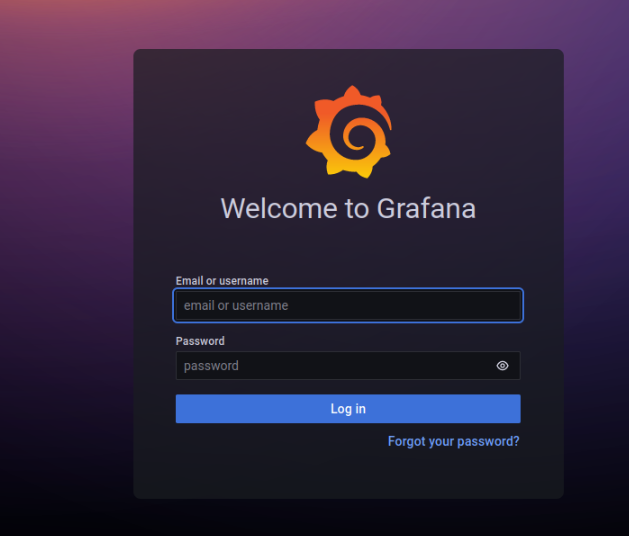
Grafana runs on port 3000 by default. After you open http://localhost:3000, the Grafana login page is displayed. The default username and password for the first login are admin. After the login is successful, change the password as prompted.
Parent topic: Installing and Configuring Grafana
What is your overall rating for this page?
0
1
2
3
4
5
6
7
8
9
10
Very dissatisfiedVery satisfied
Thank you very much for your feedback. We will continue working to improve the documentation.
The system is busy. Please try again later.


