

Help Center/ ModelArts/ ModelArts User Guide (Standard)/ Development Environments/ Using a Notebook Instance for AI Development Through JupyterLab/ Uploading Files to JupyterLab/ Cloning GitHub Open-Source Repository Files to JupyterLab
Updated on 2025-05-28 GMT+08:00
Cloning GitHub Open-Source Repository Files to JupyterLab
Files can be cloned from a GitHub open-source repository to JupyterLab.
- Use JupyterLab to open a running notebook instance.
- Click
 in the navigation bar on the top of the JupyterLab window. In the displayed dialog box, click
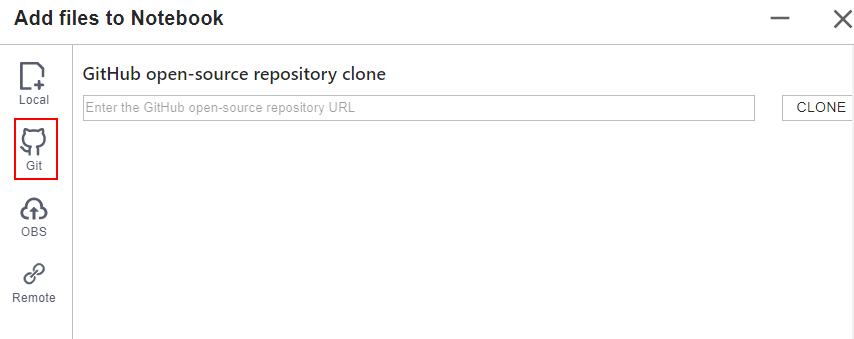
  on the left to go to the page for cloning files from a GitHub open-source repository. Figure 1 File upload icon
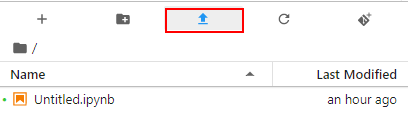 Figure 2 Page for cloning files from a GitHub open-source repository
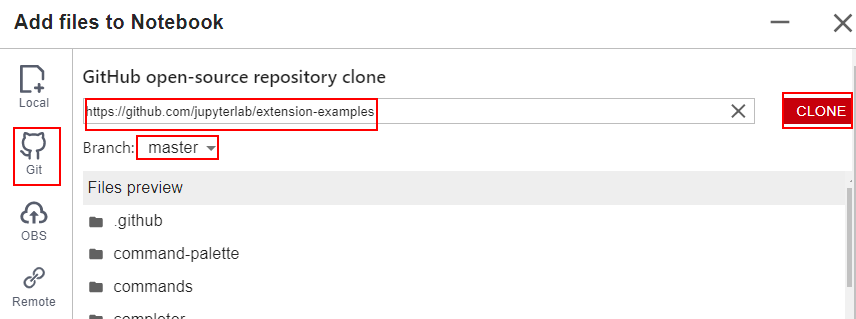
- Enter a valid address of a GitHub open-source repository, select files from the displayed files and folders, and click Clone. GitHub open-source repository address: https://github.com/jupyterlab/extension-examplesFigure 3 Entering a valid address of a GitHub open-source repository
- View the clone process. Figure 4 Process of cloning a repository
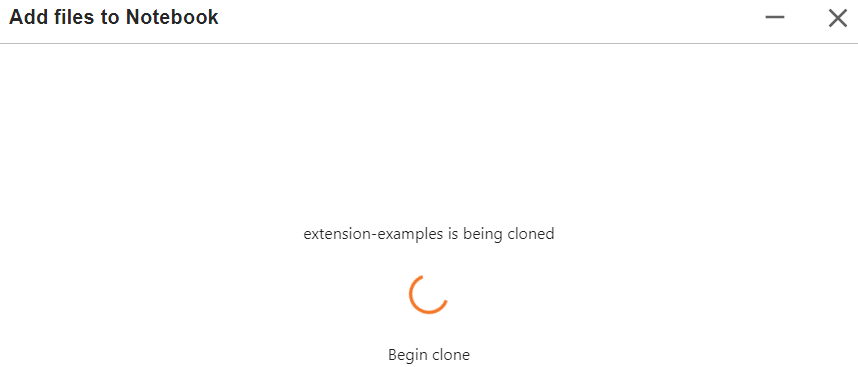
- Complete the clone.
Error Handling
- Failing to clone the repository may be caused by network issues. In this case, run the git clone https://github.com/jupyterlab/extension-examples.git command on the Terminal page to test the network connectivity.
- If the repository already exists in the current directory of the notebook instance, the system displays a message indicating that the repository name already exists. In this case, you can overwrite the existing repository or click
 to cancel the cloning.
Parent topic: Uploading Files to JupyterLab
What is your overall rating for this page?
0
1
2
3
4
5
6
7
8
9
10
Very dissatisfiedVery satisfied
Thank you very much for your feedback. We will continue working to improve the documentation.
The system is busy. Please try again later.


