

Help Center/ Organizations/ User Guide/ Managing Trusted Services/ Enabling or Disabling a Trusted Service
Updated on 2026-01-26 GMT+08:00
Enabling or Disabling a Trusted Service
- If the organization administrator disables trusted access for a cloud service, the service can no longer create a service-linked agency in the member accounts.
- If the organization administrator closes the organization or a member account leaves the organization, Organizations will clear its service-linked agency.
- Before disabling trusted access for the AOM service, delete multi-account instances on the AOM console and then disable the trusted access on the Organizations console. Otherwise, the multi-account instances will continue retrieving the member accounts' metric data.
- Before disabling trusted access for the LTS service, delete the configurations of multi-account log aggregation on the LTS console and then disable the trusted access on the Organizations console. Otherwise, the multi-account log aggregation will continue retrieving the member accounts' logs.
Enabling a Trusted Service
- Log in to the Organizations console as an organization administrator or using the management account.
- On the Services page, locate the target trusted service and click Enable Access in the Operation column.
- Click OK in the displayed dialog box.
Disabling a Trusted Service
When logging in as the organization's management account, you can disable trusted services.
- Log in to the Organizations console as an organization administrator or using the management account.
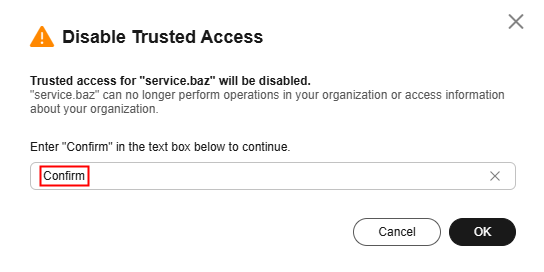
- On the Services page, locate the target trusted service and click Disable Access in the Operation column.

- In the displayed dialog box, enter "Confirm" and click OK.
Parent topic: Managing Trusted Services
What is your overall rating for this page?
0
1
2
3
4
5
6
7
8
9
10
Very dissatisfiedVery satisfied
Thank you very much for your feedback. We will continue working to improve the documentation.
The system is busy. Please try again later.


