

Managing MRS Cluster Data Connections
During MRS cluster O&M, the cluster may need to connect to external data services to store metadata or govern data. For example, Ranger requires an external RDS database to store permission policies, while LakeFormation requires unified data catalog management. Without a configured data connection, the cluster cannot use advanced features such as Ranger permission management or LakeFormation data governance. The MRS console provides data connections to link MRS clusters with RDS databases or LakeFormation, allowing you to create, view, and delete these connections.
This section describes how to create, view, and delete cluster data connections on the MRS console.
Concepts
Data connection: A data connection links an MRS cluster to an external data service. It delegates the cluster's metadata storage or data governance functions to the external service. By creating a data connection, you establish communication between an MRS cluster and an RDS database or LakeFormation instance, enabling centralized storage and unified metadata management.
For details about supported data connection types, see MRS Cluster Metadata Storage in an External Data Source.
Creating a Data Connection
- Log in to the MRS console.
- In the navigation pane, choose Data Connections.
- Click Create Data Connection.
For details about how to configure an RDS for MySQL data connection, see Creating an RDS Data Connection for an Existing MRS Cluster.
- Click OK.
After creating the data connection, check that it appears in the connection list and shows as available.
If the creation fails, check the error message on the page and fix the issue.
Checking Data Connection Information
- Log in to the MRS console.
- In the navigation pane, choose Data Connections.
- In the data connection list, click the desired data connection. On the page that is displayed, view its details. For example, the data connection information of the RDS MySQL database is as follows:Figure 1 Viewing the data connection information of the RDS MySQL database
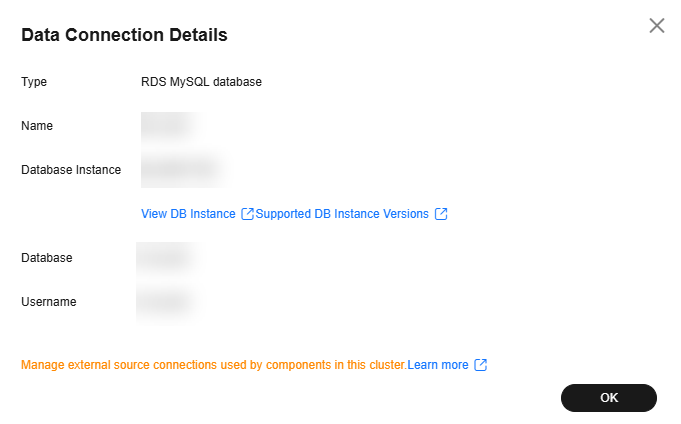
On the data connection details page, check whether key information (such as the connection type, name, associated service, and database instance) is displayed correctly. If any information is incomplete or incorrect, return to the data connection list and check the connection status.
Deleting a Data Connection
Deleting a data connection is a high-risk operation. Before deleting a connection, ensure it is no longer needed and you have backed up all necessary metadata. Deleted connections cannot be recovered. Exercise caution when performing this operation.
- Log in to the MRS console.
- In the navigation pane, choose Data Connections.
- In the Operation column of the data connection list, click Delete in the row where the data connection to be deleted is located. Enter DELETE in the Delete Data Connection dialog box and click OK.
If the selected data connection has been associated with a cluster, the deletion does not affect the cluster.
Helpful Links
- For details about configuring metadata storage in RDS for an MRS cluster, see Storing Hive Metadata to RDS.
FAQs
Q: What should I do if creating a data connection fails?
A: Check the following items: For RDS for MySQL data connections, ensure that the RDS instance is running properly and the database connection information is correct. For LakeFormation data connections, ensure that all prerequisites are met. Ensure that network connectivity is normal and that the MRS cluster can communicate with the target service.
Q: Can I modify data connection parameters after creation?
A: You cannot directly modify a created data connection. To modify its configuration, delete the original data connection and create a new one.


