

Unsubscribing from a Specified Node in a Yearly/Monthly MRS Cluster
During routine O&M of a yearly/monthly MRS cluster, some Core nodes may remain idle for long periods as service workload decreases. Retaining these nodes wastes resources and increases O&M costs. However, directly deleting a node can cause HDFS data loss or service errors, posing data security risks. How can you safely remove unneeded nodes to cut O&M costs without risking data integrity or cluster stability? MRS allows you to unsubscribe from a specified node in a yearly/monthly cluster. You can decommission or isolate data and service instances on the node before unsubscribing from it. This ensures that the node is safely deleted after data is securely migrated to complete the cluster scale-in.
This section applies only to scaling in yearly/monthly clusters. For details about how to scale in pay-per-use clusters, see Scaling In an MRS Cluster.
Basic Concepts
- Yearly/Monthly cluster: An MRS cluster purchased on a yearly or monthly subscription. Node billing periods are fixed. Before unsubscribing from a node, you must disable auto-renewal. After unsubscribing, any remaining balance will be refunded according to the refund policy.
- Core node: A node in an MRS cluster that stores data and performs compute tasks. Key service components, such as DataNode and NodeManager, run on Core nodes. Before unsubscribing from a Core node, ensure its data is safely migrated to other nodes.
- Decommissioning: The process of safely stopping service instances (such as HDFS DataNode) on a node and migrating its data to other nodes in the cluster. Once decommissioning is complete, all data replicas from the node are fully rebuilt on other nodes. You can then safely delete the node without risking data loss.
- Isolation: A process that logically separates a node from a cluster so it no longer receives scheduled tasks or processes cluster data. Isolation is a more complete operation than decommissioning. Once isolated, the node no longer carries any service traffic.
Before unsubscribing from a node, you must first decommission or isolate it. This process migrates HDFS data replicas from the target node to other nodes in the cluster. Ensure the number of data replicas meets your HDFS configuration requirements before deleting the node. If you skip this step and directly unsubscribe, all data on that node will be lost upon deletion. Consequently, the replica count may fall below the safety threshold, causing permanent data loss. Additionally, you must safely stop service instances on the node (such as YARN NodeManager and HBase RegionServer) to prevent job interruptions.
Notes and Constraints
- Currently, you can unsubscribe from a maximum of five Core nodes at a time. To maintain basic cluster storage and compute capabilities, at least two Core nodes must remain after the unsubscription.
- If the number of Core nodes in the cluster is less than or equal to the number of HDFS copies, MRS does not support node unsubscription to ensure data reliability. The number of HDFS copies can be queried using the dfs.replication parameter in the HDFS parameter configuration.
- Nodes with ZooKeeper, Kudu, Kafka, and ClickHouse services deployed cannot be unsubscribed from. In MRS 3.1.2 and later versions, nodes with the ClickHouse service deployed can be unsubscribed from after the service is decommissioned.
- Only the following yearly/monthly MRS clusters support unsubscription from specified nodes. For other versions, contact technical support.
- MRS 2.1.0 (patch 2.1.0.5 or later)
- MRS 3.1.0 (patch 3.1.0.0.2 or later)
- MRS 3.1.5
- MRS 3.2.0-LTS.1 (patch 3.2.0-LTS.1.3 or later)
- MRS 3.3.0-LTS or later
How to Unsubscribe from a Specified Node in a Yearly/Monthly Cluster
- Disable the auto-renewal function of the cluster where the node to be unsubscribed from is located. For details, see Disabling Auto-Renewal.
- Log in to the MRS console.
- On the Active Clusters page, click the target cluster name to open the cluster details page.
- On the Dashboard page of the cluster, click Synchronize on the right of IAM User Sync.
- Unsubscribe from or isolate a node.

You can unsubscribe from a node only after the node is successfully isolated or decommissioned. Otherwise, data loss may occur.
- If the cluster is earlier than MRS 2.x:
- Click Isolate Node in the Operation column of the node group to be unsubscribed from.
- Select the node to be unsubscribed from and click OK.
The time required for isolating a node depends on the data volume on the node. A larger data volume indicates a longer time.
After the node is isolated, the node status changes to Isolated. The Unsubscribe from Node button is displayed on the Nodes tab page.
- If the cluster version is MRS 3.1.0, 3.1.5, 3.2.0-LTS.1, MRS 3.3.0-LTS, or a later version:
- Click Decommission Node in the Operation column of the node group to be unsubscribed from.
- Select the node to be decommissioned and click OK.
The time required for decommissioning a node depends on the data volume on the node. A larger data volume indicates a longer time.
After the node is decommissioned, the node status changes to Decommissioned.
- For MRS 3.x clusters (excluding MRS 3.1.0, 3.1.5, 3.2.0-LTS.1, and MRS 3.3.0-LTS or later), perform the following steps:
- To unsubscribe a node hosting HDFS DataNode, YARN NodeManager, or HBase RegionServer instances, decommission these instances on MRS Manager first. For details, see Decommissioning and Recommissioning an MRS Role Instance.
- On the Nodes page of the MRS console, select the target node, and choose Node Operation > Isolate Host. After the host is isolated, contact the technical support to unsubscribe from the node.
- Only one node can be isolated or decommissioned at a time. You can unsubscribe from a node only after the node is successfully isolated or decommissioned.
- If the node fails to be isolated or decommissioned, log in to Manager. Click
 , search for the failed task in the task list, click the task name, and rectify the fault as prompted.
- For MRS 3.x clusters (excluding MRS 3.1.0, 3.1.5, 3.2.0-LTS.1, and MRS 3.3.0-LTS or later), perform the following steps:
- If the cluster is earlier than MRS 2.x:
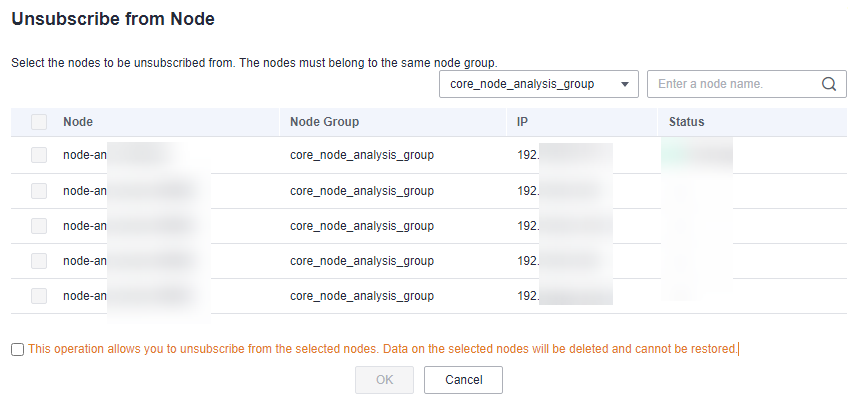
- On the cluster details page, choose Nodes > Unsubscribe from Node.
- Select the node to be unsubscribed from and click OK.
Currently, you can unsubscribe from a maximum of 20 Core nodes at a time, but there must be at least 2 Core nodes available after unsubscription.
Figure 1 Selecting a node to be unsubscribed from
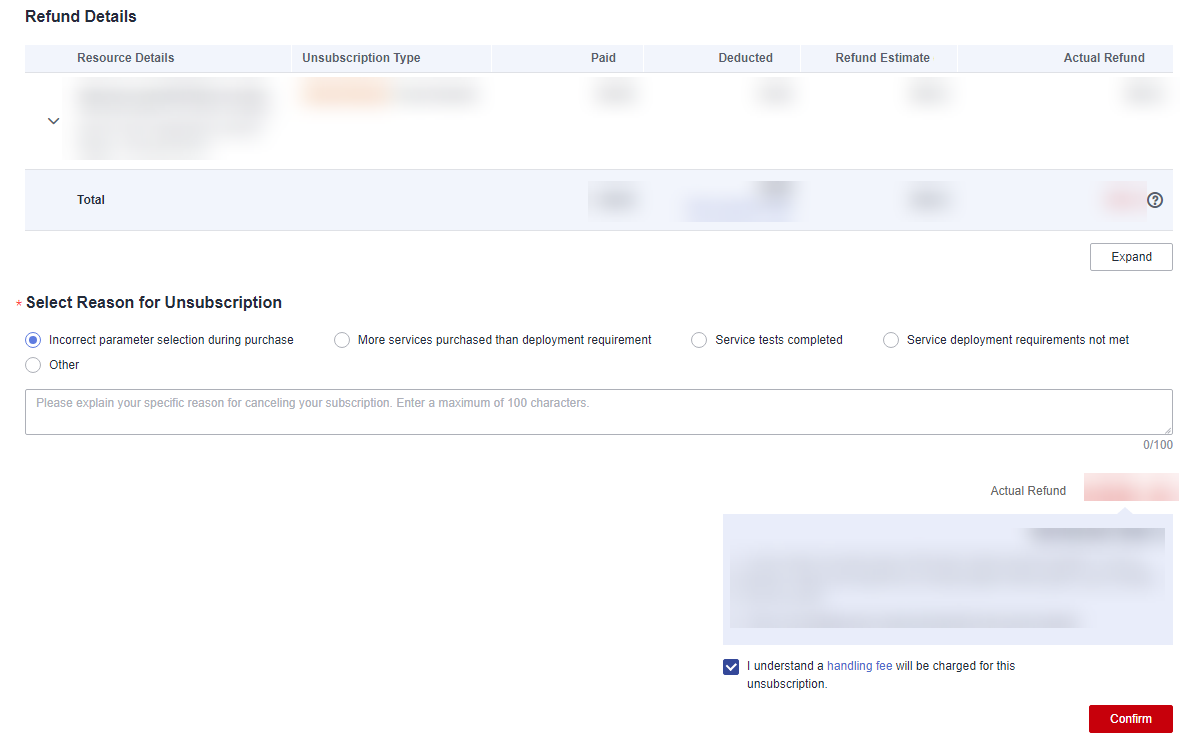
- On the Refund Details page, select "I understand a handling fee will be charged for this unsubscription" as prompted if needed, and click Confirm. If this check box does not appear, skip this step. The cluster status changes to Scaling in. After the scale-in is complete, the cluster status changes to Running, and the specified node is deleted.Figure 2 Refund details
- (Optional) To enable auto-renewal for a cluster, see Enabling Auto-Renewal.
Verification:
After unsubscribing, check the cluster status on the cluster details page on the MRS console. If the status changes from Scaling in to Running and the target node is no longer listed on the Nodes page, the node was unsubscribed successfully. You can also check the Alarms page to verify whether any alarms were triggered by the unsubscription.
FAQs
- What should I do if an error occurs when I unsubscribe from an ECS after an MRS cluster unsubscription?
After you unsubscribe from an MRS cluster or node, associated ECS resources might not be completely cleared due to remaining resource dependencies. Consequently, an error will occur if you attempt to unsubscribe from the ECS directly.
- What should I do if node isolation or decommissioning fails?
Node isolation or decommissioning typically fails due to one of the following reasons: data migration times out because the node contains a large volume of data, other nodes in the cluster lack sufficient available space to receive the migrated data, or service instances on the node are in an abnormal state.
Log in to MRS Manager, locate the failed task in the task list, click the task name, and follow the on-screen instructions to resolve the issue.
- How long does an unsubscription take?
The total duration of an unsubscription depends on how long data migration takes during node isolation or decommissioning. The more data stored on a node, the longer it takes to migrate that data to other nodes. Once isolation or decommissioning is complete, the unsubscription process usually takes only a few minutes.
We recommend unsubscribing during off-peak hours and ensuring that other cluster nodes have sufficient disk space to receive the migrated data, which helps accelerate the migration process.


