

Adding a Tag to an MRS Cluster/Node
Tags are used to identify clusters/nodes. Adding tags to clusters/nodes can help you identify and manage your resources.
- Cluster tags: You can add up to 20 tags to a cluster during creation or on the details page of an existing cluster. Updating a cluster tag will synchronize the tag to all nodes in the cluster.
- Node tags: You can either use the default tag or add tags to nodes in an MRS cluster when configuring an auto scaling policy. Node tags consume tag quotas. You can view the tags of a node in the Nodes tab on the MRS console.
- Default tags: An MRS cluster consists of multiple nodes, and each node is an ECS instance that includes EVS disks. After the default tag is enabled, the system automatically generates a default cluster tag and default node tags. These tags are synchronized to the corresponding ECS or EVS disks.
- Tag updates in MRS are automatically synchronized to ECSs or EVS disks within the cluster. Changes made directly on the ECS or EVS console will not be reflected in MRS. To ensure tag consistency, do not modify MRS cluster tags on the ECS or EVS console.
- A cluster supports up to 20 tags. When a node in the cluster reaches the maximum number of tags, no additional tags can be added to the cluster.
- When the default tag is enabled, a default tag is added to the cluster and each node, consuming two quotas. By default, a maximum of 20 tags can be added. In this case, up to 18 additional tags can still be added.
If your organization has configured tag strategies for MRS, add tags to clusters/nodes based on the strategies. If a tag does not comply with the tag strategies, the cluster/node may be failed to be created. Contact the organization administrator to learn more about the tag strategies.
A tag consists of a tag key and a tag value. Table 1 provides tag key and value requirements.
| Parameter | Requirement | Example |
|---|---|---|
| Key | A tag key cannot be left blank. A tag key must be unique in a cluster. A tag key can contain a maximum of 128 characters. A tag value cannot contain special characters (=*<>\,|/) or start or end with spaces. | Organization |
| Value | A tag value can contain a maximum of 255 characters. A tag value cannot contain special characters (=*<>\,|/) or start or end with spaces. This parameter can be left blank. | Apache |
Adding Tags to a Cluster
- Adding cluster tags during cluster creation
- Log in to the MRS console.
- Click Buy Cluster. The page for buying a cluster is displayed.
- Click the Custom Config tab.
- Configure the cluster software and hardware by referring to Buying a Custom MRS Cluster.
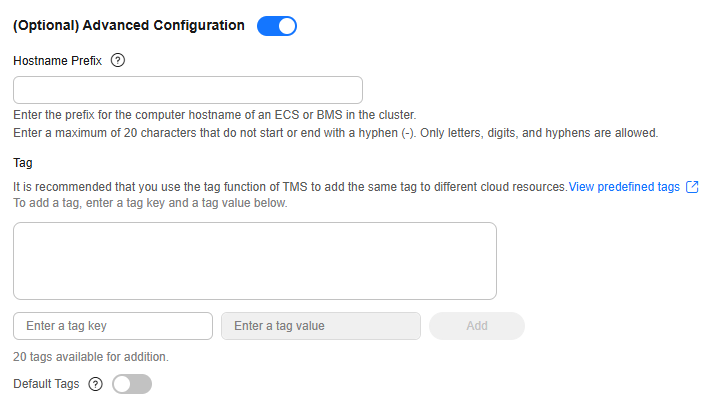
- Enable Advanced Configuration and enter the key and value of the tag to be added. Figure 1 Adding a tag to a cluster
- Adding tags to an existing cluster
- Log in to the MRS console.
- On the Active Clusters page, select a running cluster and click its name to switch to the cluster details page.
- Click the Tags tab.
- Click Add/Edit Tag. If this is your first time adding a tag, click Add Tag. In the displayed dialog box, enter the key and value of a tag, and click Add. Figure 2 Adding/Editing a Tag
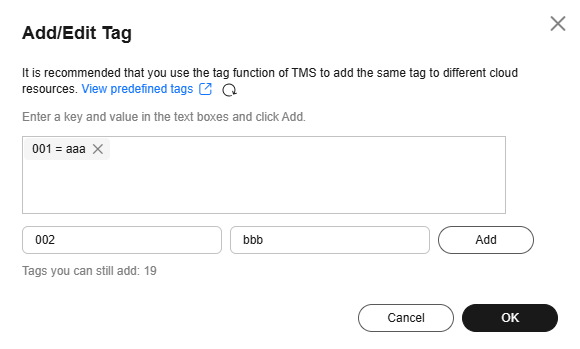
You can also add a tag to a cluster by enabling the default tag. This adds a default tag to the cluster and each node, consuming two tag quotas.
- Click OK.
Adding Tags to a Node
- Adding a default tag to a cluster automatically applies the tag to each node within the cluster. For details, see Adding tags to an existing cluster.
- Adding node tags for auto scaling
If you add a tag when configuring an auto scaling policy, MRS automatically adds the tag to the new nodes and synchronizes the tag to the ECSs and EVS disks.
- Log in to the MRS console.
- On the Active Clusters page, select a running cluster and click its name to switch to the cluster details page.
- On the page that is displayed, click the Auto Scaling tab.
- Click Edit on the right of an existing auto scaling policy. In the displayed dialog box, enter the key and value of the tag you want to add, and click Add.
- Click OK.
When adding node tags through auto scaling:
- You need to enable the auto scaling policy and configure scale-out rules. Otherwise, the node tags will not take effect.
- If tag quotas are insufficient, delete the cluster tag or modify an existing tag in the auto scaling policy, and then enable the policy.
- You cannot add tags to auto scaling policies of resource pools.
Searching for Target Clusters by Tags
- Log in to the MRS console.
- In the upper right corner of the Active Clusters page, click Search by Tag to access the search page.
- Enter the tag of the cluster to be searched.
You can select a tag key or tag value from their drop-down lists. When the tag key or tag value is exactly matched, the system can automatically locate the target cluster. If you enter multiple tags, their intersections are used to search for the cluster.
- Click Search.
The system searches for the target cluster by tag key or value.
Managing Tags
- Log in to the MRS console.
- On the Active Clusters page, click the name of a cluster for which you want to manage tags.
The cluster details page is displayed.
- Click the Tags tab and view, add, and delete tags on the tab page.
- View
On the Tags tab page, you can view details about tags of the cluster, including the number of tags and the key and value of each tag.
- Add
Click Add/Edit Tag. If this is your first time adding a tag, click Add Tag. In the displayed dialog box, enter the key and value of a tag, and click OK.
- Delete
Locate the row that contains the tag you want to delete and click Delete in the Operation column. In the displayed Delete Tag dialog box, enter DELETE, and click Yes.
- View


