

Creating a User and Granting Permissions
You can use IAM to implement refined permission control for DAS resources. To be specific, you can:
- Create IAM users for employees from different departments of your enterprise. In this way, each IAM user has unique security credentials and can use DAS resources.
- Grant only the permissions required for users to perform a specific task.
- Entrust an account or cloud service to perform professional and efficient O&M on your DAS resources.
If your account does not need individual IAM users, then you may skip over this section.
Figure 1 describes how to grant permissions to a user group.
Prerequisites
Before granting permissions to a user group, learn about the DAS system policies that can be added and select a policy based on service requirements. For details, see Permissions Management.
Process Flow
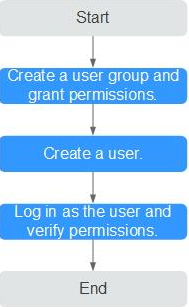
- Create a user group and assign permissions to it.
Create a user group on the IAM console and attach the DAS FullAccess policy to the group.
- Create a user and add it to a user group.
Create a user on the IAM console and add the user to the group created in 1.
- Log in and verify permissions.
In the service list, choose Data Admin Service. On the displayed page, click Add DB Instance Connection. If a database connection can be created, the DAS permissions have taken effect.


