

Updated on 2025-11-13 GMT+08:00
Cost Tag Management
Scenarios
You can configure cost tags to classify and track pod costs.
Tag Naming Rules
- Each tag consists of a key-value pair. Example:
pod-tag.cci.io/<tag-key>:tag-value
- Each pod can have a maximum of 20 tags.
- A tag key must be unique for each pod, and each tag key can have only one tag value.
- A tag consists of a tag key and a tag value. Table 1 lists the tag key and value requirements.
Table 1 Tag naming rules Item
Rules
Example
Tag key
- Cannot be empty.
- Must be unique for each pod.
- Can contain a maximum of 128 characters.
- Can contain letters, digits, spaces, and special characters _.:=+-@.
- Cannot start or end with a space.
Organization
Tag value
- Can contain a maximum of 255 characters.
- Can contain letters, digits, spaces, and special characters _.:=+-@/.
Apache
Procedure
- Log in to the management console.
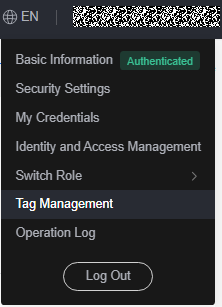
- In the upper right corner of the page, click the username and select Tag Management from the drop-down list. Figure 1 Tag Management
- Create a predefined tag. In the navigation pane, choose Predefined Tags. Click Create Tag, enter the tag key and value, and click OK.
- In the top navigation bar, choose Billing > Cost Center.
- In the navigation pane, choose Cost Organization > Cost Tags. On the Cost Tags page, select the tag created in 3, click Activate, and then click OK.
- Wait until the tag status changes to Activated.
- Add the following fields to the Podtemplate.metadata.labels file when creating a pod in CCI. The following is an example YAML file:
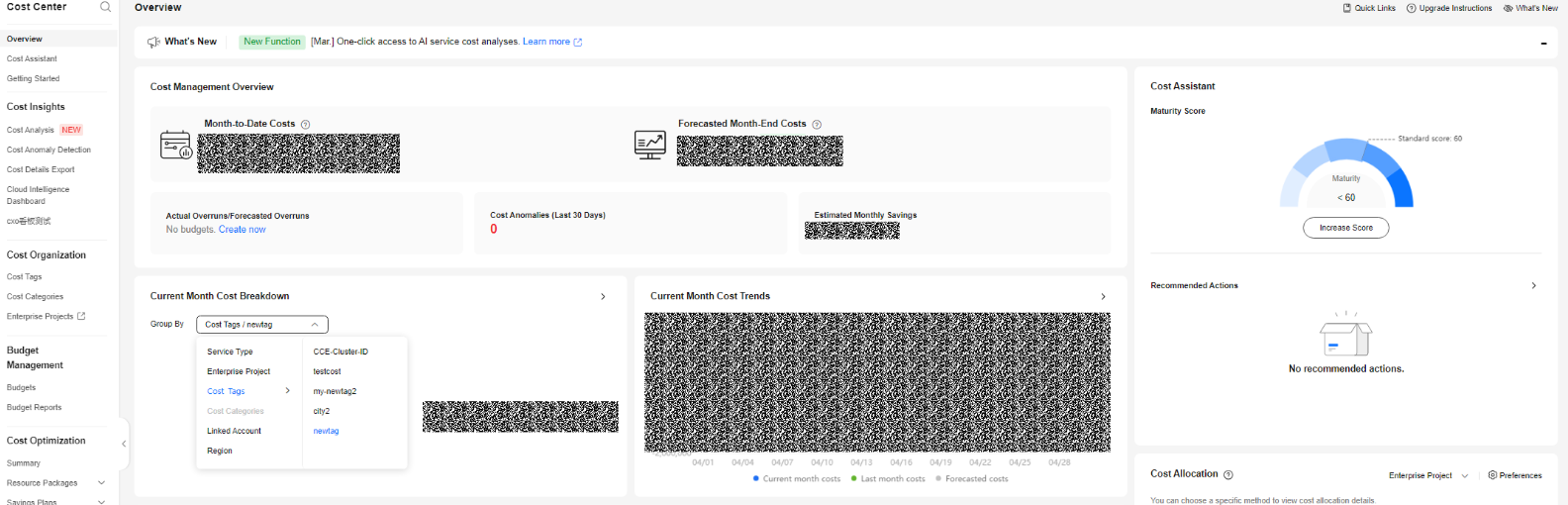
kind: Deployment apiVersion: cci/v2 metadata: name: tag-example namespace: bursting-d0089910820250427-2031 spec: replicas: 3 selector: matchLabels: app: tag-example template: metadata: labels: app: tag-example pod-tag.cci.io/newtag: tag-example-1 # pod-tag.cci.io/<custom-tag-key>: custom-tag-value spec: containers: - name: deploy-example image: swr.region-id.domain.com/org-name/image-name:tag env: - name: ENV1 value: 'false' - name: ENV2 value: xxx resources: limits: cpu: 500m memory: 1Gi requests: cpu: 500m memory: 1Gi dnsPolicy: Default imagePullSecrets: - name: imagepull-secret strategy: type: RollingUpdate rollingUpdate: maxUnavailable: 0 maxSurge: 100% - In the top navigation bar, choose Billing > Cost Center. In the navigation pane, choose Overview. In the Current Month Cost Breakdown area, select Cost Tags and then the created tag to view the cost details. Figure 2 Current Month Cost Breakdown
What is your overall rating for this page?
0
1
2
3
4
5
6
7
8
9
10
Very dissatisfiedVery satisfied
Thank you very much for your feedback. We will continue working to improve the documentation.
The system is busy. Please try again later.


