

Help Center/ ModelArts/ ModelArts User Guide (Standard)/ Development Environments/ Using Notebook Instances Remotely Through PyCharm/ Uploading Data to a Notebook Instance Through PyCharm
Updated on 2025-05-28 GMT+08:00
Uploading Data to a Notebook Instance Through PyCharm
If the data is less than or equal to 500 MB, directly copy the data to the local IDE.
If the data is larger than 500 MB, upload it to OBS, and then download it to the notebook instance.
Figure 1 Uploading data to a notebook Instance through OBS
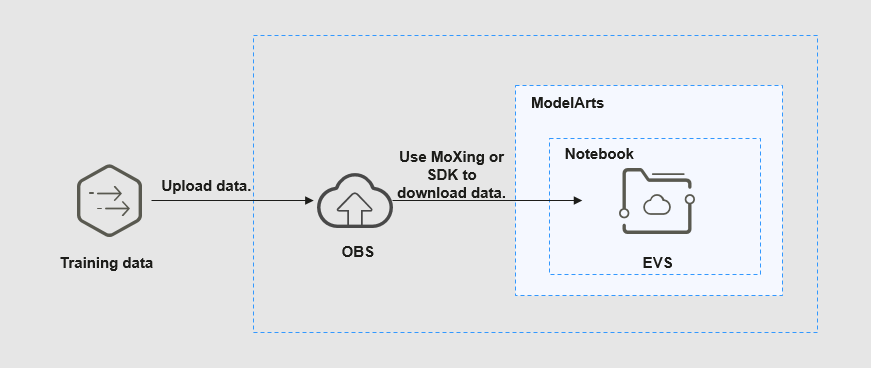
- Upload data to OBS.
- Call the mox.file.copy_parallel MoXing API provided by ModelArts in the terminal of the local IDE to transfer data from OBS to the notebook instance.
- Open terminal in PyCharm. The operations in Visual Studio Code (VS Code) are similar. Figure 2 Enabling the terminal in PyCharm
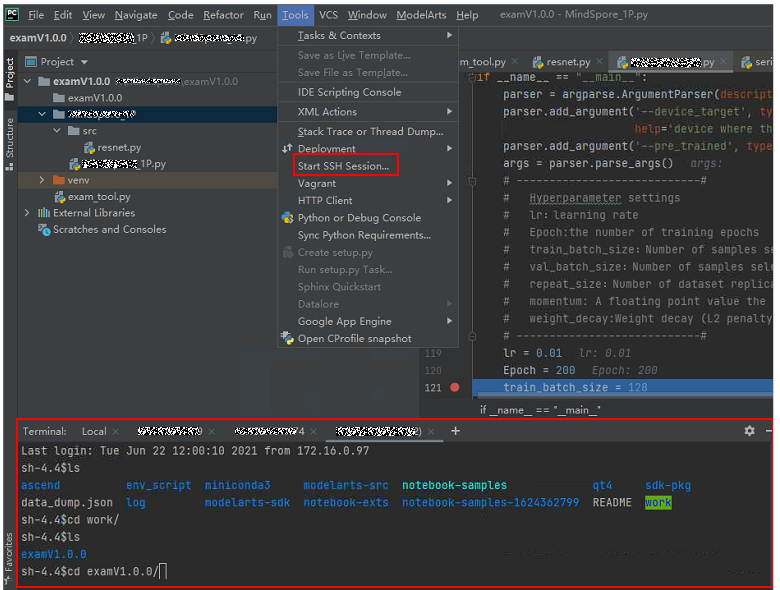
- The following shows how to use MoXing in the terminal of the local IDE to upload files from OBS to a notebook instance:
# Manually access the development environment.
cat /home/ma-user/README
# Select the source environment.
source /home/ma-user/miniconda3/bin/activate MindSpore-python3.7-aarch64
# Enter python and press Enter to enter the Python environment.
python
# Use MoXing for access.
import moxing as mox
# Download a folder from OBS to EVS.
mox.file.copy_parallel('obs://bucket_name/sub_dir_0', '/tmp/sub_dir_0')
- Open terminal in PyCharm. The operations in Visual Studio Code (VS Code) are similar.
Parent topic: Using Notebook Instances Remotely Through PyCharm
What is your overall rating for this page?
0
1
2
3
4
5
6
7
8
9
10
Very dissatisfiedVery satisfied
Thank you very much for your feedback. We will continue working to improve the documentation.
The system is busy. Please try again later.


