

Help Center/ Elastic Cloud Server/ Troubleshooting/ Windows ECS Issues/ How Do I View Login Logs of a Windows ECS?
Updated on 2023-03-30 GMT+08:00
How Do I View Login Logs of a Windows ECS?
Scenarios
This section describes how to view the login logs of a Windows ECS.
Procedure
The following operations are performed on an ECS running Windows Server 2012.
- Log in to the Elastic Cloud ServiceECS.
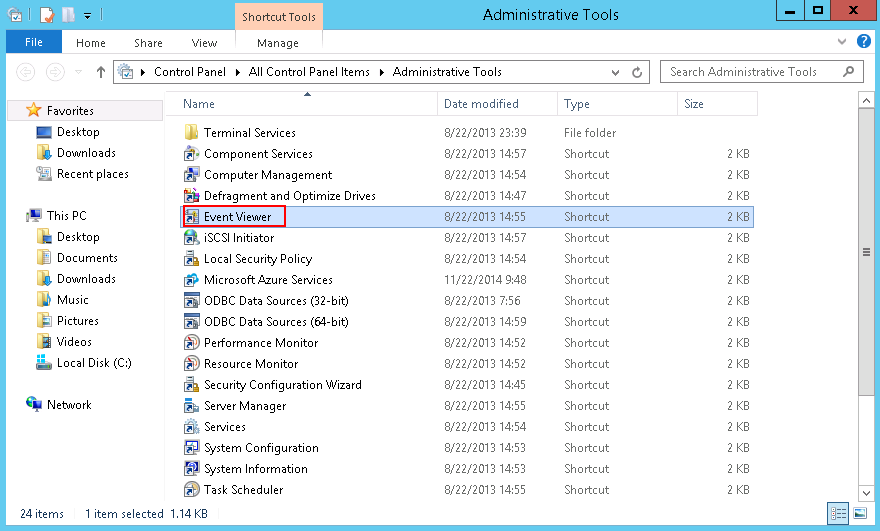
- Choose Start > Administrative Tools > Event Viewer.
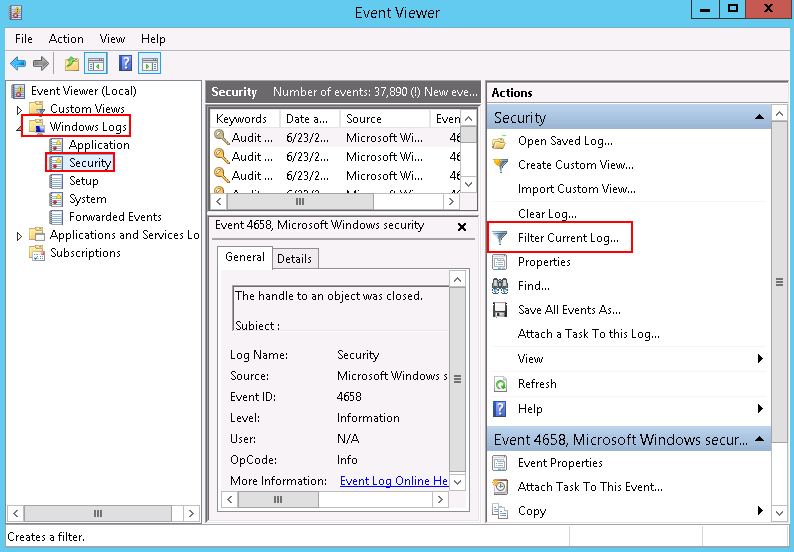
- On the Event Viewer window, choose Windows Logs > Security > Filter Current Logs.
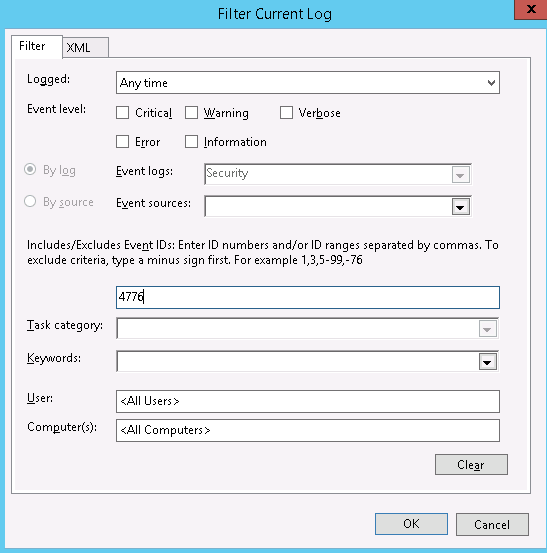
- Filter events with ID 4776 to obtain remote login logs.

You can also view login attempts by filtering events with ID 4624 or 4625.
- 4624: ID of successful login events
- 4625: ID of failed login events
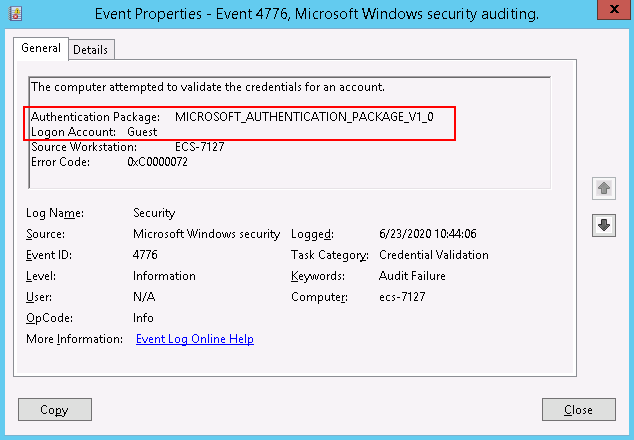
- Right-click an event and choose Event Properties from the shortcut menu. The logon account of the event is displayed.
Parent topic: Windows ECS Issues
What is your overall rating for this page?
0
1
2
3
4
5
6
7
8
9
10
Very dissatisfiedVery satisfied
Thank you very much for your feedback. We will continue working to improve the documentation.
The system is busy. Please try again later.


