

Help Center/ Migration Center/ FAQs/ Server Migration/ What Are the Information Mappings Between MgC and SMS?
Updated on 2025-03-10 GMT+08:00
What Are the Information Mappings Between MgC and SMS?
The following figure shows the server information mapping between MgC and SMS.
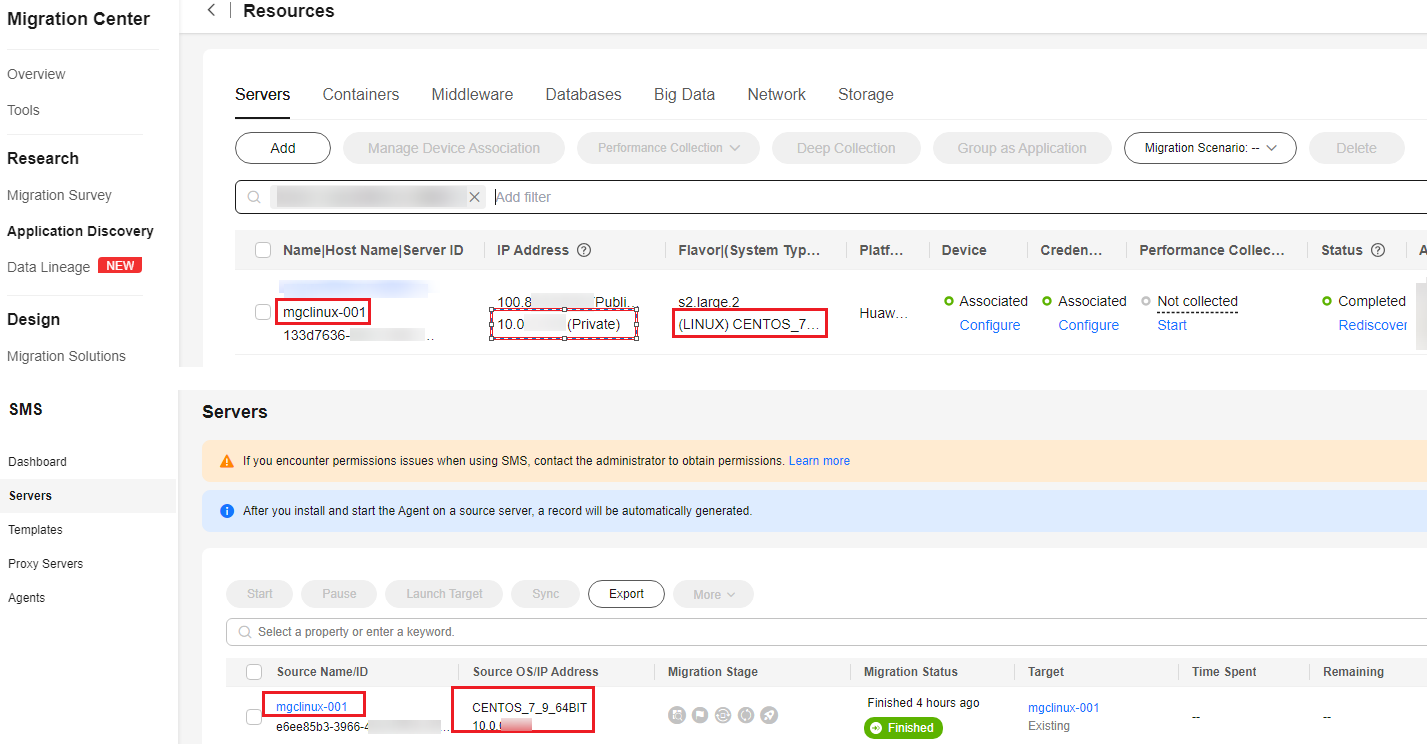
The following table lists the mapping between the server lists on the MgC and SMS consoles.
| Server List on MgC | Server List on SMS | Description |
|---|---|---|
| Hostname | Source Name | Hostname of a source server |
| IP Address | Source IP Address | IP address of a source server |
| Image | Source OS | OS of a source server |
| - | Target | Name of the paired target server |
Viewing a Server Migration Task Created by MgC on SMS
Viewing the Real-Time Migration Status
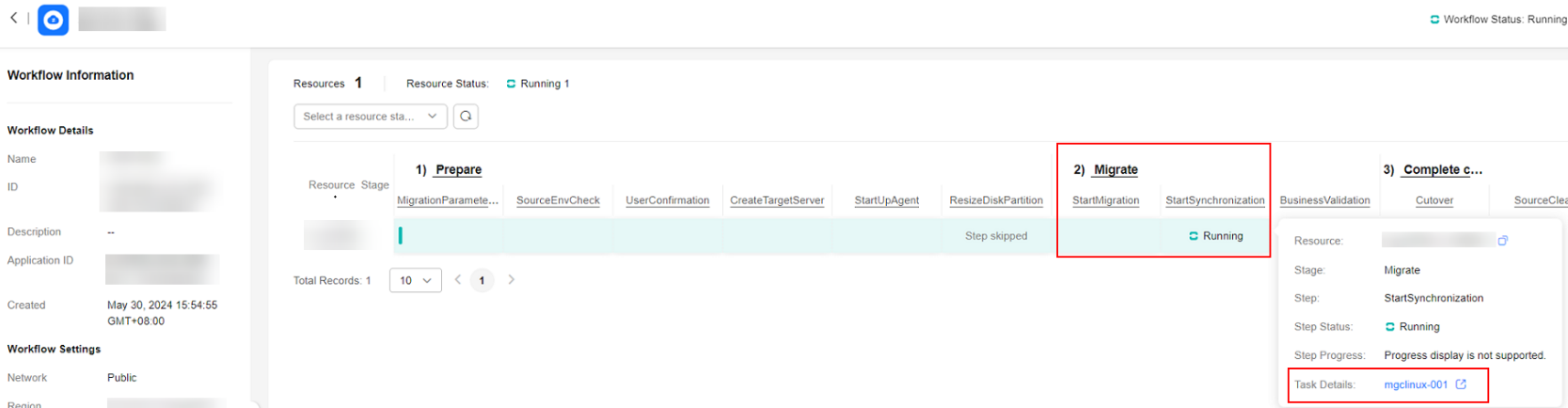
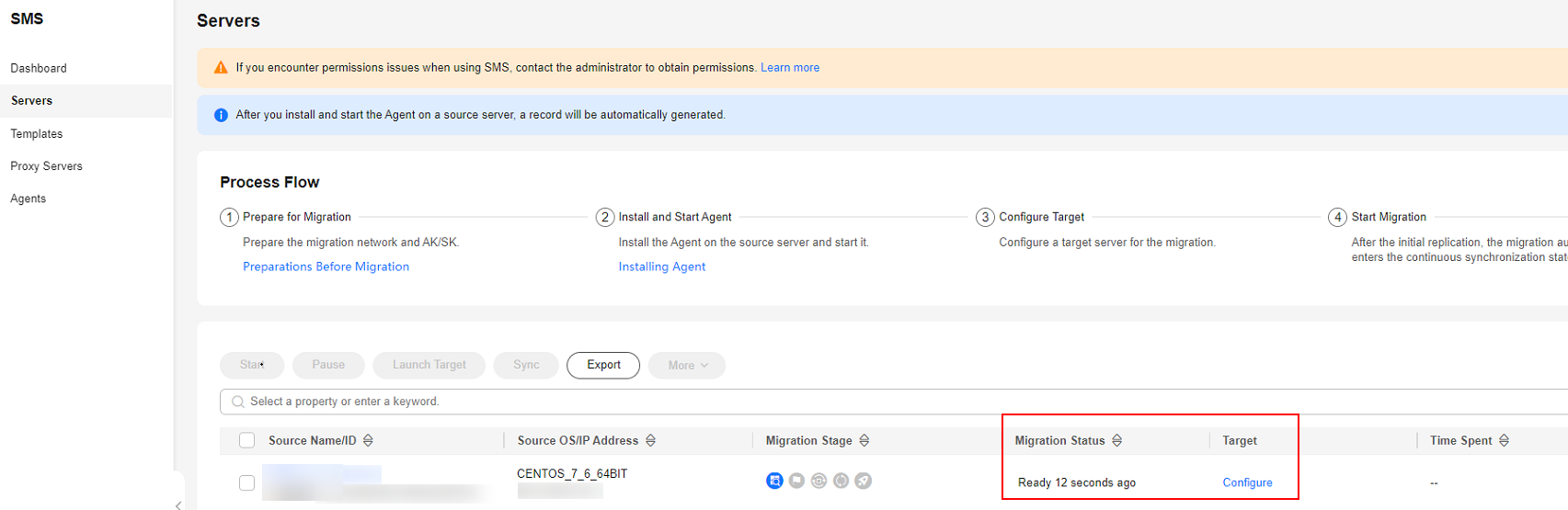
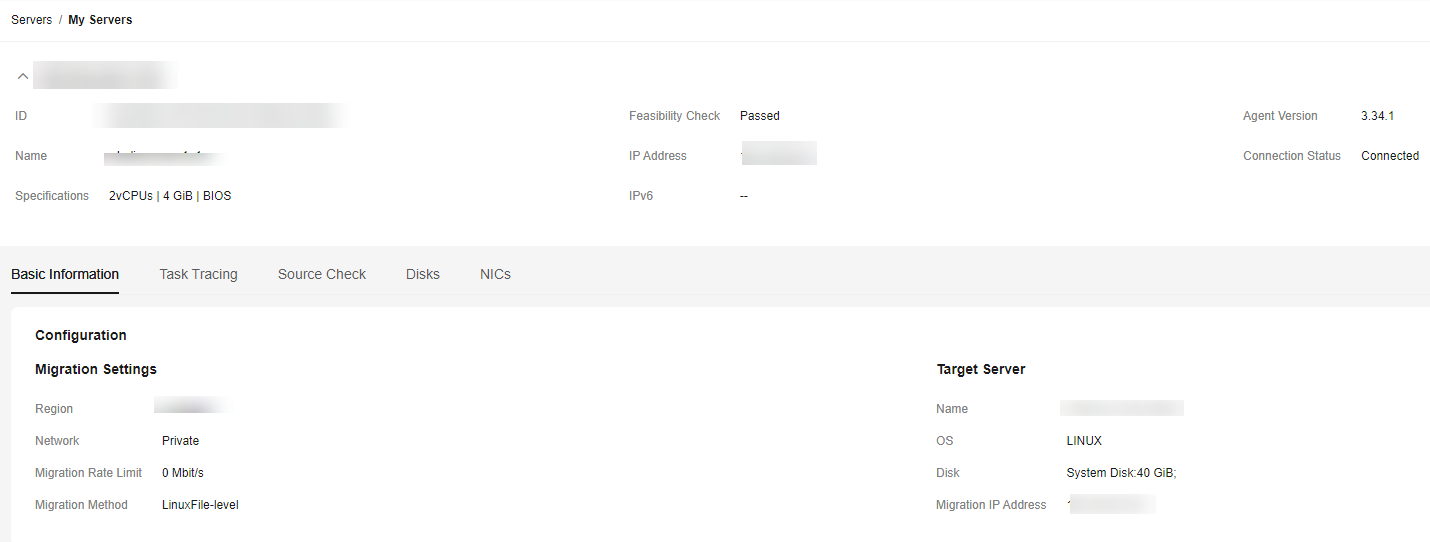
When a server migration workflow reaches the StartMigration or StartSynchronization step, you can click a server record, and in the displayed dialog box, click the task name after Migration Task to go to the SMS console, as shown in Figure 3. On the SMS console, you view the source server details, target server configuration, and migration status, as shown in Figure 4.
Retaining Migration Tasks on SMS
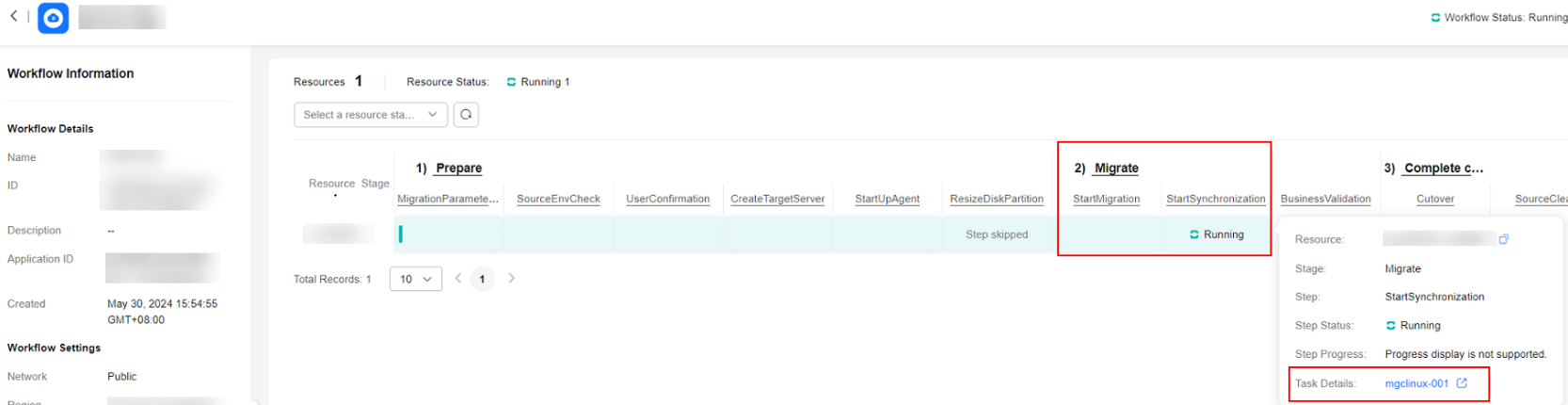
To retain the migration tasks created by MgC on SMS after a server migration workflow is complete, manually add a checkpoint before the step for clearing migration tasks in the workflow, as shown in Figure 5. For details about how to add checkpoints in a workflow and what are the precautions, see Adding a Stage or Step.



What is your overall rating for this page?
0
1
2
3
4
5
6
7
8
9
10
Very dissatisfiedVery satisfied
Thank you very much for your feedback. We will continue working to improve the documentation.
The system is busy. Please try again later.


