

How Do I Back Up the Database Audit Logs?
Database audit supports manual backup and automatic backup. Audit logs are backed up to OBS. Buckets will be automatically created and will incur a separate bill.
Perform the following operations to automatically back up audit logs.
Automatically Backing Up Database Audit Logs
- Log in to the management console.
- Select a region, click
 , and choose . The Dashboard page is displayed.
 - In the navigation tree on the left, choose Settings.
- In the Instance drop-down list, select the required instance and click the Backup and Restoration tab.
- Click Modify Automated Backup Settings. In the displayed dialog box, set the auto backup parameters. Table 1 describes the parameters. Figure 1 Configure Automatic Backup dialog box
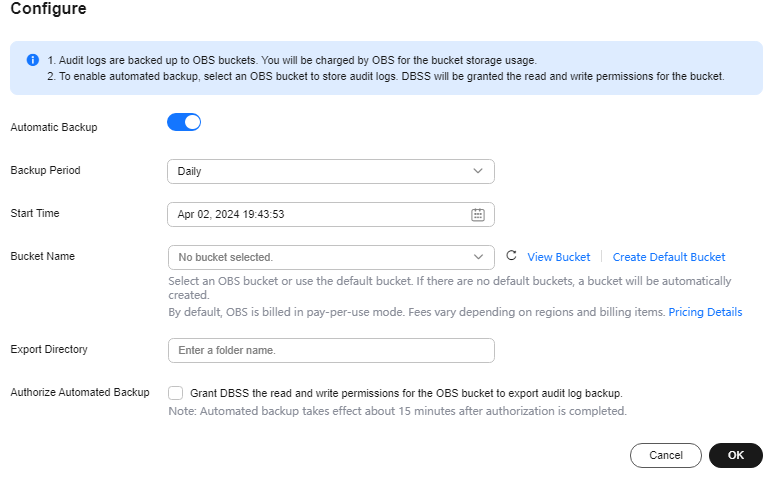
Table 1 Parameters Parameter
Description
Example Value
Automatic Backup
Status of automatic backup
 : enabled
 : disabled

Backup Period
Automatic backup period. Its options are as follows:
- Daily
- Hourly
Daily
Started
Start time of the backup. Click
 to configure.
2020/01/14 20:27:08
Bucket Name
Name of the OBS bucket used for backup. Its options are as follows:
- Create Default Bucket
- Select Bucket
NOTE:- If you click Create Default Bucket, you will be prompted to authorize OBS for exporting audit log backups.
- Audit logs can be exported only to the bucket created by DBSS.
20f18-7a5a-4042
Export Directory
Directory for storing backup files in the OBS bucket.
test
- Click OK.

After the automatic backup function is configured, new data in the database will be backed up one hour later. Then you can view the backup information.


