

Help Center/ Partner Center/ FAQs/ Partner Sales Management/ Cloud Solution Providers/ Registration and Authentication/ How Do I Change the Phone Number of My HUAWEI ID?
Updated on 2026-03-09 GMT+08:00
How Do I Change the Phone Number of My HUAWEI ID?
Changing Phone Number of HUAWEI ID
- Use your partner account to log in to Huawei Cloud.
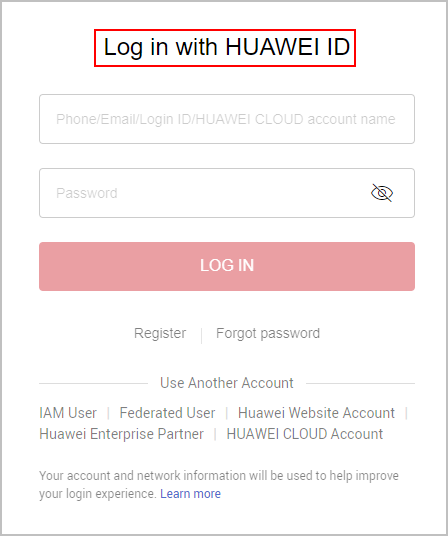
- Hover over the account name in the upper right corner and choose My Account.
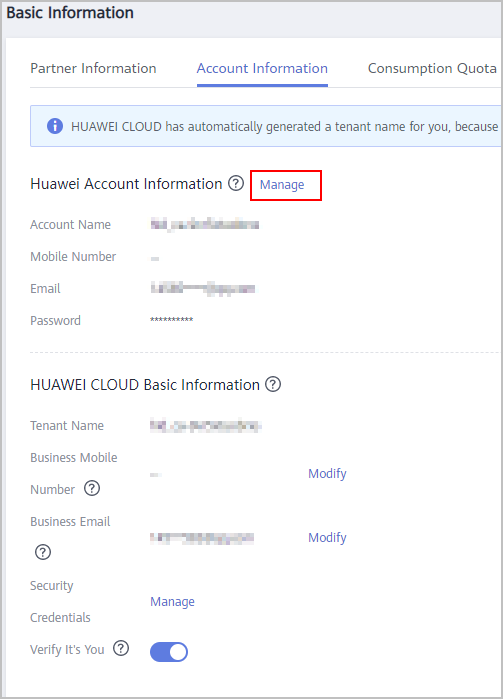
- Choose Partner Information > Basic Information in the drop-down list of the account name in the upper right corner
- Switch to the Account Information tab page and click Manage next to Huawei Account Information.
- On the Account & security page, click CHANGE next to Phone number.
- In the displayed dialog box, enter the password and click OK.
- A message for identity verification is displayed. Enter the SMS verification code and click OK.
- On the page for changing mobile number, enter a new mobile number and send the verification code.
- Click OK. The system displays a message indicating that the mobile number has been changed.
Changing Mobile Number of Huawei Cloud That Has Not Been Upgraded
- Use your partner account to log in to Huawei Cloud.
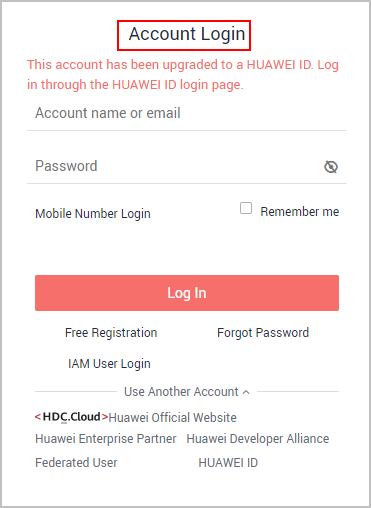
- In the drop-down list of your account name, click Partner Center to go to the Partner Center.
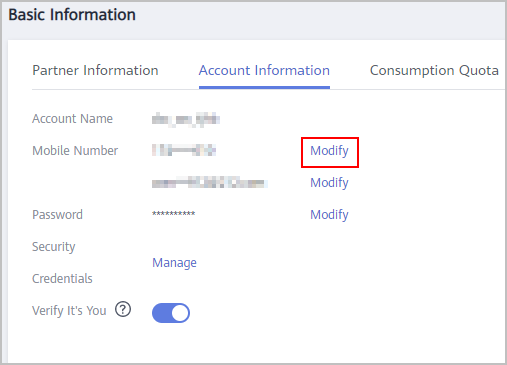
- Choose Partner Information > Basic Information in the drop-down list of the account name in the upper right corner.
- Switch to the Account Information tab page and click Modify next to Mobile Number.
- Verify your identity.
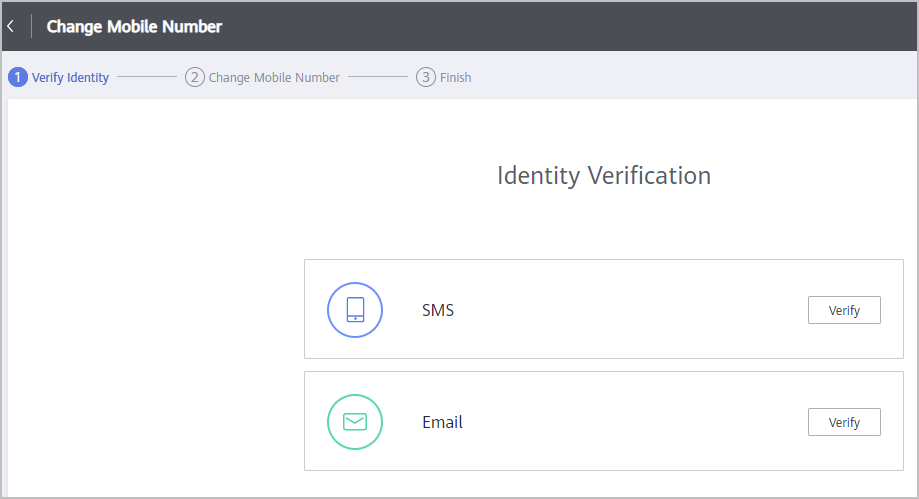
- Verification by SMS
- Click Verify next to SMS.
- Click Send Code, enter the SMS verification code, and click Next.
- Verification by email
- Click Verify next to Email.
- Click Send Code, enter the email verification code, and click Next.
- Verification by SMS
- Enter a new mobile number, click Send Code, and enter the code sent to the new number.
- Click OK. The system displays a message indicating that the mobile number is changed successfully.
What is your overall rating for this page?
0
1
2
3
4
5
6
7
8
9
10
Very dissatisfiedVery satisfied
Thank you very much for your feedback. We will continue working to improve the documentation.
The system is busy. Please try again later.


