

Configuring an Incremental Metadata Collection Task
Configuring and running a collection task is the prerequisite for building data assets. This section describes how to create different types of metadata collection tasks.
Scenario 1: Adding Metadata Only
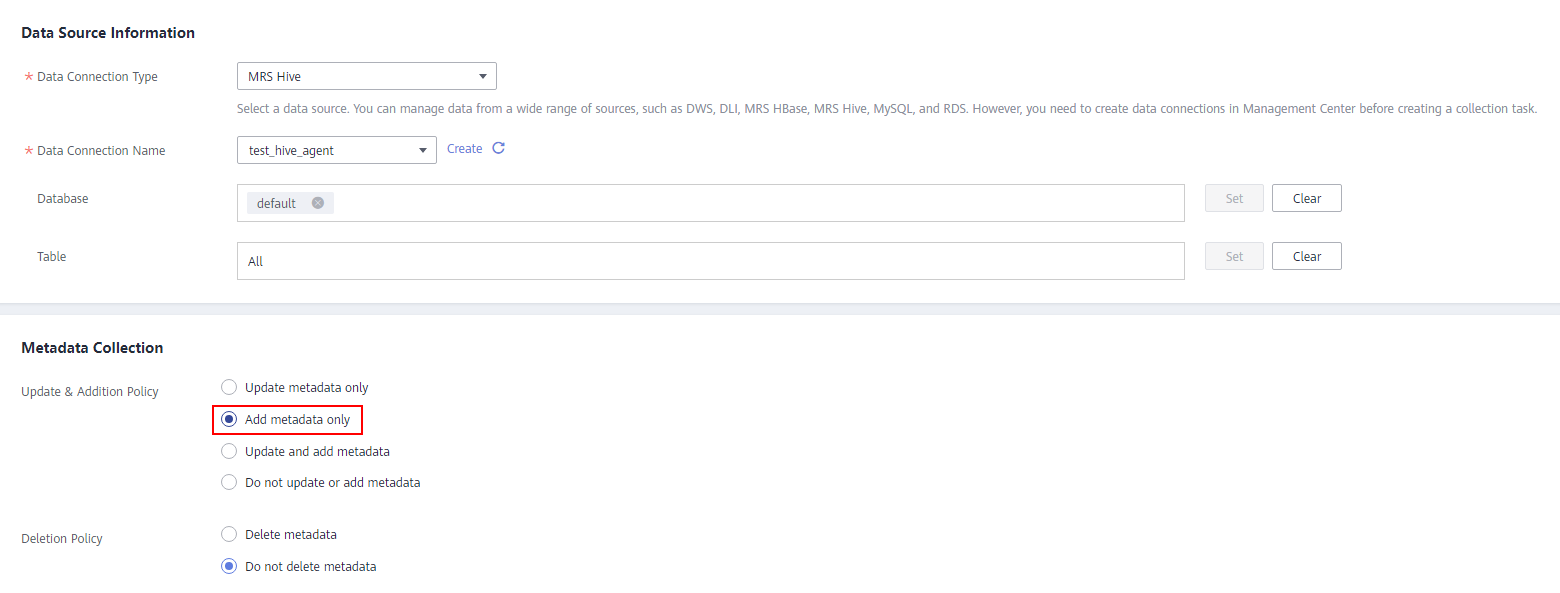
Create a collection task to collect new tables only.
- Data table metadata before collection: table1, table2, table3
- Data table metadata after collection: table1, table2, table3, table4
If you only want to collect table 4 in the preceding figure, perform the following steps (on condition that table 1, 2, and 3 are already in DataArts Catalog):
- Access the DataArts Catalog module on the DataArts Studio console.
- In the navigation pane on the left, choose Collection Tasks.
- Click Create.
- Configure parameters for the task. Figure 1 Configuring task information
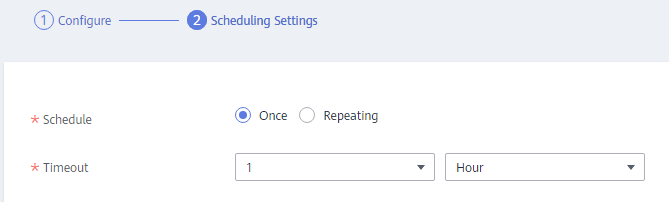
- Click Next and set scheduling parameters. Figure 2 Configuring scheduling parameters
- Click Submit to create a collection task.
- In the task list, locate the created task and click Run or Start Schedule in the Operation column to go to the Task Monitoring page and view the task status.
Scenario 2: Updating Existing Metadata and Adding New Metadata
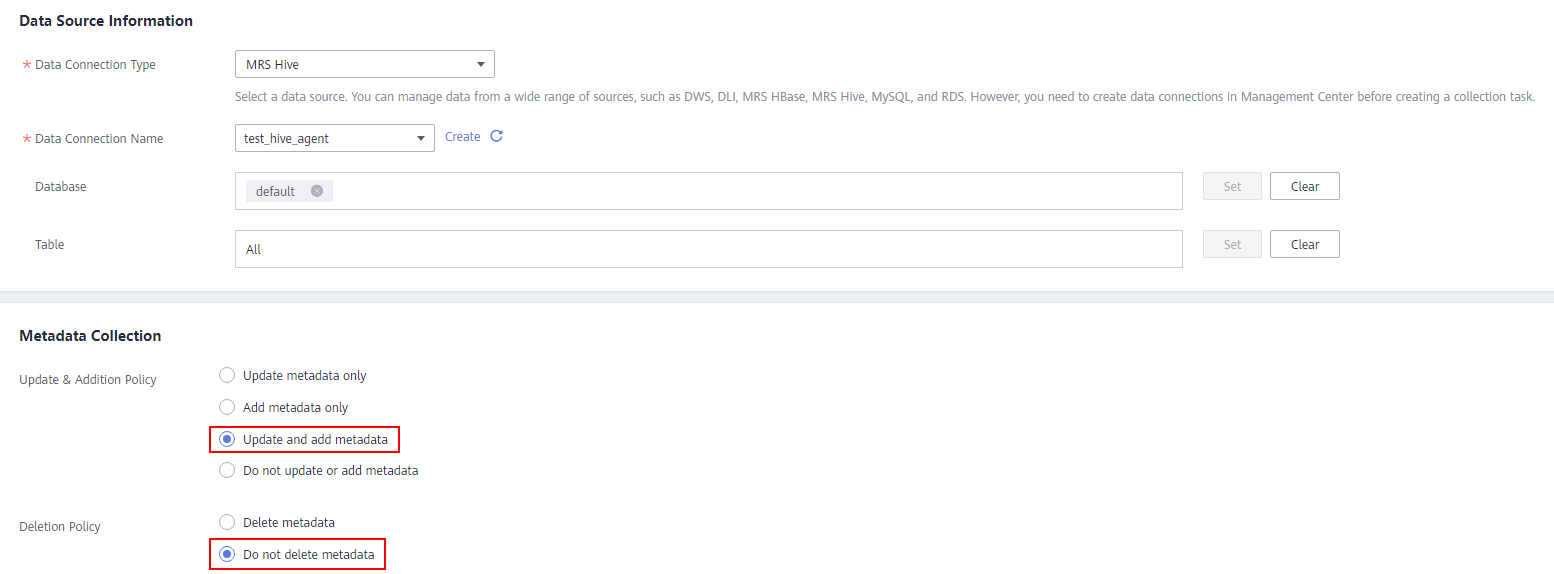
Create a collection task to collect all tables, including existing and new ones.
- Data table metadata before collection: table1, table2, table3
- Data table metadata after collection: table1, table2, table3, table4
If you want to collect all tables in the preceding figure, perform the following steps:
- Access the DataArts Catalog module on the DataArts Studio console.
- In the navigation pane on the left, choose Collection Tasks.
- Click Create.
- Configure parameters for the task. Figure 3 Configuring task information
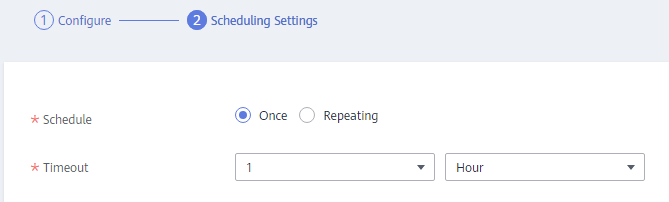
- Click Next and set scheduling parameters. Figure 4 Configuring scheduling parameters
- Click Submit to create a collection task.
- In the task list, locate the created task and click Run or Start Schedule in the Operation column to go to the Task Monitoring page and view the task status.
Scenario 3: Updating Existing Metadata Only
Create a collection task to collect existing tables.
- Data table metadata before collection: table1, table2, table3
- Data table metadata after collection: table1, table2, table3
If you want to collect table 1, 2, and 3 in the preceding figure, perform the following steps:
- Access the DataArts Catalog module on the DataArts Studio console.
- In the navigation pane on the left, choose Collection Tasks.
- Click Create.
- Configure parameters for the task. Figure 5 Configuring task information
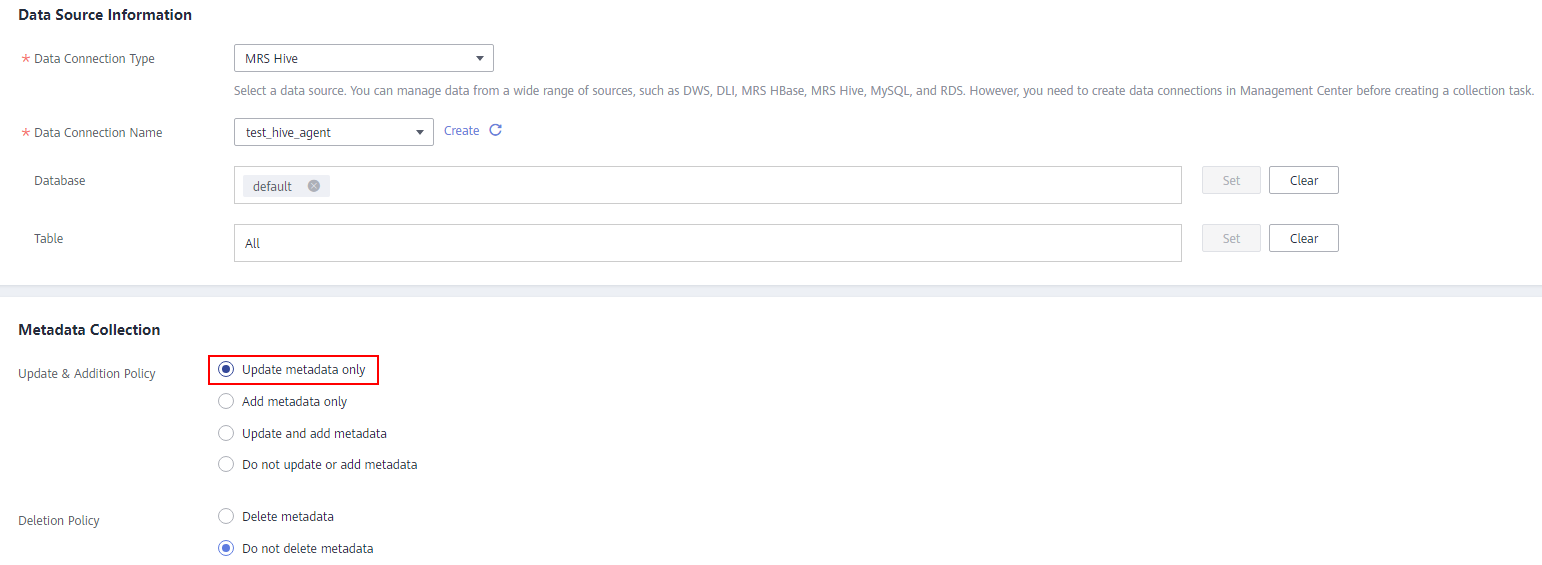
- Click Next and set scheduling parameters. Figure 6 Configuring scheduling parameters
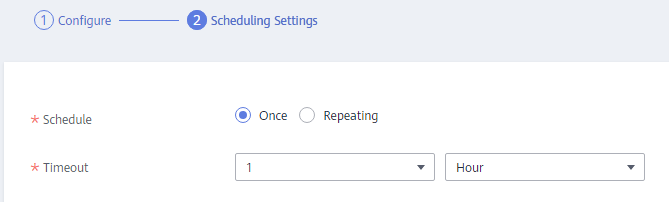
- Click Submit to create a collection task.
- In the task list, locate the created task and click Run or Start Schedule in the Operation column to go to the Task Monitoring page and view the task status.
Scenario 4: Updating and Deleting Existing Metadata and Adding New Metadata
Create a collection task to delete existing tables.
- Data table metadata before collection: table1, table2, table3
- Data table metadata after collection: table2, table3
If you want to delete table1, perform the following steps:
- Access the DataArts Catalog module on the DataArts Studio console.
- In the navigation pane on the left, choose Collection Tasks.
- Click Create.
- Configure parameters for the task. Figure 7 Configuring task information
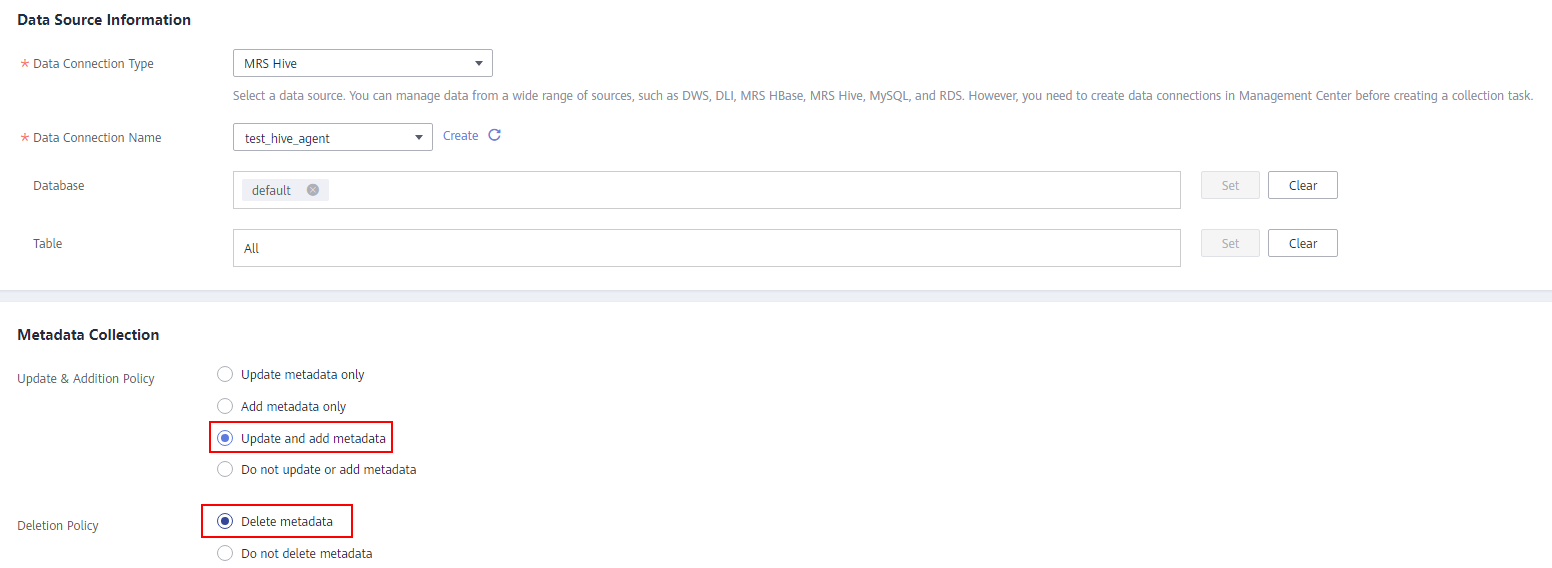
- Click Next and set scheduling parameters. Figure 8 Configuring scheduling parameters
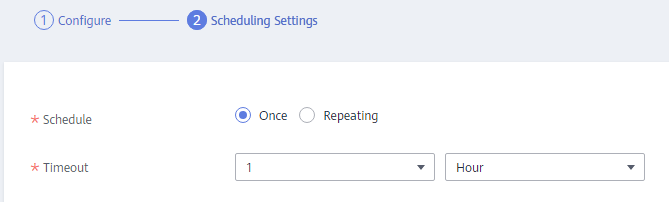
- Click Submit to create a collection task.
- In the task list, locate the created task and click Run or Start Schedule in the Operation column to go to the Task Monitoring page and view the task status.


