

Updated on 2025-03-24 GMT+08:00
Daily Reports
The Daily Reports page provides overall information about your instance status of the previous day, including slow SQL analysis, all SQL analysis, and performance & disk analysis. You can download and subscribe to analysis reports. A daily diagnosis is recommended.
Procedure
- Click
 in the upper left corner and select a region and project.
 - Click
 in the upper left corner, and under Databases, click Data Admin Service.
 - In the navigation pane, choose Intelligent O&M > Instance List.
- In the upper right corner of the Instance List page, search for instances by engine type, instance name, or instance IP.
- Locate the target instance and click Details.
- On the displayed page, choose Daily Reports.
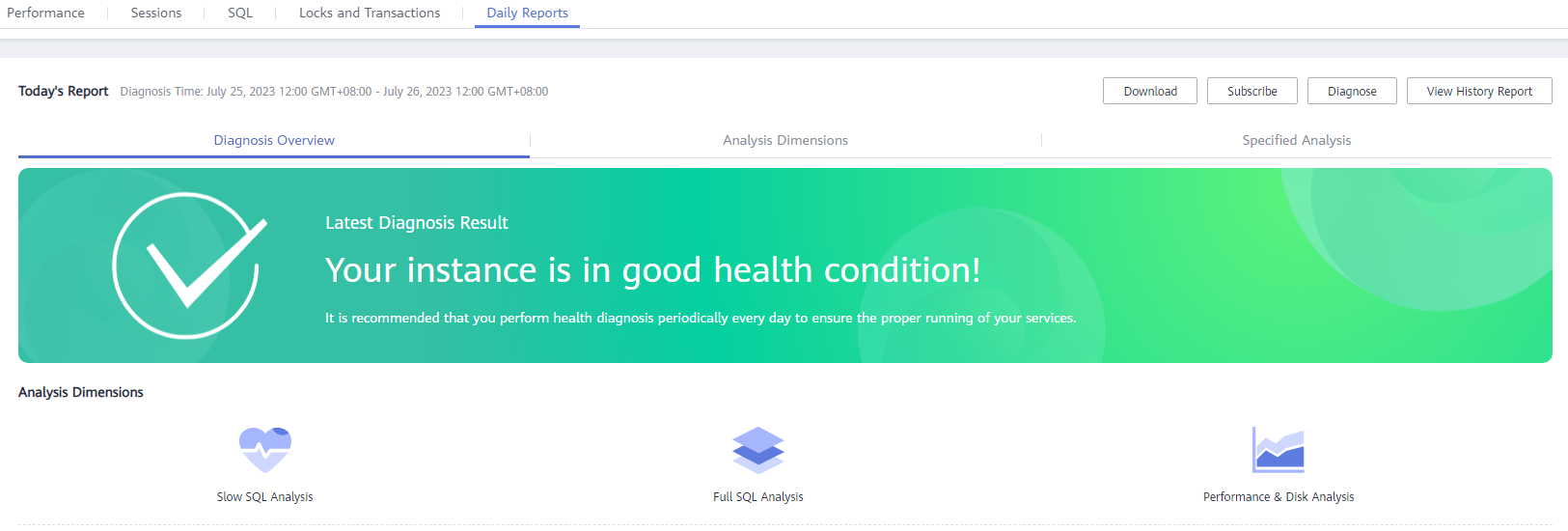
You can perform the following operations:
- Click Download to download a diagnosis report to your local PC.
- Click Subscribe and enter your email to have the diagnosis report emailed to you.
 Before subscribing to diagnosis reports, note that:
- The subscription function depends on the Simple Message Notification (SMN) service.
- After you subscribe to daily reports, diagnosis reports will be emailed to you after you manually diagnose your instance and the result is abnormal.
- Click Diagnose to diagnose the current instance.
- Click View History Report to view historical diagnosis reports.
- On the Diagnosis Overview page, view diagnosis results of the instance.
- On the Analysis Dimensions page, view diagnosis dimensions, including Slow SQL Analysis, Full SQL Analysis, and Performance & Disk Analysis.
- On the Specified Analysis page, view details in a report, including slow SQL analysis, full SQL analysis, and performance and disk analysis.
Parent topic: Intelligent O&M
What is your overall rating for this page?
0
1
2
3
4
5
6
7
8
9
10
Very dissatisfiedVery satisfied
Thank you very much for your feedback. We will continue working to improve the documentation.
The system is busy. Please try again later.


