Using OBS Browser+
Scenarios
You can use OBS Brower+ to download a manual or an automated backup to a local device for backup or restoration.
Precautions
- When you use OBS Browser+ to download backup data, you will not be billed for outbound traffic from OBS.
- If the size of a backup file is greater than 400 MB, use OBS Browser+ to download the backup file.
- Backups downloaded from the DDS console are all full backups.
Procedure
- Log in to the management console.
- Click
 in the upper left corner and select a region and a project.
 - Click
 in the upper left corner of the page and choose Databases > Document Database Service.
 - In the navigation pane on the left, choose Backups.
- On the Backups page, click the Clusters, Replica Sets, or Single Nodes tab, locate the available backup you want to download and click Download in the Operation column. Figure 1 Download Backup

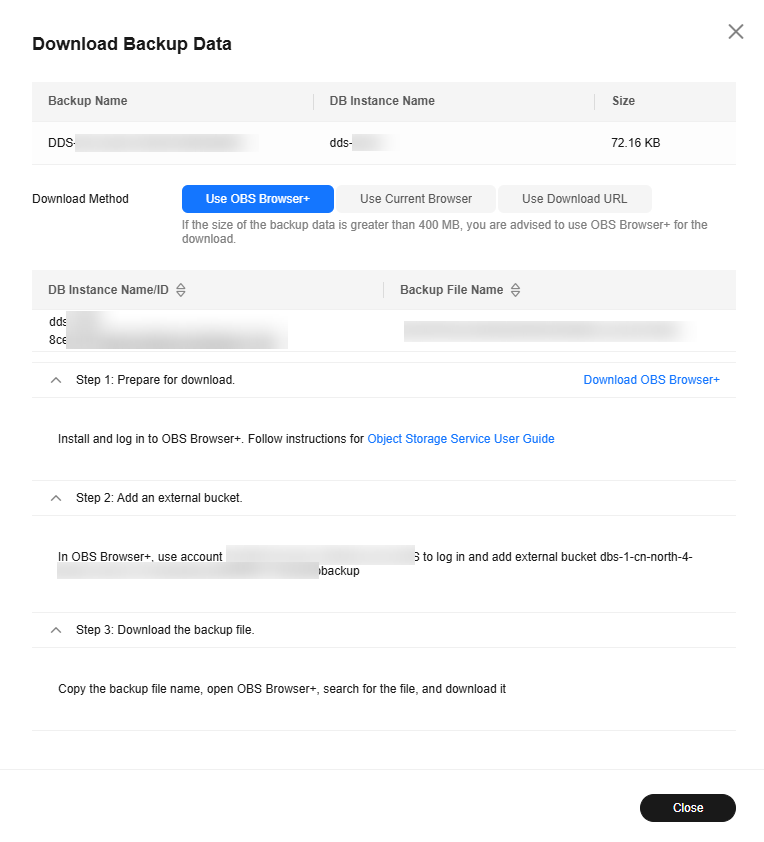
- In the displayed dialog box, select Use OBS Browser+ for Download Method and download the backup as prompted.
- Download OBS Browser+ by clicking Download OBS Browser+ in Step 1 on Figure 2.
- Decompress and install OBS Browser+.
- Log in to OBS Browser+.
For details about how to log in to OBS Browser+, see "Logging In to OBS Browser+" in the Object Storage Service Tools Guide.
- Add an external bucket.
In the Add External Bucket dialog box of OBS Browser+, enter the bucket name displayed in Step 2 on Figure 2, and click OK.
- Download the backup file.
On the OBS Browser+ page, click the external bucket that you added. In the search box on the right of OBS Browser+, enter the backup file name displayed in Step 3 on Figure 2. In the search result, locate the target backup and download it.
- After the backup file is downloaded, use the LZ4 to decompress the file.
Run the following command to decompress the backup file:
lz4 -d $1 | tar -xC $2
$1: indicates the downloaded backup file.
$2: indicates the directory to which the backup file is decompressed.
- You can restore data locally as required. For details, see the following documentation.