

Help Center/ Migration Center/ Best Practices/ Configuring Permissions Required for Server Migration
Updated on 2025-04-21 GMT+08:00
Configuring Permissions Required for Server Migration
Overview
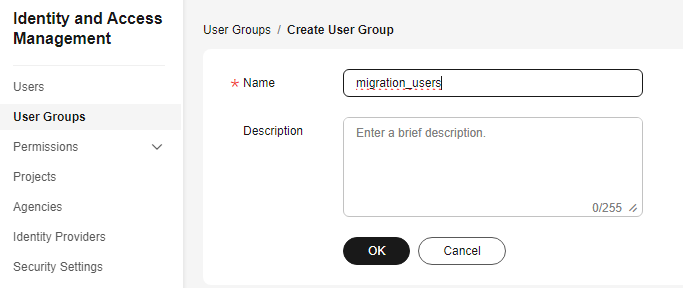
- Create a user group named migration_users and assign the permissions required to use MgC and SMS to the user group. The IAM user to be created will inherit the permissions from the user group.
- For a user in the local admin group, create an IAM user who is named mgc-user, belongs to the migration_users user group, and has only programmatic access to Huawei Cloud. The IAM user is not allowed to access the Huawei Cloud console using a password.
- Provide the MgC Agent with the AK/SK pair generated when mgc-user is created. The AK/SK pair is used to register the MgC Agent with MgC and authenticate API calling during the migration.
Step 1: Create a User Group
- Log in to the IAM console.
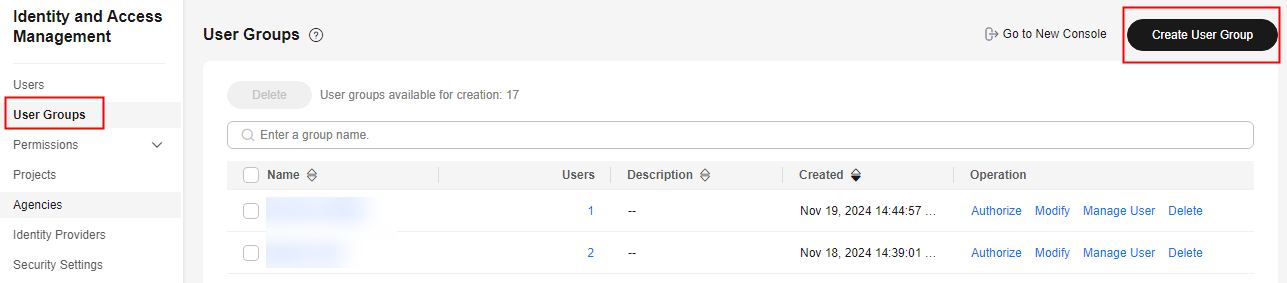
- On the IAM console, choose User Groups from the left navigation pane, and click Create User Group in the upper right corner. Figure 1 Creating a user group
Step 2: Create a Permissions Policy
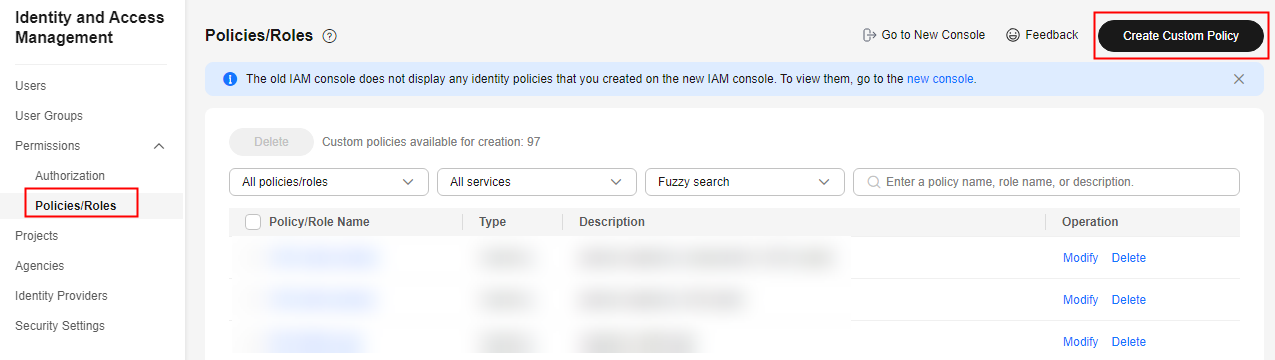
- On the IAM console, in the navigation pane, choose Permissions > Policies/Roles and click Create Custom Policy in the upper right corner. Figure 2 Creating a custom policy
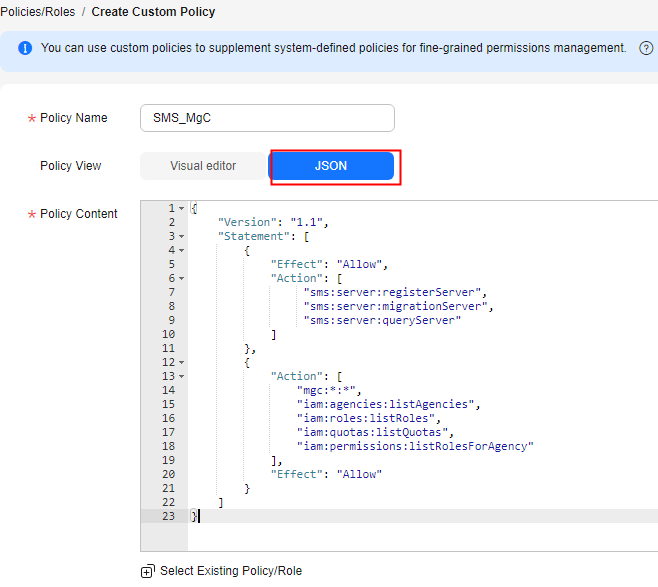
- Create a policy for using SMS, a global cloud service. Enter a policy name, set Policy View to JSON, and copy the following content to the Policy Content box.
{
    "Version": "1.1",
    "Statement": [
        {
            "Effect": "Allow",
            "Action": [
                 "sms:server:registerServer",
                 "sms:server:migrationServer",
                 "sms:server:queryServer"
            ]
        },
        {
            "Action": [
                "mgc:*:*",
                "iam:agencies:listAgencies",
                "iam:roles:listRoles",
                "iam:quotas:listQuotas",
                "iam:permissions:listRolesForAgency"
            ],
            "Effect": "Allow"
        }
    ]
}
Figure 3 Creating a policy that defines the permissions required for using SMS
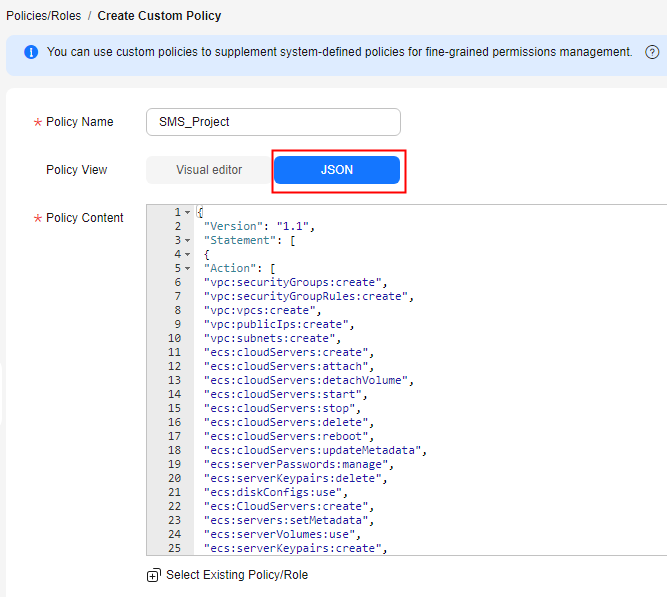
- Create a policy for using regional cloud services that SMS depends on. Enter a policy name, set Policy View to JSON, and copy the following content to the Policy Content box.
{
 "Version": "1.1",
 "Statement": [
 {
 "Action": [
 "vpc:securityGroups:create",
 "vpc:securityGroupRules:create",
 "vpc:vpcs:create",
 "vpc:publicips:create",
 "vpc:subnets:create",
 "ecs:cloudServers:create",
 "ecs:cloudServers:attach",
 "ecs:cloudServers:detachVolume",
 "ecs:cloudServers:start",
 "ecs:cloudServers:stop",
 "ecs:cloudServers:delete",
 "ecs:cloudServers:reboot",
 "ecs:cloudServers:updateMetadata",
 "ecs:serverPasswords:manage",
 "ecs:serverKeypairs:delete",
 "ecs:diskConfigs:use",
 "ecs:CloudServers:create",
 "ecs:servers:setMetadata",
 "ecs:serverVolumes:use",
 "ecs:serverKeypairs:create",
 "ecs:serverInterfaces:use",
 "ecs:serverGroups:manage",
 "ecs:securityGroups:use",
 "ecs:servers:unlock",
 "ecs:servers:rebuild",
 "ecs:servers:lock",
 "ecs:servers:reboot",
 "evs:volumes:use",
 "evs:volumes:create",
 "evs:volumes:update",
 "evs:volumes:delete",
 "evs:volumes:attach",
 "evs:volumes:detach",
 "evs:snapshots:create",
 "evs:snapshots:delete",
 "evs:snapshots:rollback",
 "ecs:*:get*",
 "ecs:*:list*",
 "evs:*:get*",
 "evs:*:list*",
 "vpc:*:list*",
 "vpc:*:get*",
 "ims:*:get*",
 "ims:*:list*"
 ],
 "Effect": "Allow"
 }
 ]
 }
Figure 4 Creating a policy for using the regional cloud services that SMS depends on
Step 3: Assign Permissions
- On the IAM console, choose User Groups from the navigation pane.
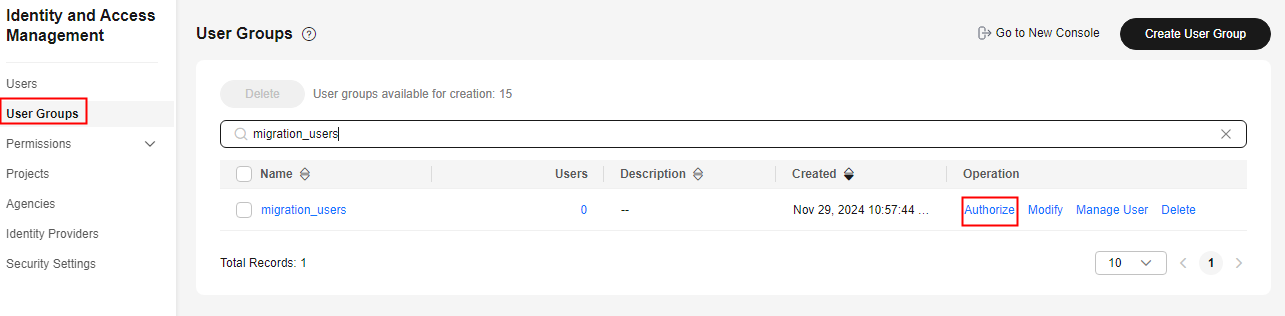
- In the user group list, locate the user group created in step 1 and click Authorize in the Operation column. Figure 5 Assigning permissions to the user group
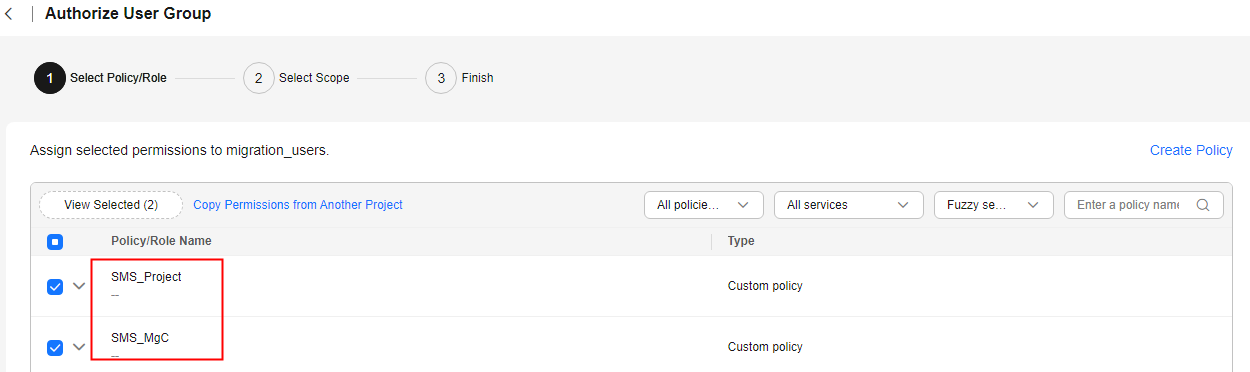
- Search for and select the two custom policies created in step 2 and click Next. Figure 6 Selecting the created custom policies
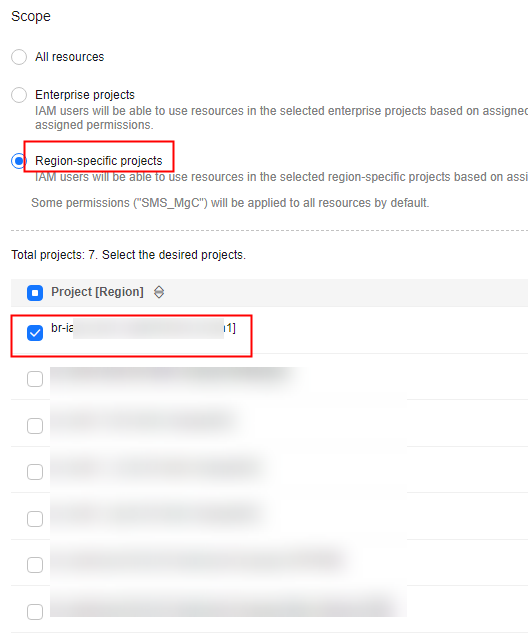
- Select Region-specific projects for Scope and select a region-specific project. Then the IAM users in the group can use resources in the region-specific project based on their permissions. Figure 7 Selecting a region-specific project
- Click OK.
Step 4: Create a User
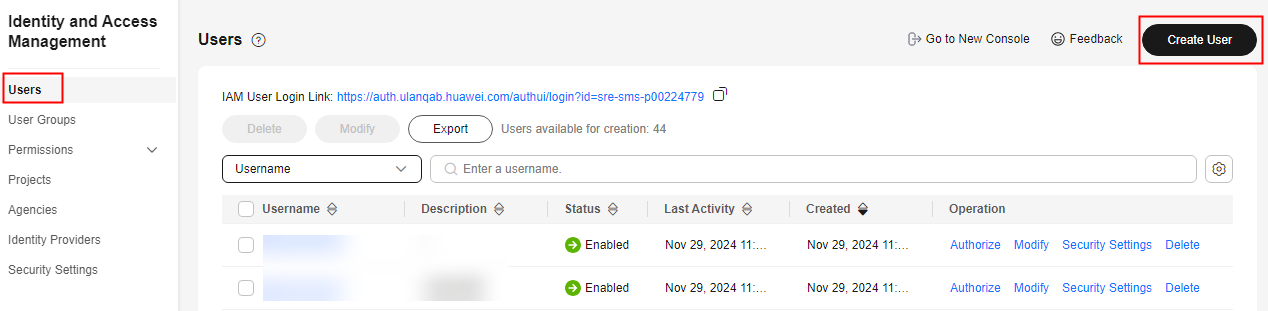
- On the IAM console, choose Users from the left navigation pane, and click Create User in the upper right corner. Figure 8 Creating a user
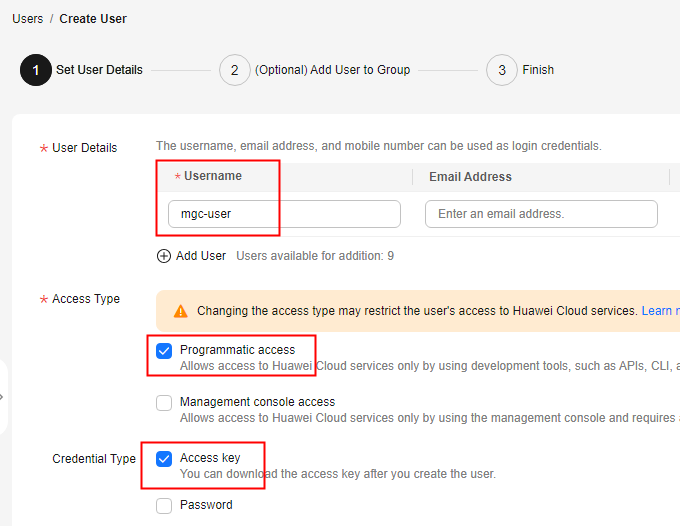
- Enter a username, deselect Management console access, and click Next. Figure 9 Configuring basic information
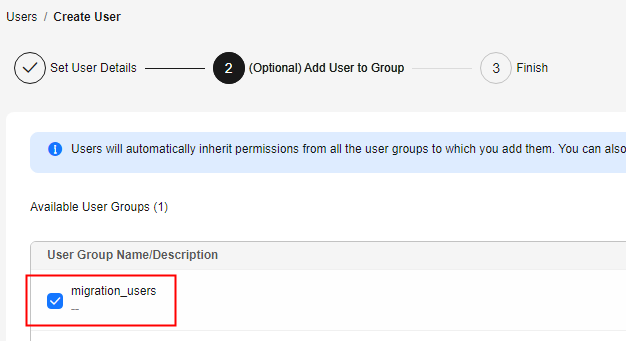
- Select the user group created in step 1 and click Create. Figure 10 Selecting a user group
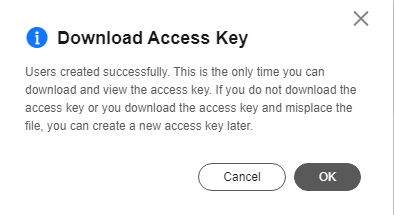
- After the user is created, the Download Access Key dialog box is displayed. Click OK to download an AK/SK pair for the IAM user. Figure 11 Downloading an access key
What is your overall rating for this page?
0
1
2
3
4
5
6
7
8
9
10
Very dissatisfiedVery satisfied
Thank you very much for your feedback. We will continue working to improve the documentation.
The system is busy. Please try again later.


